



This tutorial shows you how to install an SSL certificate on a Linux server with AutoInstall SSL, the agent included with SSL Dragon’s RapidSSL and GeoTrust automation plans. You run two commands on your server: one installs the agent, the other requests, validates and installs the certificate on Apache or NGINX. After that, the agent renews and reinstalls the certificate on its own.
Setup usually takes under 15 minutes, most of it waiting for the Certificate Authority to validate your domain.
Before you start
Check these points first. Most failed installations trace back to one of them.
- An active AutoInstall plan. Any of the four AutoInstall SSL plans works: RapidSSL Standard, RapidSSL Wildcard, GeoTrust QuickSSL Premium or GeoTrust QuickSSL Premium Wildcard.
- Root or sudo access over SSH. The agent installs to /opt/autoinstallssl and writes to /etc/cron.d, so it needs root. Shared hosting and panels such as cPanel or Plesk, where you have no root access, are not supported.
- A supported distribution and web server. Ubuntu, Debian, CentOS Stream, Rocky Linux or AlmaLinux, running Apache or NGINX.
- The website already configured for your domain. The agent does not create a website from scratch. It looks for an existing Apache VirtualHost or NGINX server block whose ServerName or server_name matches your domain, then adds HTTPS to it. If you want the certificate to cover www as well, that name must be configured too (as a ServerAlias in Apache, or in server_name in NGINX).
- DNS pointing at this server and port 80 open. The default file validation places a file under http://yourdomain.com/.well-known/pki-validation/ and the Certificate Authority fetches it from the internet. Open ports 80 and 443 in your firewall:
sudo ufw allow 'Apache Full'orsudo ufw allow 'Nginx Full'on Ubuntu, orsudo firewall-cmd --permanent --add-service=http --add-service=httpsfollowed bysudo firewall-cmd --reloadon the RHEL family. If your host also has a cloud firewall or security group, open both ports there too. - wget and cron. The installer downloads the agent with wget, and renewals run from cron. Both are present on most servers. On a minimal image, install them with
sudo apt install wget cron(Debian, Ubuntu) orsudo dnf install wget croniefollowed bysudo systemctl enable --now crond(RHEL family). - For Apache, mod_ssl. The agent checks for it before installing. Enable it with
sudo a2enmod sslon Debian and Ubuntu, or install it withsudo dnf install mod_sslon the RHEL family.
Wildcard plans cannot use file validation. They need DNS validation through your DNS provider’s API, covered in Wildcard certificates and DNS validation below.
Install an SSL certificate on Linux with AutoInstall SSL
Step 1: Create the AutoInstall subscription in your account
- 1. Log in to your SSL Dragon account and open the AutoInstall product from Services.
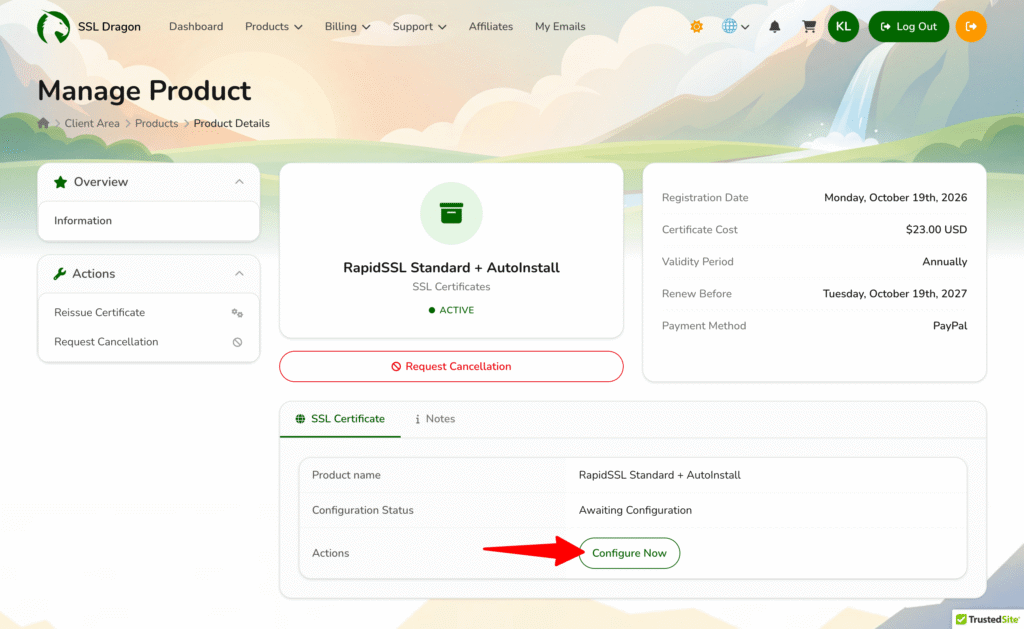
- 2. On the SSL Certificate tab, Configuration Status reads Awaiting Configuration. Click Configure Now to open the AutoInstall SSL Configuration form.

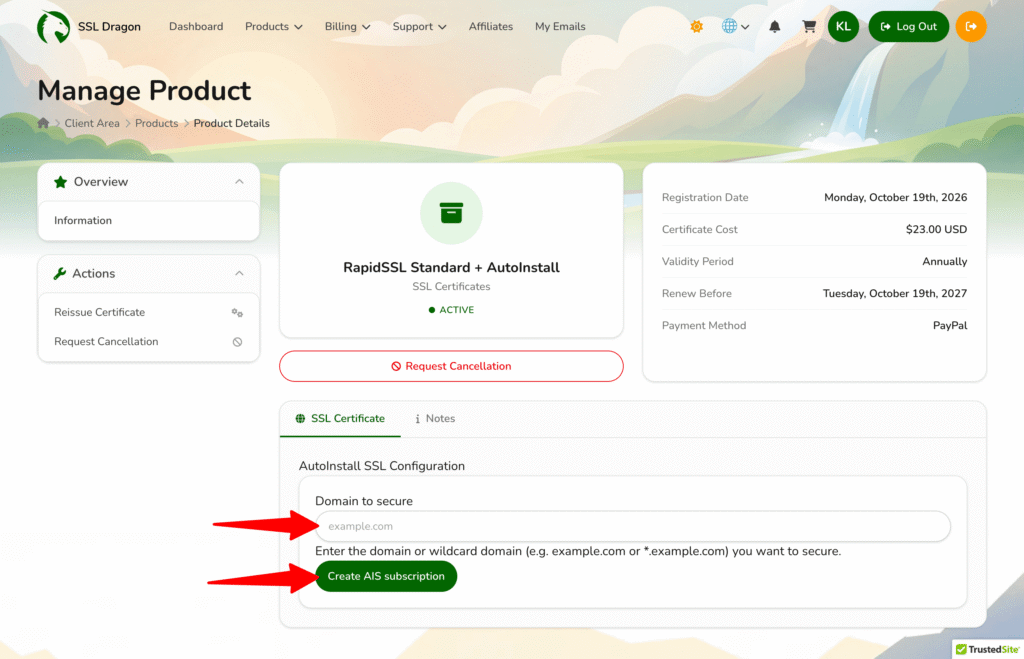
- In Domain to secure, enter your domain without www (for example, example.com). For a wildcard plan, enter *.example.com.
- Click Create AIS subscription.

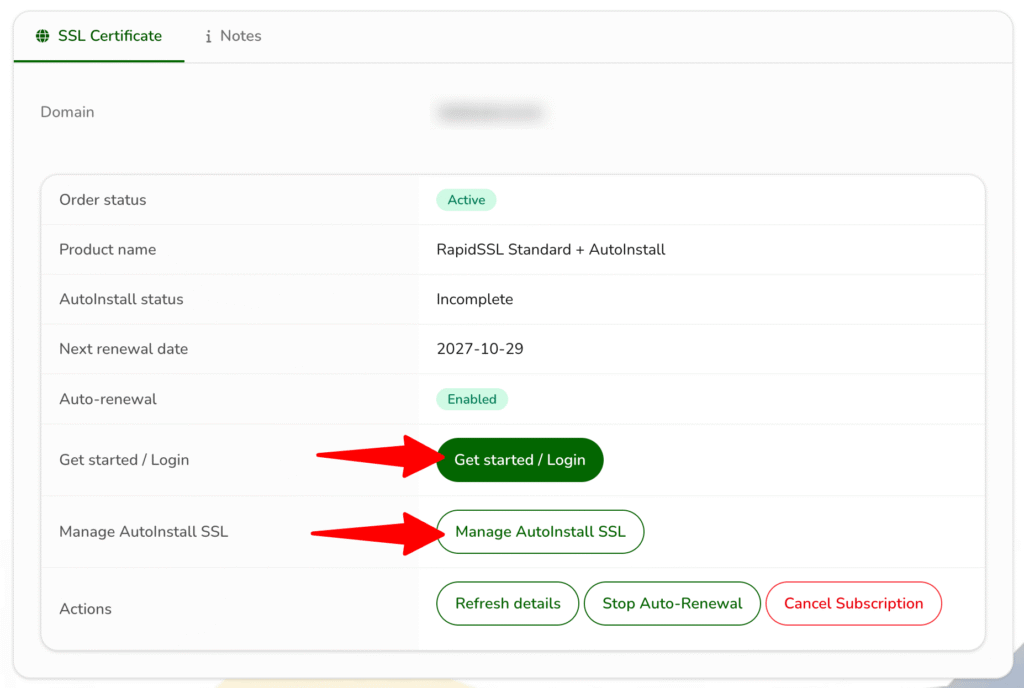
The SSL Certificate tab now shows the order details, with AutoInstall status showing Incomplete until the certificate is installed (it changes to Issued afterwards), and two buttons:
- Get started / Login opens the installation instructions on autoinstallssl.app, with your personal commands.
- Manage AutoInstall SSL opens the management page, where you track the certificate afterwards.
Keep your token private. The install command contains a token tied to your order. Anyone who has it can install your certificate on their own server.
Step 2: Choose your server and validation options
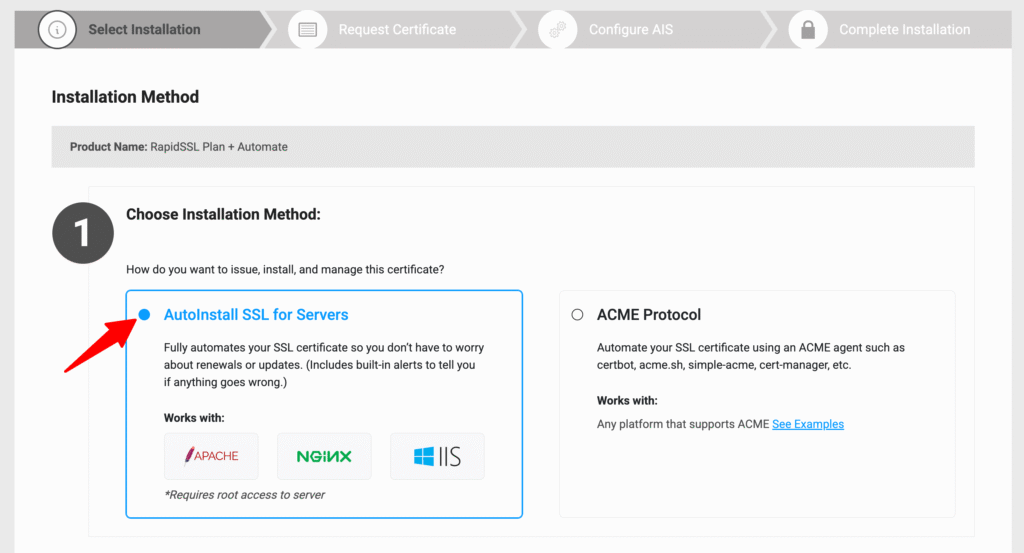
Click Get started / Login. If the page first asks you to Choose Installation Method, select AutoInstall SSL for Servers and click Continue. (The other option, ACME Protocol, is for ACME clients such as Certbot and is not covered here.)
Under Complete Installation, make three choices. The page saves them with your order:
- Server type: select Apache or NGINX.
- Validation method: keep File validation (recommended) unless you have a wildcard plan or the server is not reachable from the internet on port 80.
- Certificate options: choose whether to cover both www.example.com and example.com, only the bare domain, or only the www version.
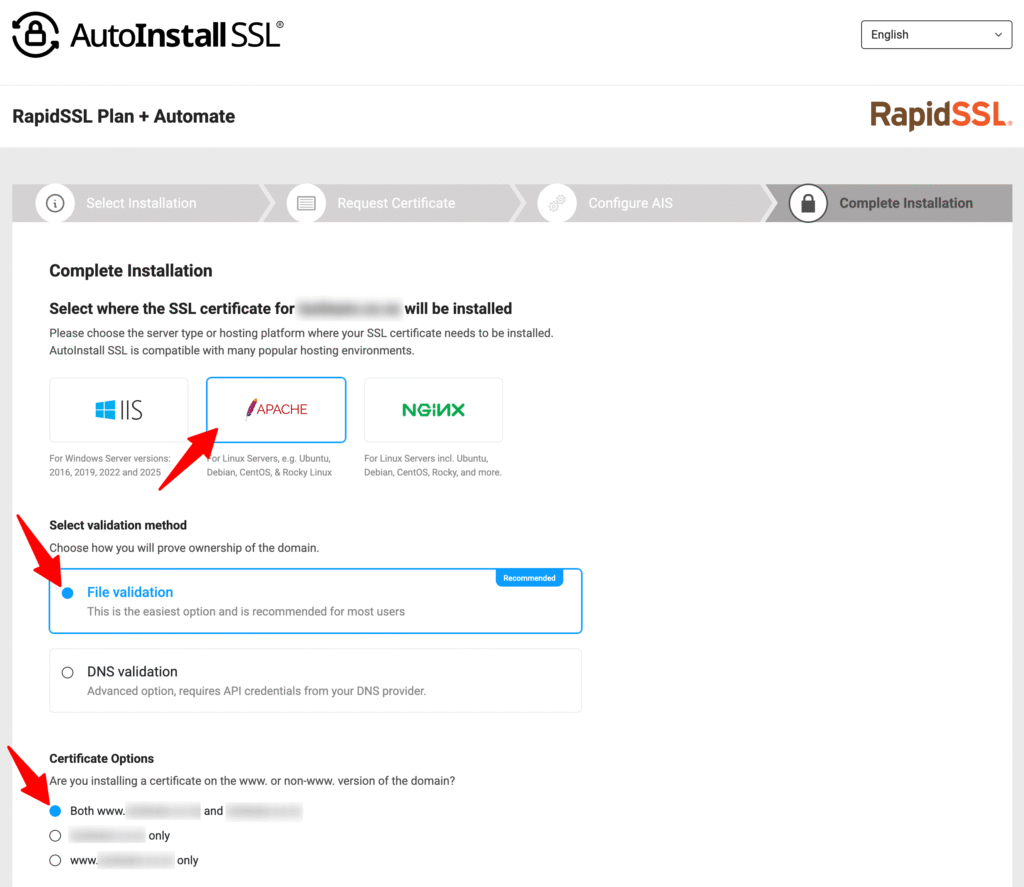
The page updates the commands below to match your choices. The www option becomes a flag in the install command: --includewww for both names, --onlywww for the www version only, and no flag for the bare domain.
Step 3: Install the agent
Connect to your web server over SSH, as root or as a user with sudo rights. Run the agent command from the instructions page. It is the same for every Linux order:
sudo wget -qO - https://files.autoinstallssl.com/packages/linux/version/latest/get.autoinstallssl.sh | sudo bash -sRun it on the web server itself, not on your own computer. The installer takes about a minute and does the following:
- Downloads the agent and extracts it to /opt/autoinstallssl/aisagent.
- Links /usr/bin/runautoinstallssl.sh to it, so you can run the agent from any directory.
- Adds a daily cron job, /etc/cron.d/aisagent_autoupdate, that keeps the agent itself up to date.
The last lines of the output should read Installation complete. and Start using runautoinstallssl.sh. If you see a warning that the cron service could not be found, install and start cron before continuing, or renewals will not run.
Step 4: Run the certificate install command
Copy the second command from the instructions page. It already contains your token. For file validation covering both www and the bare domain, it looks like this:
sudo runautoinstallssl.sh installcertificate --token YOUR_TOKEN --includewww --validationtype file --validationprovider filesystemThe agent then works through these stages:
- Scans the server. It checks for root privileges and prerequisites, detects Apache or NGINX, and finds the website configured for your domain.
- Asks you to confirm. It prints the settings it identified (website, domain, validation method) and asks Do you want to continue with the installation process? Check the details and type y.
- Validates the domain. It creates the private key and CSR on your server, places the validation file and runs its own pre-check. You should see Passed preliminary validation check, waiting for the certificate authority to complete comprehensive validation checks (typically takes 1-10 minutes).
- Installs the certificate. It downloads the issued certificate, adds an HTTPS (port 443) VirtualHost or server block based on your existing site configuration, then tests the configuration with
apachectl configtestornginx -t. It reloads the web server only if the test passes, so your site keeps running on the old configuration if something is wrong. In that case the agent reports the error; fix it before you next restart the web server, because the new file stays enabled. - Schedules renewals. It adds /etc/cron.d/aisagent, which checks the certificate twice a day.
The run ends with a line that starts Success! Certificate and ends has been successfully installed. Your private key never leaves the server.
Step 5: Check the installation
Confirm the result in three places:
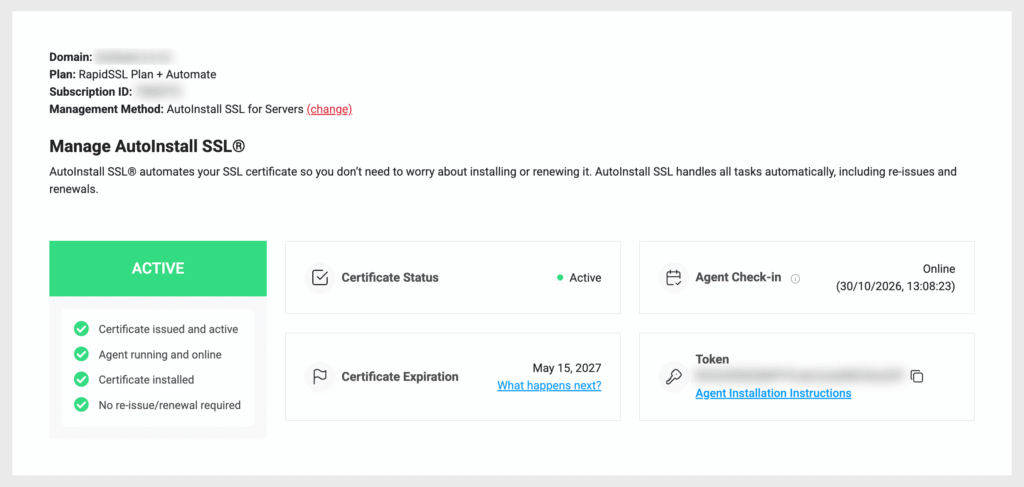
The management page. Status should read ACTIVE, with Certificate issued and active, Agent running and online, Certificate installed and No re-issue/renewal required. Agent Check-in shows Online with the time of the last contact.
The server. List the certificates the agent manages:
sudo runautoinstallssl.sh viewcertificates- From outside. Run your domain through our SSL Checker to confirm the certificate, the chain and the expiry date that visitors see.
The agent adds HTTPS but does not remove plain HTTP. To send every visitor to HTTPS, add a redirect on your port 80 site. See how to redirect HTTP to HTTPS.
How automatic renewal works
The cron job in /etc/cron.d/aisagent runs the agent twice a day: once at a time picked at random between 1:00 and 5:59 (server time) when the job is created, and again twelve hours later. Each run checks the certificate. When it is 28 days from expiry, the agent requests a new one, validates the domain again and installs it, with the same configuration test before reloading.
This matters more each year. Public SSL certificates are limited to 200 days since March 2026, 100 days from March 2027 and 47 days from March 2029. AutoInstall SSL handles every replacement within your subscription, so the shorter lifetimes add no work.
Two things stop renewals: an expired or cancelled subscription, and a missing cron service. Keep Auto-renewal showing Enabled on the product’s SSL Certificate tab in your SSL Dragon account, and leave the two files in /etc/cron.d in place.
To change the renewal window, run the agent without arguments to open its menu, pick Settings & Credentials (option 4), then Manage configuration. Renewal Days accepts 1 to 28. Keep it at 28, the recommended value, which suits almost everyone because it leaves the most time to fix a problem before the certificate expires.
sudo runautoinstallssl.shWildcard certificates and DNS validation
Wildcard plans require DNS validation. If you try file validation, the agent stops with Wildcard orders do not support file validation. The www options do not apply either, since *.example.com already covers www. During a wildcard install, the agent also asks whether to install the certificate automatically on subdomains you add to the web server later.
With DNS validation, the agent creates the validation record through your DNS provider’s API, so it needs API credentials. Supported providers include Cloudflare, GoDaddy, AWS Route 53, Azure DNS, Google Cloud DNS, DigitalOcean, DNS Made Easy, Name.com, Namecheap, OVH and any DNS server that accepts RFC 2136 updates (such as BIND).
Select DNS validation on the instructions page and copy the command it generates. For Cloudflare, it follows this pattern:
sudo runautoinstallssl.sh installcertificate --token YOUR_TOKEN --validationtype dns --validationprovider cloudflare --cloudflareapitoken YOUR_CLOUDFLARE_API_TOKENFor Cloudflare, create an API Token, not the Global API Key. Start from the Edit zone DNS template, set Zone Resources to All zones, and under Permissions add User > User Details > Read. The agent checks the token against your Cloudflare user and lists your zones to find the right one, so a token scoped to a single zone or missing a permission fails with an error such as No zones could be found using the Cloudflare API.
The agent stores the credentials encrypted on the server and reuses them at every renewal. If you rotate the key at your DNS provider, update it on the server too: run sudo runautoinstallssl.sh, choose Settings & Credentials, then Manage DNS provider credentials.
Troubleshooting
runautoinstallssl.sh: command not found
Either the agent is not installed, or its shortcut /usr/bin/runautoinstallssl.sh is missing. Re-run the Step 3 command, or call the agent by its full path:
sudo /opt/autoinstallssl/aisagent/runautoinstallssl.sh viewcertificatesPermission denied during the agent install
Errors such as mkdir: cannot create directory ‘/opt/autoinstallssl’: Permission denied mean the installer ran without root. Keep both sudo keywords in the command, and make sure your user is allowed to use sudo. The same goes for chmod: changing permissions of ‘shellscript/’: Operation not permitted, which appears when you run the agent itself without sudo.
gzip: stdin: unexpected end of file
This error, usually followed by tar: Unexpected EOF in archive, means an earlier install was interrupted and left a partial download behind. Delete it, then run the Step 3 command again:
sudo rm -f /opt/autoinstallssl/aisagent.tar.gz*Main domain binding not found
The agent could not find a website configured for your domain. Add a VirtualHost (Apache) or server block (NGINX) on port 80 with your domain as ServerName or server_name, reload the web server and run the install command again. The related message WWW binding not found means you asked for www coverage but www is not configured: add it as an alias, or drop --includewww.
Preliminary validation failed
The agent placed the validation file but could not read it back over the internet. Typical causes: the domain’s DNS points to another server, a firewall blocks port 80, or a proxy or CDN in front of the server answers instead. While the install command is waiting, it prints the exact URL after Validation value should now be browsable at. Open that URL from another machine or test it with curl:
curl -i http://example.com/.well-known/pki-validation/FILENAME.txtA 200 response showing the same value the agent printed means the file is reachable. Anything else points to the cause. If you cannot open port 80 at all, switch to DNS validation.
Inactive agent or Agent Check-in shows offline
The agent has stopped reporting in, so renewals are not running. Check that the server is up, that the cron service is running (systemctl status cron on Debian and Ubuntu, systemctl status crond on the RHEL family), and that /etc/cron.d/aisagent still exists. If the site moved to a new server, install the agent there and run the install command again.
Collect logs for support
The diagnostic subcommand asks which dates you need and packs the agent’s event and error logs into a zip file, then prints where it saved it. Send that file to our support team with your order number.
sudo runautoinstallssl.sh diagnosticFrequently Asked Questions
No. The agent generates the private key and the CSR on your server during installation and at every renewal. You never handle certificate files by hand.
The agent lives in /opt/autoinstallssl/aisagent, with a shortcut at /usr/bin/runautoinstallssl.sh. Its two cron jobs are /etc/cron.d/aisagent (certificate checks and renewals) and /etc/cron.d/aisagent_autoupdate (agent updates).
Not with the agent. It edits the Apache or NGINX configuration directly and needs root access, which shared hosting does not give you, and control panels such as cPanel and Plesk manage that configuration themselves. Every AutoInstall plan also supports ACME instead: on the management page, click (change) next to Management Method, choose ACME Protocol and follow the instructions for your platform, which include acme.sh for cPanel. See also our ACME tutorials.
Yes. Install the agent once, then run the install command from each order’s instructions page. Each command carries that order’s token. Skip Step 3 for the second and later certificates.
Install the agent on the new server and run the install command from the instructions page there. Running installcertificate again issues and installs a fresh certificate on that server and sets up its renewal job. Then remove the agent from the old server, so only one machine keeps renewing the certificate.
The agent ships with an uninstall script. It removes the agent, its logs and both cron jobs, but it does not edit your web server configuration, and nothing renews the certificate afterwards.
Before you run it, check which files your HTTPS configuration points to (SSLCertificateFile in Apache, ssl_certificate in NGINX). If they sit under /opt/autoinstallssl, copy them elsewhere and update the configuration first, or the web server will fail to start after the folder is deleted.sudo bash /opt/autoinstallssl/aisagent/InstallationScript/remove.autoinstallssl.sh
Running Windows Server with IIS instead? Follow our guide on installing an SSL certificate on IIS with AutoInstall SSL.
Risparmia il 10% sui certificati SSL ordinando oggi stesso da SSL Dragon!
Emissione rapida, crittografia avanzata, affidabilità del browser al 99,99%, assistenza dedicata e garanzia di rimborso entro 25 giorni. Codice coupon: SAVE10

