



Signing a Windows executable attaches a cryptographic proof of two things: who published the file, and that nobody has altered a single byte of it since. Windows checks that proof every time the file is downloaded, installed or run, and an unsigned installer gets a noticeably rougher reception than a signed one.
The signing itself takes one command. Almost everything that goes wrong happens before that command: the private key has to live on approved hardware, the certificate has to be reachable from the machine running the command, and the signature has to carry a timestamp. This guide covers the whole path, including the two routes that did not exist when most signing tutorials were written: cloud signing services, and Microsoft’s own Azure Artifact Signing.
What Signing an EXE Actually Does
An Authenticode signature embeds a signed hash of the executable inside the file itself, in a dedicated certificate table that is excluded from the hash calculation. When Windows validates the file it recomputes the hash, compares it with the signed value, and builds a chain from your certificate up to a root in the Microsoft Trusted Root Program. Two independent facts come out of that check:
- Integrity. If anything in the executable changed after signing, the recomputed hash no longer matches and the signature is reported as invalid. Editing a signed binary, patching a version string or appending an installer payload all break it.
- Publisher identity. The certificate carries a legal entity name that a Certificate Authority verified before issuing it. That name is what Windows shows in the User Account Control prompt instead of the yellow “Unknown publisher” banner.
What a signature does not do is vouch for the behavior of your software. It is an accountability mechanism, not a malware scan, which is why signed files still go through reputation checks.
What You Need Before You Can Sign
A code signing certificate from a Certificate Authority
You need a code signing certificate issued by a publicly trusted Certificate Authority such as DigiCert or Sectigo. The CA validates your organization (or your identity, for an individual certificate) before issuing, which is the part that takes days rather than minutes. Plan for the validation, not for the signing.
Certificate lifetimes changed recently and it affects how you plan renewals. Under CA/Browser Forum ballot CSC-31, adopted as version 3.10.0 of the Code Signing Baseline Requirements, the maximum validity for a publicly trusted code signing certificate dropped from 39 months to 460 days. DigiCert stopped accepting requests longer than 459 days on February 24, 2026 and removed its 2-year and 3-year options. Multi-year purchase plans still exist at some CAs, but the certificate inside them is reissued on the shorter cycle rather than lasting three years. Anything you read that still promises a three-year code signing certificate predates this change.
Where the private key has to live
Since June 1, 2023, the CA/Browser Forum requires the private key for every publicly trusted code signing certificate to be generated and stored in a hardware crypto module meeting FIPS 140-2 Level 2 or Common Criteria EAL 4+ (or higher). The key is generated inside the device and cannot be exported. This applies to Organization Validation and Extended Validation certificates alike, so the old distinction where only EV came on hardware is gone.
Hardware storage does not mean a shipped USB token is mandatory. There are three ways to satisfy the requirement, and the choice is made when you order, not afterwards:
- A token shipped by the CA. Usually a SafeNet eToken (now a Thales product). It arrives by courier, which adds days, and it has to be physically plugged into whichever machine does the signing. That last point rules it out for most build servers.
- Your own hardware. A YubiKey, a Luna HSM, a cloud KMS backed by certified HSMs, or another module your CA supports. You generate the key on the device and send the CA the resulting CSR. See our guide to installing a code signing certificate on a YubiKey.
- A cloud signing service. DigiCert KeyLocker and equivalent services from other CAs hold the key in a certified cloud HSM. No token is shipped, the certificate is usable as soon as it is issued, and any machine with credentials can sign. Availability varies by CA and by validation level: DigiCert documents KeyLocker for Organization Validation and Extended Validation keys alike, other CAs publish no cloud option at all, and with some sellers cloud signing is a separate product rather than a delivery choice on a standard order. Confirm it is offered before you order.
Our tutorial on code signing certificate delivery methods covers the trade-offs in more detail. Pick the delivery method before you order, because switching afterwards normally means a reissue.
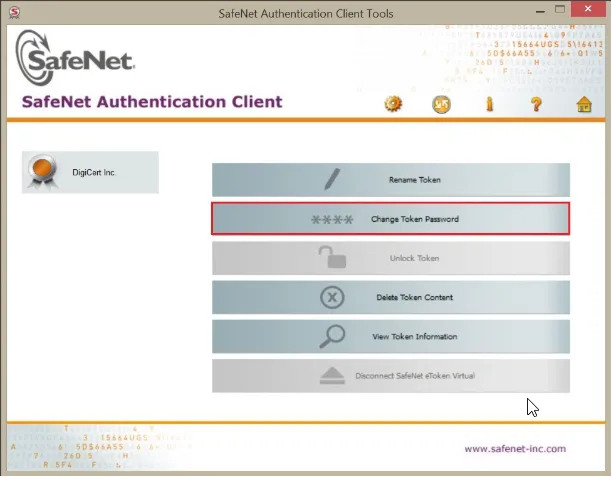
If your certificate did arrive on a SafeNet token, install the SafeNet Authentication Client before you try to sign. That software registers the token’s cryptographic provider with Windows and surfaces the certificate in your personal certificate store, which is where SignTool looks for it.
The token-free alternative: Azure Artifact Signing
Microsoft runs its own signing service, Azure Artifact Signing, which was called Trusted Signing until it was renamed. In its code signing options guidance for Windows developers, Microsoft calls it the recommended option for apps distributed outside the Microsoft Store. It costs roughly $9.99 per month, requires no hardware token, and plugs into GitHub Actions and Azure DevOps directly.
Two limits decide whether it is available to you:
- Geography. Public Trust certificates are offered to organizations in the United States, Canada, the European Union, the United Kingdom, Australia, New Zealand, Japan, South Korea, Singapore, Switzerland, Norway and Israel. Individual developers must be located in the United States or Canada. Microsoft’s own comparison table lists a shorter country set than its service documentation does, so check the current list in the Artifact Signing quickstart before assuming either way.
- Certificate lifetime. Artifact Signing issues certificates with a three-day validity. That is by design and it is harmless, but it makes timestamping non-optional rather than merely advisable.
If you fall outside those regions, the traditional CA route described in this guide is the correct answer, and it remains available worldwide. Artifact Signing is an extra option, not a replacement.
SignTool and the Windows SDK
SignTool is Microsoft’s command line signing utility and it ships with the Windows SDK. If you already have Visual Studio with the desktop C++ workload, you have it. Otherwise install the SDK on its own; you only need the Windows SDK Signing Tools for Desktop Apps component, not the whole kit.
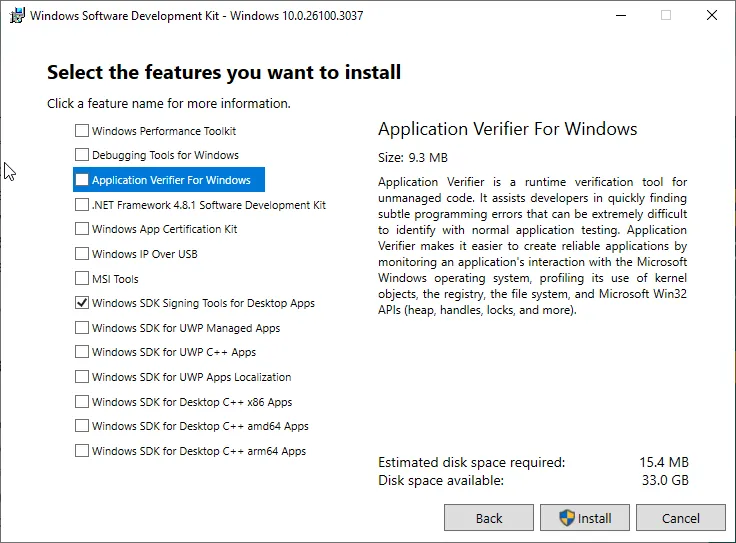
You also need administrator rights on the signing machine to install the SDK, the token drivers and the client software. Signing itself normally works in an ordinary prompt, but most CA documentation tells you to elevate and some provider software does need it, so open Command Prompt or PowerShell as an administrator if a plain one returns an access error. Elevate the same account you work in, since the certificate sits in that user’s store.
Why every signature needs a timestamp
A signature on its own is only valid while the certificate is valid. A timestamp fixes the signing moment in a way a third party can attest to, so Windows can still tell that the file was signed during the certificate’s lifetime long after that lifetime ends. Without one, your installer starts producing warnings the day the certificate expires, including copies users downloaded months earlier.
Use the /tr option, which speaks the RFC 3161 protocol. The older /t option uses the legacy Authenticode timestamp format and cannot be combined with /tr; there is no reason to choose it for new signing. Timestamp servers are free: DigiCert publishes one at http://timestamp.digicert.com, Sectigo publishes its own, and Azure Artifact Signing uses http://timestamp.acs.microsoft.com. Use the one belonging to whoever issued your certificate where you can.
How to Sign an EXE File With SignTool
Step 1: Make the key reachable
What this means depends on your delivery method. With a USB token, plug it in, let Windows finish installing drivers, and confirm the SafeNet Authentication Client (or your vendor’s equivalent) sees the certificate. With your own HSM, confirm the module is initialized and its provider is registered. With a cloud service, install the client tools and authenticate, so that credentials are already in place when SignTool runs.
For the token and local HSM cases, this check confirms Windows can actually see the certificate before you try to use it:
Get-ChildItem Cert:\CurrentUser\My -CodeSigningCert | Format-List Subject, Thumbprint, NotAfterIf nothing is returned, SignTool will not find anything either, and no amount of adjusting the signing command will change that. Fix the driver or client software first. Note the thumbprint that comes back, since you will want it in Step 4.
Step 2: Open a terminal as administrator
Press the Start button, type cmd, right-click Command Prompt and choose Run as administrator. For PowerShell, right-click the Start button and choose Terminal (Admin) on Windows 11, or Windows PowerShell (Admin) on Windows 10.
The SignTool commands below run the same way in either shell. Where a helper command belongs to one shell only, such as the searches in Step 3, both versions are given.
Step 3: Find signtool.exe
SignTool is not on the system PATH by default. It sits under C:\Program Files (x86)\Windows Kits\10\bin\, inside a folder named after the SDK version you installed, then an architecture folder. Current SDK releases sit in the 10.0.26100 and 10.0.28000 families, and older builds such as 10.0.22621.0 remain on machines that never updated, so do not copy a version number out of a tutorial. Ask your own system:
dir /s /b "C:\Program Files (x86)\Windows Kits\10\bin\signtool.exe"The PowerShell equivalent:
Get-ChildItem "C:\Program Files (x86)\Windows Kits\10\bin" -Recurse -Filter signtool.exe | Select-Object -ExpandProperty FullNameYou will normally get several results, one per architecture and possibly one per installed SDK. Take the newest SDK version and the x64 build. The architecture refers to SignTool itself, not to the file you are signing: the x64 build signs 32-bit executables perfectly well. It matters only when a signing service supplies a helper library, because that library has to match the SignTool you run.
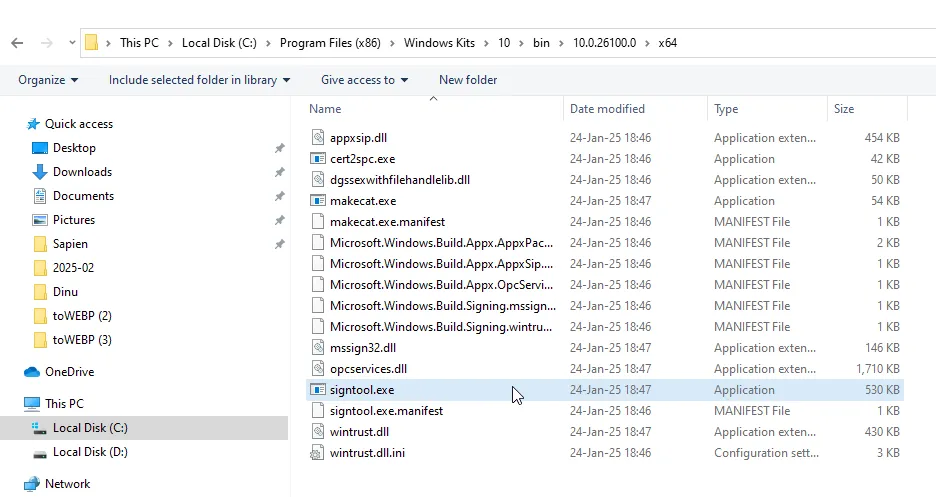
To save typing, add that folder to your PATH for the current session. In Command Prompt:
set PATH=%PATH%;C:\Program Files (x86)\Windows Kits\10\bin\10.0.26100.0\x64Substitute the version folder the search actually returned.
Step 4: Run the signing command
For a certificate held on a USB token or a local HSM, where the provider has published the certificate into your personal store:
signtool sign /fd SHA256 /tr http://timestamp.digicert.com /td SHA256 /a "C:\path\to\yourfile.exe"What each option does:
- /fd SHA256 sets the file digest algorithm. SignTool from SDK build 20236 onwards raises an error if you omit it, so it is not optional any more.
- /tr gives the RFC 3161 timestamp server URL. Replace the DigiCert address with your own CA’s server.
- /td SHA256 sets the digest algorithm requested from the timestamp server. Like /fd, leaving it out is now an error.
- /a tells SignTool to pick the best certificate automatically. Microsoft defines that as: find every valid certificate matching the other options, then choose the one valid for the longest time. Without /a, SignTool expects to find exactly one valid signing certificate and fails if there is more than one.
- The final argument is the path to the file. Quote it if it contains spaces.
That /a behavior is worth pausing on, because it explains a whole class of confusing results. /a selects from certificates Windows can see in the certificate store, not from “the token”. A token is simply one way a certificate gets into the store. On a machine that also holds an expired code signing certificate, a test certificate or a colleague’s, automatic selection can silently pick the wrong one, and you will not notice until someone inspects the signature.
On any machine that holds more than one certificate, name the one you mean. By thumbprint, which is exact:
signtool sign /fd SHA256 /tr http://timestamp.digicert.com /td SHA256 /sha1 A1B2C3D4E5F60718293A4B5C6D7E8F9012345678 "C:\path\to\yourfile.exe"Or by subject name, which is easier to read in a build script but matches on a substring, so keep it specific:
signtool sign /fd SHA256 /tr http://timestamp.digicert.com /td SHA256 /n "Your Company Ltd" "C:\path\to\yourfile.exe"A successful run prints a “Successfully signed” line for the file. Add /v for verbose output while you are getting a script working.
Step 5: Enter the PIN or approve the request
With a USB token, the client software raises a dialog asking for the token password the first time a signing operation touches the key. With a cloud service or Azure Artifact Signing there is no dialog: authentication happened when you signed in or when the pipeline presented its credentials, and a failure shows up as an authorization error rather than a prompt.
Token PINs usually lock out after a small number of failed attempts, and a locked token is a support ticket with the CA, not something you can reset locally. Type carefully, and do not script a PIN into an unattended build. If unattended signing is the goal, that is the case for moving to a cloud HSM or Artifact Signing rather than working around the token.
Signing With a Cloud Key or in CI/CD
The command changes when the key lives in a cloud HSM, because SignTool has to be told which provider to talk to. The shape of the command stays the same.
DigiCert KeyLocker
KeyLocker installs a Key Storage Provider, so SignTool addresses a cloud key the same way it would address a local one. DigiCert’s documented command is:
signtool.exe sign /csp "DigiCert Signing Manager KSP" /kc <keypair_alias> /f <certificate_file> /tr http://timestamp.digicert.com /td SHA256 /fd SHA256 <file_to_be_signed>Here /csp names the provider, /kc gives the key pair alias from your KeyLocker account, and /f points at the certificate file, which holds only the public part. Other CAs offering cloud signing follow the same pattern with their own provider name, so take the exact string from your CA rather than adapting DigiCert’s.
Azure Artifact Signing
Artifact Signing works through a SignTool plug-in library rather than a provider. Install the Artifact Signing Client Tools, which bring in the dlib, the .NET 8 runtime and a recent SignTool. Note that SDK build 20348 is explicitly unsupported with the dlib, so check the minimum version in Microsoft’s signing integrations documentation before troubleshooting anything else.
Create a metadata file describing your account and certificate profile:
{
  "Endpoint": "https://eus.codesigning.azure.net",
  "CodeSigningAccountName": "<your account name>",
  "CertificateProfileName": "<your certificate profile name>"
}
The endpoint has to match the Azure region where you created the account and the profile. Microsoft notes that a mismatch commonly produces a 403 Forbidden and an internal signing failure, which looks nothing like a configuration problem. Then sign:
signtool.exe sign /v /debug /fd SHA256 /tr "http://timestamp.acs.microsoft.com" /td SHA256 /dlib "<path>\x64\Azure.CodeSigning.Dlib.dll" /dmdf "<path>\metadata.json" "C:\path\to\yourfile.exe"The dlib architecture must match the SignTool architecture. An x64 SignTool with the x86 dlib fails in a way that does not name the mismatch.
Verifica il file EXE firmato
The canonical check: signtool verify /pa /v
This is the check to run, and the one most tutorials leave out:
signtool verify /pa /v "C:\path\to\yourfile.exe"/pa is doing real work here. It tells SignTool to use the Default Authentication Verification Policy, which is the policy Windows applies to ordinary application code. Without it, SignTool falls back to the Windows Driver Verification Policy, and a perfectly good Authenticode signature on an application is reported as failing because it does not meet driver signing rules. If you have ever seen a correctly signed EXE fail signtool verify, a missing /pa is the first thing to check.
/v prints the full detail: the certificate chain, the subject name, the hash algorithm and, importantly, the timestamp block. Read that timestamp. A file can sign successfully and still be untimestamped, because a timestamp failure is only a warning, and the problem stays invisible until the certificate expires.
SignTool returns exit code 0 on success, 1 on failure and 2 on completion with warnings, which is what you check in a build script rather than parsing the text output.
The graphical check: file properties
- Right-click the signed file and select Properties.
- Open the Digital Signatures tab. If the tab is missing, the file carries no signature at all.
- Select the signature in the list and click Details. You are looking for the message that the digital signature is OK, and for a timestamp in the signature details.
This is a good sanity check on the developer’s own machine, but it is a weak final test, because that machine may trust certificates a customer’s machine does not.
Verify with PowerShell
PowerShell gives you a structured result that is easy to test in a script:
Get-AuthenticodeSignature "C:\path\to\yourfile.exe" | Format-ListA Status of Valid is what you want. NotSigned means the signing step did not take effect. HashMismatch means the file changed after signing, which normally points at a build step that touches the binary after the signing step, such as a resource editor or a packer.
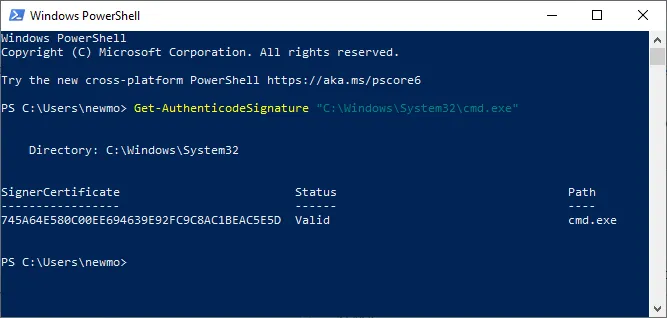
If you are not sure whether the command itself is set up correctly, run it against a file you know is signed, such as C:\Windows\System32\cmd.exe. A valid result there proves the command works, so a failure on your own file is genuinely about your file.
Test on a clean machine
Download the signed file over the internet onto a machine that has never had your certificates, tokens or development tools installed, ideally a fresh virtual machine. This is the only test that reflects what a customer sees, since it exercises the download path, the Mark of the Web, SmartScreen and the User Account Control prompt together. Check that the publisher name shown in the elevation prompt is your organization and not “Unknown”.
What Signing Does and Does Not Do for SmartScreen
This is where the most outdated advice on the internet sits, so it is worth being precise.
Microsoft Defender SmartScreen weighs two signals when a downloaded file runs: the reputation of the signing certificate, and the reputation of that exact file hash. A newly built binary starts with no hash reputation whether or not it is signed. Reputation accumulates from download volume and clean behavior over time, with no fixed threshold and no way for a consumer developer to submit a file for review.
Signing still helps, in two concrete ways. Your verified publisher name appears in the warning instead of an unknown publisher, which makes the warning far easier for a user to act on. And reputation earned by a certificate can carry to new files signed with the same certificate, so releases get progressively less friction, while unsigned files start from zero every single build.
EV certificates no longer bypass SmartScreen
An Extended Validation code signing certificate used to grant immediate SmartScreen trust on first download. That is no longer true, and it is not a matter of interpretation. Microsoft’s Trusted Root Program requirements state that from February 2024 Microsoft no longer accepts or recognizes EV Code Signing Certificates and CCADB stopped accepting EV Code Signing audits, and that beginning in August 2024 all EV Code Signing OIDs were removed from existing roots, with all code signing certificates treated equally from then on.
Microsoft’s developer documentation says the same thing in plainer terms: EV-signed files now go through the same reputation-building process as OV-signed ones, and paying the EV premium purely to avoid SmartScreen warnings is no longer justified. The same applies to Azure Artifact Signing, which does not grant instant trust either.
None of that makes EV pointless. EV involves stricter identity vetting than OV, some enterprise procurement processes and software supply chain policies specifically require it, and kernel-mode driver signing has its own EV-based requirements through the Windows Hardware Developer Program. If you already hold an EV certificate it remains valid and fully functional for signing. The point is narrower: choose it for the vetting or the contractual requirement, not for a SmartScreen bypass that no longer exists. Our guide to setting up an EV code signing certificate covers the practical side, and EV code signing certificates are available if that is the level of validation you need.
Common SignTool Errors
- “No certificates were found that met all the given criteria.” SignTool cannot see a usable certificate. Run the PowerShell store check from Step 1. Typical causes: the token is not plugged in, the client software is not running, the certificate is in the machine store while SignTool is looking at the user store (add /sm to look at the machine store), the certificate has expired, or a /n value does not match the actual subject.
- An error about the file digest algorithm. You omitted /fd. Current SignTool builds treat this as an error rather than the warning older versions issued.
- “The specified timestamp server either could not be reached or returned an invalid response.” Usually a network or proxy problem, or rate limiting at a busy timestamp server. Retry, or switch to another CA’s server. This is reported as a warning, so the file may be signed but untimestamped. Confirm with
signtool verify /pa /vbefore shipping it. - Verification fails on a file you just signed successfully. Almost always a missing /pa on the verify command, which puts SignTool on the driver policy instead of the application policy.
- The signature checks out on your machine but not on a clean one. SignTool builds the chain locally at signing time and embeds what it finds, so if your CA’s intermediate certificate is not installed on the signing machine, the file ships without it and other machines cannot complete the chain. Install the intermediate under Intermediate Certification Authorities on the signing machine, or pass it with /ac, then sign again.
- The signature disappears or breaks later in the build. A step after signing is modifying the file. Signing has to be the last operation that touches the binary, after any packing, resource editing or installer bundling.
- Access denied or a provider error on a token. The terminal is not elevated, or the token PIN is locked after failed attempts.
Frequently Asked Questions
You can create a self-signed certificate and sign with it, and that is genuinely useful for local development, internal testing, or an enterprise that deploys its own root through Group Policy or Intune. It is not useful for public distribution: Windows does not trust the certificate, and Microsoft documents a self-signed file as getting the same SmartScreen treatment as an unsigned one for anyone who has not installed your certificate as a trusted root. Public distribution needs a certificate from a CA in the Microsoft Trusted Root Program.
No. EV certificates once bypassed SmartScreen on first download, but Microsoft removed all EV Code Signing OIDs from the roots in its Trusted Root Program in August 2024, and Windows now treats every code signing certificate equally. An EV-signed file builds reputation exactly the way an OV-signed file does. EV still means stricter identity vetting, and some enterprise buyers and driver signing programs require it, so it has real uses. Instant SmartScreen trust is no longer one of them.
You need hardware key storage, not necessarily a shipped token. Since June 1, 2023 every publicly trusted code signing key must be generated and kept in a module meeting FIPS 140-2 Level 2 or Common Criteria EAL 4+, and that applies to OV and EV alike. A cloud signing service such as DigiCert KeyLocker satisfies it with a cloud HSM and ships nothing physical, your own YubiKey or HSM satisfies it, and Azure Artifact Signing sidesteps the question entirely by managing the key for you. Our FAQ on code signing certificate delivery methods lists the options each CA supports.
Under C:\Program Files (x86)\Windows Kits\10\bin\, in a folder named after the installed Windows SDK version and then an architecture folder, for example x64. The version number differs per machine, so search instead of guessing: dir /s /b "C:\Program Files (x86)\Windows Kits\10\bin\signtool.exe". If nothing comes back, the Windows SDK is not installed, or the signing tools component was left out of the installation.
If the signature was timestamped, nothing. Windows checks that the file was signed while the certificate was valid, and the timestamp proves that permanently. If it was not timestamped, every copy of the file starts producing warnings the moment the certificate expires, including copies already installed. That is why /tr and /td belong in every signing command, and why the timestamp block is worth reading in the verify output rather than assuming it is there.
A maximum of 460 days under the current Code Signing Baseline Requirements, down from 39 months. DigiCert applies a 459-day ceiling and stopped issuing longer certificates on February 24, 2026, dropping its 2-year and 3-year options. Multi-year plans that some CAs still sell now deliver a reissued certificate on the shorter cycle rather than one long-lived certificate, so build renewal into your release process instead of treating it as a once-every-few-years task.
SignTool is Windows-only, but Authenticode signatures are a file format rather than a Windows-only concept, and third-party tools such as osslsigncode and jsign produce them on other platforms. The hardware key requirement does not go away, so the key still has to be reachable through a supported HSM or cloud service. If your build runs on Linux, the smoother path is usually a signing service with a documented cross-platform integration rather than replicating a token-based workflow.
Yes. Use /as to append a signature rather than replace the existing one, which is how dual signing with two digest algorithms is done. If no primary signature exists, the appended one becomes the primary. Do not confuse this with modifying a signed file: appending a signature is a supported operation, while editing the executable’s contents after signing invalidates every signature on it.
For more on obtaining, installing and validating code signing certificates, see our code signing tutorials.
Risparmia il 10% sui certificati SSL ordinando oggi stesso da SSL Dragon!
Emissione rapida, crittografia avanzata, affidabilità del browser al 99,99%, assistenza dedicata e garanzia di rimborso entro 25 giorni. Codice coupon: SAVE10

