



Putting a PrestaShop store on HTTPS takes three steps: install an SSL certificate on your server, switch on two settings in Shop Parameters, and redirect the old HTTP traffic. The middle step catches most people out, because PrestaShop has two SSL settings rather than one and the second stays locked until the first is saved.
Quick answer: with a working certificate on your server, open Shop Parameters > General, click the link that checks whether your shop supports HTTPS, set Enable SSL to Yes, then set Enable SSL on all pages to Yes, scroll to the bottom and press Save. If the second switch is greyed out, the first one has not been saved yet.
SSL (short for Secure Sockets Layer, though certificates issued today all use TLS) is what turns your shop’s address bar padlock on and lets payment gateways operate. If you want the background first, read what an SSL certificate is. These steps cover PrestaShop 8 and PrestaShop 9.
Which method fits your PrestaShop setup
| Your setup | How to get the certificate | Roughly how long |
|---|---|---|
| Managed or cPanel host with AutoSSL | Issue the free certificate in the panel, then enable SSL in PrestaShop | 10 minutes |
| Your own VPS, no hosting panel | Certbot for a Let’s Encrypt certificate | 20 minutes |
| Paid certificate (OV, EV or wildcard) | Generate a CSR, install manually | 30 minutes plus validation |
| Cloudflare in front of the shop | Certificate on the origin, Cloudflare set to Full (strict) | 15 minutes |
Back up the shop and the database before you start. On a live store, do this outside peak hours: every minute the checkout is unavailable is a lost order.
Which SSL certificate should a PrestaShop store use?
A free certificate encrypts traffic exactly as well as a paid one, and for a small shop it is often the right answer. What differs between one PrestaShop SSL certificate and another is what the certificate authority verified before issuing it, and what backs it if something goes wrong.
| Type | What the CA checks | Issued in | Fits |
|---|---|---|---|
| Domain Validation (DV) | That you control the domain | Minutes | Small shops, shops using a hosted payment page |
| Organization Validation (OV) | The domain plus your registered company | 1 to 3 business days | Established stores, B2B, anywhere buyers check who they are paying |
| Extended Validation (EV) | A full legal and operational check of the company | 1 to 3 business days | Higher order values, finance, stores handling card data directly |
Ecommerce changes the free versus paid calculation in a way it does not for a blog. Paid certificates carry a warranty that covers losses if the certificate itself fails, and a site seal you can place at checkout. Free certificates carry neither, and they are Domain Validation only, so they prove nothing about who runs the shop.
Two more things specific to PrestaShop. If you run multistore across subdomains, a wildcard certificate covers them all with one certificate instead of one per shop. And whatever you choose, HTTPS is not optional here: payment gateways will not process live transactions over plain HTTP, and PCI DSS requires strong cryptography, in practice TLS 1.2 or higher, on any page that transmits card data. If you are unsure which type applies, the SSL Wizard narrows it down.
Get the certificate onto your server
PrestaShop does not install certificates. That happens on the server first, and PrestaShop will not even show you the Enable SSL switch until you can reach your back office over HTTPS.
- From your hosting panel. Look for SSL/TLS, Let’s Encrypt or AutoSSL. On cPanel it sits under Security. Issue the certificate for both the apex domain and the www version.
- On a VPS. Use Certbot, which issues the certificate from the command line and sets up its own renewal timer.
- A paid certificate. Generate a CSR with our CSR generator or the CSR guides, complete validation, then install the certificate, private key and intermediate certificates. In cPanel that is SSL/TLS > Manage SSL sites, covered in the cPanel installation guide. Other platforms are in the SSL installation guides.
Let’s Encrypt certificates last 90 days and renew automatically about 30 days before expiry. When that automation breaks, the shop keeps working for weeks and then goes insecure without warning, usually mid-sale. Confirm auto-renewal is on, and check the certificate after the first expected renewal date with the SSL Checker.
One trap that matters more on a store than anywhere else: install the certificate without its intermediate certificates and your browser will still show a padlock, because desktop browsers cache intermediates they have seen elsewhere. Your payment gateway will not. A shop that looks fine but fails at the payment callback is very often an incomplete chain.
How to enable SSL in PrestaShop
PrestaShop has two SSL settings, not one, and the order matters:
- Enable SSL secures the checkout and account pages only. This is the historical PrestaShop default, from when shops served most pages over HTTP and only encrypted the sensitive ones.
- Enable SSL on all pages secures the whole shop. It stays greyed out until Enable SSL is switched on and saved.
You want both. Here is the full sequence:
- Open Shop Parameters > General in the back office. Tutorials written for PrestaShop 1.6 call this Preferences > General; the menu was renamed in 1.7 and the setting is the same.
- Click “Please click here to check if your shop supports HTTPS.” That link reloads the back office over HTTPS. PrestaShop shows it only when you are viewing the back office over plain HTTP, so if you already administer your shop over HTTPS you will not see it, and you can move straight on.
- Set Enable SSL to Yes.
- Set Enable SSL on all pages to Yes.
- Scroll to the bottom of the page.
- Press Save. Nothing takes effect until you do.
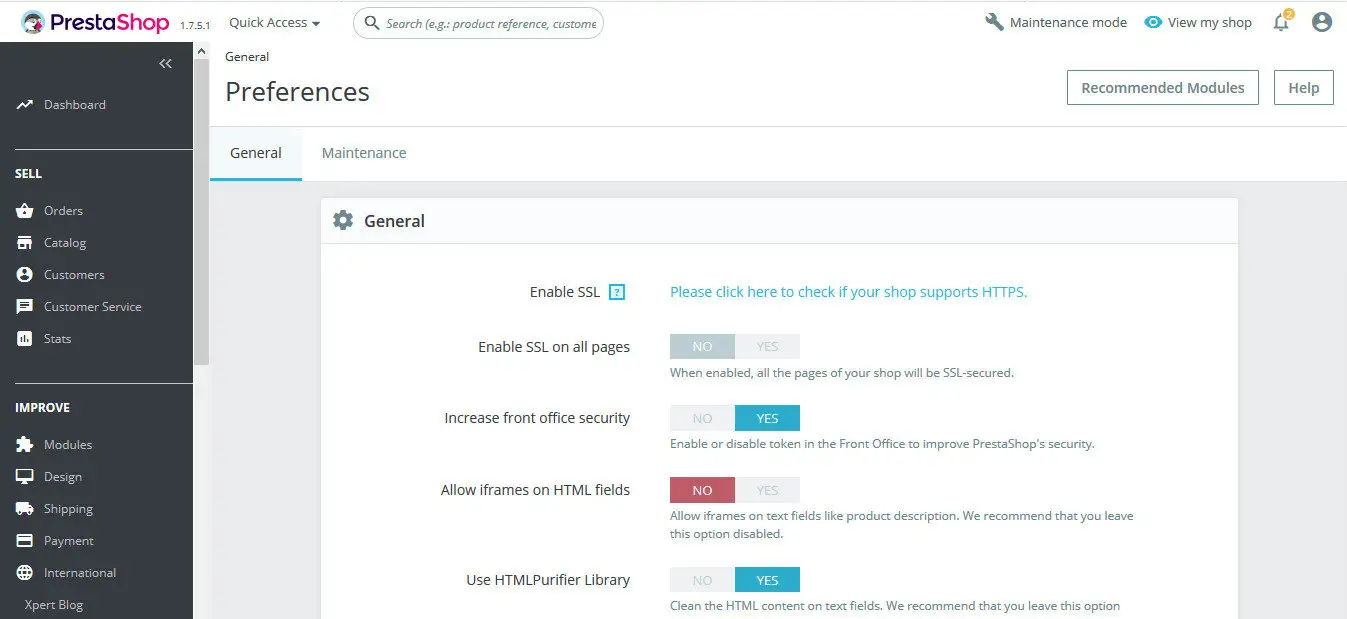
These instructions apply to PrestaShop 8 and PrestaShop 9. Versions 9.1.4 and 8.2.7 were the current releases as of June 2026. PrestaShop 1.7 works the same way, but its maintenance ended when PrestaShop 9.0 shipped in June 2025, so it no longer receives security fixes and an upgrade belongs on your list. Version 1.6 uses the older menu names.
Why the Enable SSL toggle is greyed out
This is the most common PrestaShop SSL problem. Before anything else, check which of the two symptoms you actually have.
If Enable SSL is not on the page at all, you are viewing the back office over plain HTTP. PrestaShop only draws that switch on a secure connection, so on an http:// back office you get the HTTPS check link in its place and no switch. Reach your back office at an https:// address, by clicking that link or by typing the address, and the switch is there.
If Enable SSL on all pages is visible but greyed out, work through these three causes in order.
1. You have not saved yet
By far the most frequent cause. You switch Enable SSL on, look at Enable SSL on all pages, see it still greyed out, and conclude something is broken. It is not: the second setting only unlocks once the first has been saved. Scroll to the bottom of the page, press Save, and the page reloads with the second switch active. PrestaShop’s own issue tracker carries this under the title “Enabling Https/ssl is quite confusing”, so if it caught you out, you are in large company.
2. The HTTPS check failed
If the back office will not load over HTTPS at all, or your browser warns you when it does, the certificate is at fault rather than PrestaShop. Common reasons: the certificate is not installed yet, it covers www but you are browsing the apex domain (or the reverse), or it is installed without its intermediate certificates. Run the SSL Checker against the exact domain in your shop URL and fix what it reports before returning to the back office.
3. Set it in the database
If the certificate is confirmed working and the toggle still refuses, both settings are stored in the ps_configuration table and can be set directly. In phpMyAdmin or any SQL client:
UPDATE ps_configuration SET value = 1 WHERE name = 'PS_SSL_ENABLED';
UPDATE ps_configuration SET value = 1 WHERE name = 'PS_SSL_ENABLED_EVERYWHERE';
Adjust the table prefix if yours is not the default ps_, then clear the cache. To reverse it, for instance if a broken certificate has locked you out of your own back office, run the same two statements with 0 instead of 1.
Redirect HTTP to HTTPS in PrestaShop
With both settings saved, PrestaShop already answers HTTP requests for storefront pages with a 301 to their HTTPS address, so old links and indexed URLs are not left stranded. It only covers requests that actually reach PrestaShop, though. Files served straight off disk, such as images, PDFs and anything under /img/ or /upload/, are not redirected, and neither are POST requests. A rule at the server level catches all of it, and it redirects without starting PHP each time.
Read this before you edit anything. PrestaShop generates its own .htaccess file, and saving Shop Parameters > Traffic & SEO > SEO & URLs rewrites it. It does not wipe the whole file. PrestaShop replaces only the block between its two marker comments, # ~~start~~ and # ~~end~~, and keeps whatever sits above or below them, which is exactly what the marker line itself tells you. So put your rules outside that block and they survive every regeneration. Anything pasted inside it is gone the next time you save that page.
On Apache, add this to .htaccess in your shop root, above the # ~~start~~ line:
RewriteEngine On
RewriteCond %{HTTPS} off
RewriteRule ^(.*)$ https://%{HTTP_HOST}%{REQUEST_URI} [R=301,L]
The condition must read off, meaning “redirect when the request is not already secure”. The R=301 flag is what makes it permanent; without it you get a temporary redirect that tells search engines nothing has moved.
On Nginx there is no .htaccess. Edit the server block instead:
server {
    listen 80;
    server_name example.com www.example.com;
    return 301 https://$host$request_uri;
}
Test with nginx -t, then reload with systemctl reload nginx.
Fix what the switch leaves behind
Clear the PrestaShop cache. Do this first. A cached storefront will keep serving pages full of HTTP markup and make a finished switch look broken. Clear your CDN as well if you use one.
Fix mixed content. A page served over HTTPS that still loads an image, script or stylesheet over HTTP is mixed content. Browsers quietly upgrade some resources, mostly images and media, but refuse others outright, which is why an affected page can arrive unstyled. On PrestaShop the usual sources are hardcoded URLs in CMS pages, module configuration, and product descriptions pasted in from elsewhere. The browser console names the offending file. Our guide on how to fix mixed content covers the diagnosis in detail.
Regenerate your sitemap so it lists https URLs, and check that no module is still writing http links into emails or invoices.
Troubleshooting PrestaShop SSL problems
| Symptom | Cause | Fix |
|---|---|---|
| Endless redirect loop after enabling SSL | Cloudflare encryption mode set to Flexible, so it sends HTTP to your origin while your origin redirects to HTTPS | Set Cloudflare to Full (strict) and keep a valid certificate on the origin |
| Locked out of the back office | SSL enabled while the certificate is broken or missing | Set both keys to 0 in ps_configuration, fix the certificate, try again |
| Padlock missing on product pages only | Mixed content, usually a product image or a module asset | Find the HTTP resource in the browser console |
| Shop went insecure weeks later | A Let’s Encrypt certificate expired because renewal broke | Reissue, then confirm auto-renewal. See expired intermediate certificates |
| Browser fine, checkout or payment callback fails | Incomplete certificate chain | Install the full CA bundle, recheck with the SSL Checker |
| Name mismatch on www or the apex | The certificate covers only one of the two names | Reissue covering both. See common name invalid |
If the certificate is installed and the shop still reports as insecure, the SSL error guides handle specific browser error codes.
After the switch: SEO checklist
- Add the HTTPS property in Google Search Console. An HTTP property does not report on HTTPS URLs. Add the new one, or use a Domain property covering both.
- Resubmit the sitemap with https URLs.
- Check canonical tags point at https across product and category pages.
- Update Merchant Center feeds, analytics and any marketplace integration that stores your shop URL. Product feeds with http links are a common overlooked breakage.
Expect some movement. Google treats an HTTP to HTTPS switch as a site move with URL changes, so impressions split across your two Search Console properties for a while and rankings fluctuate for a few weeks. As long as every URL resolves and the 301 redirects are in place, there is nothing to fix.
Once HTTPS has been stable for a while, consider HSTS, which tells browsers to refuse plain HTTP for your domain. Leave the preload directive off at first, since it is slow to reverse.
Frequently Asked Questions
Install a certificate on your server first, then open Shop Parameters > General in the back office, click the link that checks whether your shop supports HTTPS, set Enable SSL to Yes, set Enable SSL on all pages to Yes, and press Save at the bottom of the page. PrestaShop does not issue certificates itself.
First check whether the switch is greyed out or missing altogether. If Enable SSL is absent, you are viewing the back office over plain HTTP and PrestaShop only shows that switch on a secure connection, so reload the back office at an https:// address. If Enable SSL on all pages is greyed out, there are three reasons, in order of likelihood. You have not scrolled down and saved, so the second setting has not unlocked yet. Or PrestaShop’s HTTPS check failed because the certificate is missing, does not cover the domain you are using, or is installed without its intermediate certificates. Or the setting is stuck, in which case you can set PS_SSL_ENABLED and PS_SSL_ENABLED_EVERYWHERE to 1 directly in the ps_configuration table.
Enable SSL secures only the checkout and customer account pages, which was the standard approach when shops served everything else over HTTP. Enable SSL on all pages secures the entire shop. The second option is unavailable until the first is enabled and saved. On any modern store you want both.
Shop Parameters > General in the back office. Older tutorials written for PrestaShop 1.6 call the same screen Preferences > General, since the menu was renamed in version 1.7.
Set both switches back to No in Shop Parameters > General and save. If a broken certificate has locked you out of the back office, run the same two ps_configuration statements shown above with 0 instead of 1, then clear the cache. Turning SSL off is a temporary measure while you fix a certificate, not a solution: payment gateways will not work without HTTPS.
Not technically. A free Domain Validation certificate encrypts checkout exactly as well as a paid one, and satisfies payment gateways. A paid certificate adds a warranty covering losses if the certificate fails, a site seal for checkout, verified company details inside the certificate with OV or EV, and easier wildcard coverage if you run multistore across subdomains.
PrestaShop 8 and PrestaShop 9, with 9.1.4 and 8.2.7 current as of June 2026. PrestaShop 1.7 uses the same settings in the same place, but it has not been maintained since PrestaShop 9.0 was released in June 2025. PrestaShop 1.6 calls the screen Preferences > General instead of Shop Parameters > General.
Moving a different platform to HTTPS, or want the general procedure? See our guide on how to switch a site from HTTP to HTTPS.
Save 10% on SSL Certificates when ordering from SSL Dragon today!
Fast issuance, strong encryption, 99.99% browser trust, dedicated support, and 25-day money-back guarantee. Coupon code: SAVE10

