



Firefox blocks a page with SEC_ERROR_REUSED_ISSUER_AND_SERIAL and, unlike almost every other certificate warning, gives you no way to continue. There is no Advanced section and no button to accept the risk. The message tells you the certificate “contains the same serial number as another certificate issued by the certificate authority”, which sends most people off to inspect the website’s certificate.
That is the wrong place to look. The conflict is between two certificates Firefox itself is holding: the one that just arrived, and one it picked up earlier and kept. This guide explains the check Firefox runs, why the button to continue is missing, which situations genuinely produce the error, and how to clear it both as a visitor and as the owner of the device or server presenting the certificate.
Quick answer:
SEC_ERROR_REUSED_ISSUER_AND_SERIAL means Firefox already holds a certificate carrying the same issuer name and serial number as the one a site just presented, and the two certificates are not identical. It is a collision inside Firefox’s own certificate store rather than a fault in the connection, which is why the same address opens normally in Chrome or Edge.
The usual cause is a device that regenerated its self-signed certificate while reusing the serial number: a router, NAS, printer, firewall, or a server’s management port. Firefox does not let you click through this one, so the fix is to remove the stored copy. Restart Firefox first, which clears the copy held in memory. If the error returns, open Settings, then Privacy & Security, scroll to Certificates, click Manage certificates, delete the exception for that host on the Servers tab, and then delete the device’s own certificate on the Authorities tab, which is where the colliding copy usually sits.
Do not delete cert9.db. On the device or server itself, reissue the certificate with a unique serial number and never pin the OpenSSL -set_serial option to a constant such as 01.
Table of Contents
- What SEC_ERROR_REUSED_ISSUER_AND_SERIAL Actually Means
- What Actually Triggers It
- How to Fix It as a Visitor
- How to Fix It on the Device or Server
- What Does Not Fix This Error
- Frequently Asked Questions
What SEC_ERROR_REUSED_ISSUER_AND_SERIAL Actually Means
A certificate is not identified by its serial number alone. It is identified by a pair: the name of the issuer, and the serial number that issuer assigned. RFC 5280, the standard that defines the certificate format, is explicit in section 4.1.2.2: the serial number “MUST be unique for each certificate issued by a given CA (i.e., the issuer name and serial number identify a unique certificate)”. Two different certificates are never supposed to share that pair.
NSS, the security library Firefox is built on, treats that pair as a key. When Firefox receives a certificate, it first checks whether it already has one filed under the same issuer and serial. If it finds one and the stored certificate is not byte for byte the same as the one that just arrived, it refuses the connection. The comment sitting next to that check in the NSS source describes it plainly: the lookup “ends up going by issuer/serial, so it is still possible to return a cert with the same issuer/serial but a different encoding, and we’re going to reject that”.
Firefox has two separate messages for the condition, and seeing both explained helps because they read very differently. On a blocked connection you get:
You have received an invalid certificate. Please contact the server administrator or email correspondent and give them the following information: Your certificate contains the same serial number as another certificate issued by the certificate authority. Please get a new certificate containing a unique serial number.
When the same conflict happens while importing a certificate rather than while loading a page, the wording is much closer to what is really going on:
You are attempting to import a cert with the same issuer/serial as an existing cert, but that is not the same cert.
That second sentence is the accurate description of both cases. Firefox is not accusing a Certificate Authority of issuing duplicates, and it has not inspected some global registry. It is comparing what arrived against what it is already holding.
Where the conflicting copy is stored
Firefox looks in two places, and the difference between them decides whether a restart helps.
- The in-memory store for the running session. Every certificate Firefox has handled since it started is held here. Nothing was saved to disk and nothing appears in any settings screen, but a certificate seen an hour ago on a different tab still counts. Quitting Firefox clears it.
- The permanent certificate database in your profile, the file named cert9.db. Certificates land there when you or an administrator import them, which covers the CA certificates on the Authorities tab and the client certificates used to sign in to services. Firefox used to add to it on your behalf as well: through Firefox 114, storing a certificate exception permanently also imported that certificate into this database. Firefox 115 stopped doing that, but it left the existing copies in place, so a profile carried forward for years can hold certificates you do not remember accepting.
This is why the error behaves so inconsistently. If the conflict is with the in-memory copy, restarting Firefox makes the site load once, and it breaks again the next time both certificates turn up in the same session. If the conflict is with something stored in the profile, restarting changes nothing at all and the error is there every single time.
Why there is no button to continue
Firefox sorts certificate failures into two groups. Overridable ones, such as an expired certificate, an unknown issuer, or a hostname mismatch, produce a warning page with an Advanced button and a way to continue anyway. The wording there changed recently: Firefox 149 and later title that page Warning: Security Risk and label the button Proceed to example.com (Risky), while Firefox 148 and earlier, including the current Extended Support Release, title it Warning: Potential Security Risk Ahead and label the button Accept the Risk and Continue. Everything else, including this error, produces a plain “Secure Connection Failed” page with a Try Again button and nothing more.
SEC_ERROR_REUSED_ISSUER_AND_SERIAL is not on the overridable list. Firefox does not even classify it as a certificate error, it classifies it as a TLS protocol failure, because the failure happens while the certificate object is being built rather than during validation. The practical consequences are worth stating clearly:
- There is no button to click through, and no amount of scrolling will reveal one.
- Adding a security exception in advance does not help either, because the exception mechanism only applies to overridable errors.
- The only way forward is to remove the conflicting copy, or to change the certificate the other side is sending.
This has been raised with Mozilla since 2008 in bug 435013, filed originally against Linksys routers, and the bug is still open. If you are hunting for a setting that restores the override, there is not one.
Why the same address opens fine in Chrome
Chrome, Edge, Brave and Safari do not run this check. Their certificate verifiers do not keep a local certificate database keyed on issuer and serial, so there is nothing for an incoming certificate to collide with. A device that Firefox refuses outright will usually open in a Chromium browser with an ordinary warning you can click past, or with no warning at all if its certificate was installed as trusted.
Two conclusions follow. First, switching browsers is a workaround for reaching the device, not evidence that Firefox is wrong or broken. Second, Chrome loading the page proves nothing about the certificate’s quality: a device reusing serial number 1 on every regeneration is still misconfigured, and other software will trip over it eventually.
The reverse also holds. Because the check lives in NSS rather than in Firefox specifically, the same error appears in Thunderbird and in other software built on the same library. That is where the odd reference to an “email correspondent” in the error message comes from: the text was written for a library that handles S/MIME as well as HTTPS.
Save 10% on SSL Certificates when ordering from SSL Dragon today!
Fast issuance, strong encryption, 99.99% browser trust, dedicated support, and 25-day money-back guarantee. Coupon code: SAVE10

What Actually Triggers It
One category can be ruled out almost immediately. Publicly trusted Certificate Authorities have been required since 2016 to generate non-sequential serial numbers containing at least 64 bits of output from a cryptographically secure random number generator, a rule set out in section 7.1 of the CA/Browser Forum Baseline Requirements. Two certificates from the same public CA colliding by accident is not a realistic scenario. If you are seeing this error, the certificate almost certainly did not come from a public CA.
What remains are five situations, ordered by how often they turn out to be the answer.
1. A device regenerated its self-signed certificate
This is the dominant cause by a wide margin. Network hardware ships with a self-signed certificate it generates itself: routers, NAS boxes, network printers, firewalls, switches, NVRs, and server management ports such as HP iLO, Dell iDRAC and generic IPMI. Firmware regenerates that certificate after a factory reset, after a firmware upgrade, when the hostname or IP address changes, and sometimes on every reboot.
The regeneration routine is frequently careless. The subject and issuer names are rebuilt from the same template, and the serial number is a constant baked into the firmware, very often 1. The new certificate has a new key and new dates, so its bytes differ, but its issuer and serial are identical to the certificate Firefox saw before the reset. That is precisely the collision condition. Mozilla’s own support note on this error says the same thing: older routers regenerate their certificates rather than keeping one for the life of the device, and when the regeneration is done improperly Firefox reads the change as a possible attack.
The tell is timing. The error appears the first time you open a device’s admin page after resetting it, upgrading it, or moving it, and it never appeared before that.
2. Two devices of the same model on the same network
The same firmware defect produces a second pattern. If a model builds every certificate from an identical template with an identical hardcoded serial, then two units of that model carry certificates with the same issuer and the same serial but different keys. Each device works perfectly on its own. Opening the second one in the same Firefox session, after the first is already held in memory, produces the error immediately.
Administrators managing a rack of identical appliances, a fleet of printers, or several access points hit this constantly. The signature is unmistakable: whichever device you open first works, and every other one fails until you restart the browser.
3. A stale security exception stored in your profile
When you accept a warning for a device and tick the box to store the exception permanently, Firefox records it. Through Firefox 114 it also imported a copy of the certificate itself into the profile’s certificate database at the same time. Months later the device regenerates its certificate, and the copy saved back then is now a stored certificate with the same issuer and serial as the new one, and different contents.
This variant is the one that survives a restart, because the conflicting copy is on disk rather than in memory. It is also the one people find hardest to diagnose, for two reasons. Nothing recently changed on the computer, since the change happened on the device. And deleting the exception does not delete the certificate that came with it, so the obvious repair appears to fail.
4. A script or internal CA that hardcodes the serial number
Development and internal environments reproduce the appliance defect in software. A build script or a runbook that generates a test certificate with a fixed serial number produces a fresh collision every time it runs. The command most often responsible looks like this, and it appears in a great deal of copied troubleshooting advice:
openssl x509 -req -days 365 -in newcsr.csr -signkey newkey.pem -set_serial 01 -out newcert.pemThe -set_serial option forces the serial number to the value you give it. Pinning it to 01 means every certificate that command ever produces carries serial number 1. Run it twice for the same common name and you get two different certificates with an identical issuer and an identical serial, which is exactly the pair Firefox refuses. Presenting that command as a cure for this error is backwards: it is one of the ways to cause it. The corrected commands are in the device and server section below.
Organizations that stood up their own internal CA hit the same problem when the signing process does not track issued serials, so every reissue starts from the same number.
5. HTTPS scanning or a TLS-inspecting proxy
Antivirus products with an HTTPS scanning feature, and corporate firewalls that inspect encrypted traffic, do not show you the website’s certificate. They terminate the connection themselves and re-sign it with a certificate generated on the spot, issued by a root they installed on the machine. Some of these products build the replacement by copying fields from the original certificate, including its serial number, and some reuse a counter that resets when the service restarts.
Either behavior can put two differing certificates with the same issuer and serial in front of Firefox during one session. The giveaway is the issuer: if the certificate names your security software or your employer’s firewall vendor instead of a Certificate Authority you recognize, interception is in the path. This cause is real but distinctly less common than the appliance cases above, and it is worth testing rather than assuming.
How to Fix It as a Visitor
Work through these in order. The first two steps resolve the large majority of cases, and they take about a minute between them.
1. Quit Firefox completely and reopen it
For most errors, restarting the browser is empty advice. Here it is the single most effective first step, because it is the only way to clear the in-memory certificate store, and there is no button anywhere in Firefox that does the same thing.
Close every window rather than just the tab, so the process actually exits, then reopen Firefox and load the address again. What happens next tells you which cause you are dealing with:
- The page loads. The conflict was with a certificate held only in memory, usually another device of the same model, or the same device before it regenerated its certificate. Nothing is stored in your profile and there is nothing further to delete.
- The error is unchanged. The conflicting copy is saved in your profile, so continue with step 2.
If the page loads and then fails again later in the day, you have confirmed the two-devices pattern. The lasting repair for that is on the devices, covered in the next section.
2. Remove the stored exception for that host
Firefox lists its certificate error exceptions in the certificate manager, one entry per host and port, and they can be removed individually. Start here because it is the narrowest change available: it touches only the host that is failing.
- Open Firefox settings. Typing about:preferences#privacy in the address bar takes you straight there.
- Scroll to the Certificates section and click Manage certificates. Older Firefox versions label the same button View Certificates.
- Open the Servers tab and find the entry for the host that produces the error, matching it by hostname or IP address. The tab has two columns, the server and the SHA-256 fingerprint of the certificate the exception was stored for.
- Select the entry, click Delete, and confirm.
- Restart Firefox and load the address again.
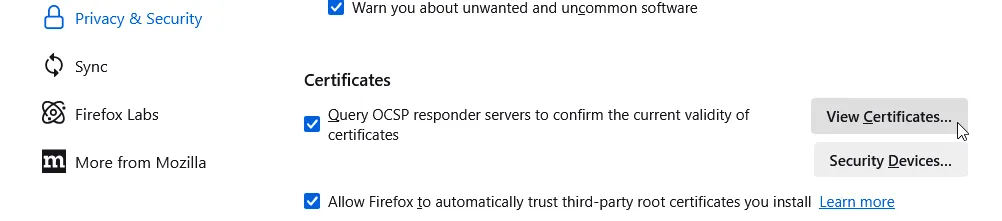
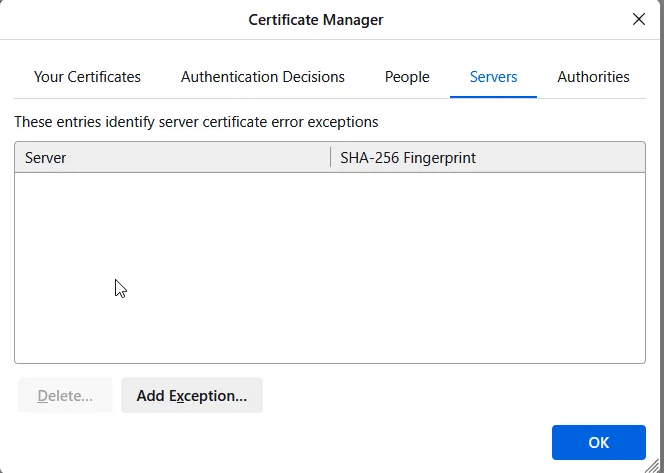
Delete only the entry for the host you are troubleshooting. There is no benefit to clearing the whole list, and entries for other sites are what let you reach those sites without warnings.
Be aware of what this step does and does not do. An entry on the Servers tab is an exception record, a host and a fingerprint, not a certificate, and deleting it removes only that record. It clears the error when the exception was the reason Firefox kept looking at the old certificate, but it does not remove a certificate that was saved into your profile’s certificate database. Firefox 114 and earlier imported the certificate there whenever an exception was stored permanently, and that copy stays behind when the exception is deleted. Mozilla logged exactly that sequence in bug 1833330, where deleting the exception and then regenerating the device’s certificate with the same serial reproduced this error. Firefox 115 stopped saving the certificate, but it did not clean up the copies already in existing profiles. So if the error survives this step, the stored certificate is still there, and step 3 is where you remove it.
Expect a normal certificate warning once the conflicting copy is finally gone, whether that happens here or in step 3. The device’s self-signed certificate is then judged on its own merits, so Firefox will show MOZILLA_PKIX_ERROR_SELF_SIGNED_CERT or SEC_ERROR_UNKNOWN_ISSUER instead. That is progress, not a new problem: those warnings are overridable, so the Advanced button and the option to continue anyway come back. On equipment you own and manage on your own network that is a reasonable thing to accept. On anything else, do not.
3. Delete the stored certificate on the Authorities tab
This is where the colliding certificate normally sits, and on a profile that has been in use for years it is the step that actually clears the error. A self-signed certificate saved by an old permanent exception is filed with the certificate authorities rather than with the server entries, because Firefox treats a certificate that signed itself as its own issuer. The same tab holds anything a device, an appliance vendor’s setup wizard, or an internal IT process imported deliberately.
In the same certificate manager, open the Authorities tab and look for the failing device. Firefox files each certificate under its own subject name, which on an appliance is usually its hostname, its IP address or its model name, so the entry rarely looks like a real Certificate Authority. If nothing obvious stands out, read the name straight off the device with the OpenSSL command in step 4 below and match it. Select the entry, click Delete or Distrust, then restart Firefox and try again.
Two cautions apply here. Remove only the entry whose name you recognize from the failing device or from your own organization, never one of the built-in public Certificate Authorities, because removing those breaks unrelated websites. And if the entry belongs to a corporate CA that your employer deployed, tell IT rather than deleting it, since removing it can lock you out of internal services that depend on it.
4. Read the certificate the device is actually sending
Firefox refuses to show you the certificate on this error page, which makes the problem hard to see. You can retrieve it yourself with OpenSSL, using the device’s address on your network:
openssl s_client -connect 192.168.1.1:443 < /dev/null 2>/dev/null | openssl x509 -noout -serial -subject -issuer -datesA short serial number, particularly serial=01, alongside a subject and an issuer that carry the same name, confirms a self-signed certificate from a device that does not randomize its serials. Compare that output with a second unit of the same model, or with the same unit after a reset, and you will normally find the identical serial on both. That is the collision, in plain sight.
For a public website rather than a device on your network, scan the domain with our free SSL Checker, which reads the certificate from outside your network and reports its details and its chain.
5. Rule out HTTPS scanning and inspecting proxies
Reach for this only if the previous steps did not help, or if the error appears on ordinary public websites rather than on a device. Public sites use certificates from public CAs, whose serial numbers are random, so a collision there points at something re-signing the traffic locally.
Turn off only the HTTPS scanning component of your security software, not the product itself. The setting sits in the web or network protection area and is variously called HTTPS scanning, SSL/TLS filtering, encrypted web scan or web shield. In Avast, for example, it is under Settings, then Protection, Core Shields, Web Shield, where you clear the Enable HTTPS Scanning checkbox. Other products place an equivalent option in a similar spot. Restart Firefox afterwards, because the certificates the product already generated are still in memory until you do.
Read the result the right way round. If the error clears with HTTPS scanning off, the product was the cause, and the choice is to leave that component off or to reinstall the product so it regenerates its root correctly. If the error persists, the product has been ruled out and you should turn the feature back on rather than leaving your machine less protected for no reason. On a managed corporate laptop the inspection usually happens on the network instead, in which case the fix belongs with IT.
How to Fix It on the Device or Server
Everything above clears the error on one computer. The lasting repair is to stop the device or server issuing certificates that collide, so nobody else runs into it.
1. Reissue with a unique serial number
Start by confirming that you have the problem. Read the serial off the certificate you are currently serving:
openssl x509 -in server.crt -noout -serial -subject -issuerOutput like the following, where the subject and the issuer match and the serial is a small fixed number, is the fingerprint of a certificate that will collide with its own replacement:
serial=01
subject=CN=device.example.local
issuer=CN=device.example.local
To generate a replacement correctly, leave the serial number to OpenSSL. Current OpenSSL and LibreSSL both pick a random serial when -set_serial is absent, so the fix is usually a matter of deleting one option. A self-signed certificate in a single command, with the Subject Alternative Name that browsers require:
openssl req -x509 -newkey rsa:2048 -nodes \
  -keyout server.key -out server.crt -days 365 \
  -subj "/CN=device.example.local" \
  -addext "subjectAltName=DNS:device.example.local" \
  -addext "basicConstraints=critical,CA:FALSE" \
  -addext "extendedKeyUsage=serverAuth"
If you already have a CSR (Certificate Signing Request) and want to self-sign it, drop the option rather than pinning it:
openssl x509 -req -in server.csr -signkey server.key -days 365 -out server.crtWhen you would rather be explicit than rely on a default, supply a random value instead of a constant:
openssl x509 -req -in server.csr -signkey server.key -days 365 \
  -set_serial 0x$(openssl rand -hex 16) -out server.crt
Verify the result before deploying it, and run the generation twice to prove the serial changes between runs:
openssl x509 -in server.crt -noout -serialInstall the new certificate, restart the service that presents it, then clear the old copy from Firefox using the steps in the previous section. Both halves are needed: a new certificate on the device does not remove the stale one from a browser that already stored it.
On a network appliance you usually cannot change how the firmware generates certificates. What you can normally do is upload your own certificate through its admin interface, which replaces the self-signed one and takes the reused serial out of circulation. Where the firmware offers no upload option, keep the device’s certificate stable instead: avoid unnecessary factory resets, and after any reset that does regenerate it, clear the old entry from the browsers that had accepted it.
2. If you run an internal CA, let it allocate the serials
An internal CA has to guarantee that no two certificates it signs ever share a serial number, which means the serial must come from a source that remembers what it already used. With OpenSSL, that source is the serial file, and -CAcreateserial sets it up on first use with a random starting value and increments it on every signature:
openssl x509 -req -in server.csr \
  -CA ca.crt -CAkey ca.key -CAcreateserial \
  -days 365 -out server.crt
Keep the resulting serial file next to the CA key and include it in your backups. If it is deleted, regenerated on a different machine, or restored from an older backup, the counter rewinds and the CA starts reissuing serials it has already used. That is the single most common way an internal CA ends up producing this error. Never combine -set_serial with a fixed value in a signing script.
3. On anything public facing, use a publicly trusted certificate
Self-signed and internal certificates make sense on a closed network where you control every client. On a service that the public reaches, they are the wrong tool, and this error is only one of the ways they cause trouble. A certificate from a publicly trusted CA carries a random serial by requirement, so this failure mode disappears entirely.
Generate a CSR, complete domain validation, and install the issued certificate together with its intermediate bundle. Our installation tutorials cover the steps per server platform, and the wider maintenance routine is set out in our guide to SSL best practices. Because certificate lifetimes keep shortening, reissues will happen more often from here on, so it is worth moving renewal onto ACME certificate automation, which requests, installs and renews certificates without anyone running a signing command by hand.
What Does Not Fix This Error
A lot of the advice circulating for this code targets the wrong system, and one popular suggestion causes damage on its way past.
Do not delete cert9.db
Deleting cert9.db from the Firefox profile is the most repeated remedy for this error, usually alongside the older name cert8.db from Firefox 57 and earlier. It is worth being direct: it does remove the conflicting certificate, because that file is where stored certificates live, but it removes a great deal more at the same time and there is a surgical alternative that costs a minute.
That single file holds every CA certificate you or an administrator imported and every client certificate installed for authentication. It does not hold the intermediates Firefox preloads to complete chains that servers fail to send: those live in a separate store, the security_state folder of the same profile, and Firefox stopped saving intermediates it merely observed during a connection in version 130. Deleting it therefore does three things beyond fixing your router:
- On a profile that predates Firefox 130, it can produce SEC_ERROR_UNKNOWN_ISSUER on sites with incomplete chains. Firefox used to cache intermediates from connections into this file, and it still reads those old copies when it builds a chain, even though it no longer adds new ones.
- It can lock you out of internal services and VPN portals that require a client certificate to sign in.
- It removes internal CA certificates your organization deployed, so sites that were working start failing.
Deleting the one certificate that collides, using steps 2 and 3 above, achieves the same result for the failing host and leaves everything else intact. Use that instead.
Deleting certificates from the Windows or macOS trust store
Advice for this error often routes people into the operating system’s certificate store: certmgr.msc on Windows, under Trusted Root Certification Authorities, or Keychain Access on macOS. It is the wrong store to start with, and the logic that proves it is simple. Chrome and Edge read those stores and never show this error, so nothing in them is producing it. The check runs against Firefox’s own database.
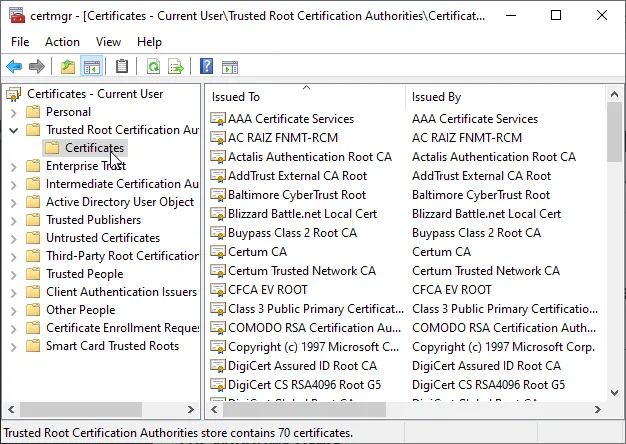
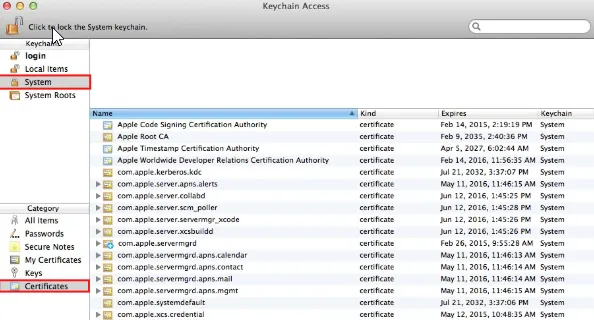
Pruning root certificates there is also riskier than it looks. Removing a legitimate root breaks software updates, application signing checks and unrelated websites across the whole machine, and the entries are not labelled in a way that makes the safe ones obvious. There is one narrow case where the system store is relevant: a vendor installer put a device’s own CA certificate on the machine, and Firefox imported it as a user-added root. Even then, remove that specific entry only, once you can name it, and only after the Firefox certificate manager has been checked first.
Other steps that change nothing
- Clearing the cache, cookies or history. None of those touch the certificate store. Firefox fetches and checks the certificate on every connection, and there is no cached verdict to clear.
- Looking for the Advanced button. The error is not overridable, so the button is genuinely absent rather than hidden. Time spent hunting for it is wasted.
- Renewing the certificate while keeping the serial. A renewal that reuses the old serial number recreates the collision precisely. What matters is a new serial, not new dates.
- Correcting the system clock. A wrong clock causes date errors, which Firefox reports with different codes. It has no bearing on an issuer and serial comparison.
- Disabling your antivirus entirely. If you suspect interception, switch off the HTTPS scanning component alone. Turning the whole product off strips protection you still need and isolates the cause no better.
- Reinstalling Firefox. A reinstall keeps your profile, so the stored certificate survives it. Creating a fresh profile does clear it, but only as a side effect of discarding your bookmarks, logins and settings.
Frequently Asked Questions
Almost never. Firefox is not checking a CA’s issuance records, it is comparing the incoming certificate against one it is already holding, either in memory for the current session or saved in your profile. Public CAs are required to generate serial numbers with at least 64 bits of random data, so a genuine duplicate from one of them is not a realistic scenario. In practice the certificate involved is self-signed, issued by an internal CA, or generated by security software intercepting the connection.
Firefox only offers Advanced and a button to continue anyway for errors on its overridable list, such as an expired certificate or an unknown issuer. SEC_ERROR_REUSED_ISSUER_AND_SERIAL is not on it, because the failure happens while Firefox is constructing the certificate rather than while validating it, so the browser treats it as a connection failure and shows the “Secure Connection Failed” page instead. Mozilla has had this on file since 2008 in bug 435013 and it remains open. The way forward is to remove the conflicting stored copy, not to look for a button.
Firefox keeps every certificate it has handled since it started in an in-memory store, and quitting clears it. If the conflict was with a certificate held only there, for example another appliance of the same model you opened earlier, the site loads immediately after a restart. It comes back as soon as both certificates appear in the same session again. If restarting changes nothing, the conflicting copy is saved in your profile and has to be deleted from the certificate manager.
No. It would clear the conflict, but that file also holds every CA certificate you or an administrator imported and any client certificates used to sign in to internal services. Deleting it can leave you with certificate errors on unrelated websites and locked out of services that authenticate with a client certificate. Removing the exception for the failing host on the Servers tab and then the device’s own certificate on the Authorities tab has the same effect on the error and no side effects.
Because the reset made the device generate a fresh self-signed certificate, and its firmware rebuilt the certificate from the same template with the same hardcoded serial number, very often 1. The new certificate has a different key, so its contents differ, while its issuer and serial match the one Firefox recorded before the reset. That pair is exactly what the check rejects. Clearing it means removing the old copy from the certificate manager, which usually means the device’s own certificate on the Authorities tab rather than the exception on the Servers tab, and the same thing will happen after the next reset unless you upload your own certificate to the device.
Whichever one you open first works, and the second collides with it. Devices sharing firmware often share a certificate template, including a fixed serial number, so their certificates differ in key material while carrying the same issuer and serial. Restarting Firefox between devices is a workaround. The real repair is to install a distinct certificate on each unit, ideally one issued by an internal CA that tracks its serials.
No, and it is the reason a lot of development environments see this error. That option forces the serial to the value you supply, so every certificate the command produces carries serial number 1. Regenerate twice for the same name and you have two different certificates sharing an issuer and a serial. Omit the option and current OpenSSL and LibreSSL choose a random serial, or set it explicitly from a random value.
Chromium browsers and Safari do not keep a local certificate database keyed on issuer and serial, so they have nothing to collide with and no equivalent error. The check belongs to NSS, the library Firefox is built on, which is also why the same error turns up in Thunderbird. Chrome loading the page is a way to reach the device in the meantime, not proof that the certificate is correct.
It can. Products with an HTTPS scanning feature terminate the connection and re-sign it with certificates they generate, and some build those by copying the original certificate’s serial number or by reusing a counter that resets. Either behavior can put two differing certificates with the same issuer and serial in front of Firefox. Check the issuer name: if it points at your security software rather than a Certificate Authority, switch off the HTTPS scanning component alone and reload. This is a genuine but much less common cause than a device reusing its serial.
Yes. With the conflicting copy gone, Firefox evaluates the device’s certificate normally and reports what is actually wrong with it, usually that it is self-signed or that its issuer is unknown. Those errors are overridable, so the Advanced option returns. Accepting the risk is reasonable on equipment you own and administer on your own network. Do not accept it on a public website, on anything where you sign in, or when you cannot explain the issuer.
For more SSL error troubleshooting, check our detailed tutorials about fixing different SSL errors.
Save 10% on SSL Certificates when ordering from SSL Dragon today!
Fast issuance, strong encryption, 99.99% browser trust, dedicated support, and 25-day money-back guarantee. Coupon code: SAVE10

