



Cloudflare’s error 525, “SSL Handshake Failed,” is one of the more confusing SSL errors to land on. The page your visitors get looks broken, yet your own server can appear perfectly healthy when you check it. The error is more specific than it first seems: it means Cloudflare reached your site’s network but could not negotiate an encrypted connection with the server sitting behind it.
In this guide, we’ll explain what the SSL handshake is, what actually triggers the Cloudflare error 525, and how to fix it on your origin server.
Quick answer: Cloudflare error 525 means Cloudflare could not complete a TLS handshake with your origin server while your SSL/TLS encryption mode is set to Full or Full (Strict). It is a server-side problem, so fix it on the origin, not in the visitor’s browser: install a valid certificate, open port 443, allow Cloudflare’s IP ranges through your firewall, and make sure your server supports SNI and offers a cipher suite Cloudflare accepts.
Table of Contents
- What Is an SSL Handshake?
- What Is the SSL Handshake Failure Error 525?
- What Causes the SSL Handshake Failure Error Code 525?
- How to Fix the SSL Handshake Failed Error?
- Frequently Asked Questions
What Is an SSL Handshake?
The SSL handshake is the first step in establishing a secure HTTPS connection between a browser and a web server. When you load a website, your browser asks the server for an encrypted connection, and the two sides agree on the terms before any page content moves between them.
The process occurs in the background in a matter of milliseconds. For the connection to be successful, both your browser and the website’s server must pass a series of checks such as the version of the TLS protocol, the cipher suites that will encrypt communication, and the validity of the certificate the server presents.
Without the SSL handshake, browsers can’t establish an HTTPS connection with the servers. It’s a critical part that can go wrong for various reasons.
Let’s see why sometimes the SSL Handshake fails.
What Is the SSL Handshake Failure Error 525?
The 525 status code, “SSL Handshake Failed,” is generated by Cloudflare, not by your browser and not by your web server. It appears when a site sits behind the Cloudflare proxy and Cloudflare cannot complete a TLS handshake with the origin server, the machine where the website is actually hosted.
It helps to picture the request as two separate legs. On the first leg, the visitor’s browser connects to Cloudflare, and that part succeeds: the visitor reaches Cloudflare’s network without trouble. On the second leg, Cloudflare acts as the client and opens its own HTTPS connection to your origin server. When that second handshake fails, Cloudflare has nothing to return to the visitor, so it serves the 525 error page instead.
This distinction matters, because it tells you where to look. The visitor’s browser already worked. The problem is on the origin.
What Causes the SSL Handshake Failure Error Code 525?
Error 525 only appears when your Cloudflare SSL/TLS encryption mode is set to Full or Full (Strict). Those modes tell Cloudflare to reach your origin over HTTPS, so anything that prevents that HTTPS connection from being negotiated produces the error.
Cloudflare documents four common causes, all of them on the origin server:
- No valid SSL certificate is installed on the origin server.
- Port 443, or whichever custom secure port you use, is not open.
- The origin server has no SNI support.
- The cipher suites used by Cloudflare do not match the cipher suites supported by the origin server.
In practice, two more configuration problems come up often enough to check early:
- A firewall or security plugin on the origin is blocking Cloudflare’s IP ranges, so the connection is refused before the handshake finishes.
- The encryption mode was switched to Full or Full (Strict) on a server that was never configured for HTTPS in the first place.
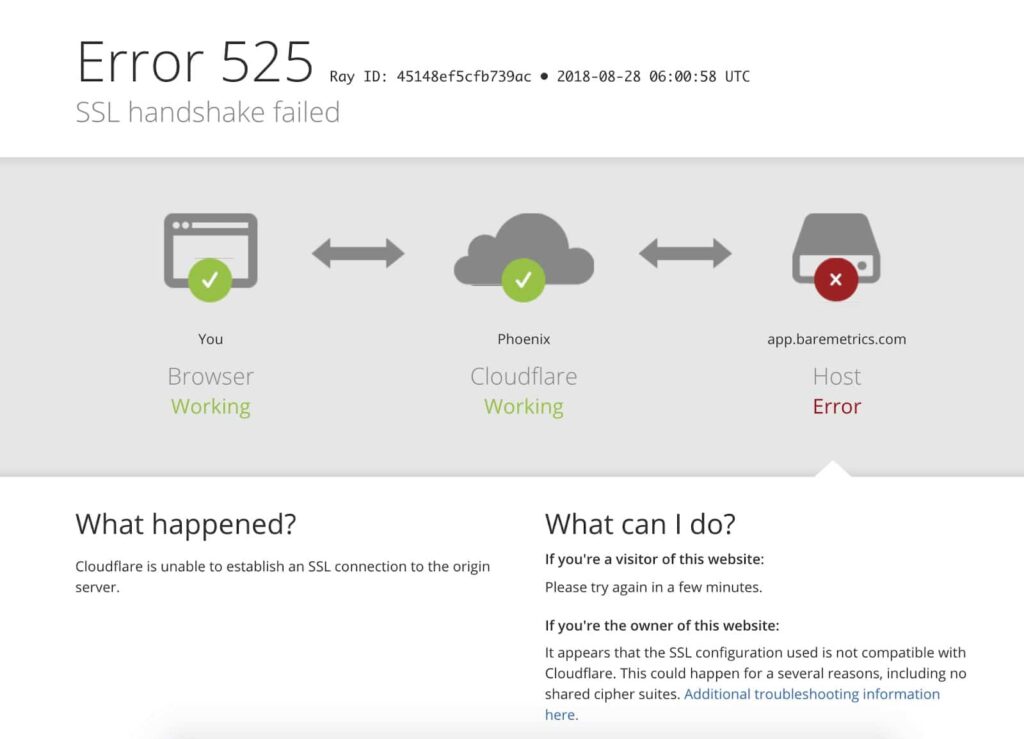
It is worth stating what does not cause a 525, because plenty of troubleshooting advice gets this wrong. The visitor’s browser version, the visitor’s browser cache, and the clock on the visitor’s computer play no part in it. Those factors cause browser-side warnings such as ERR_SSL_VERSION_OR_CIPHER_MISMATCH, but they cannot trigger a Cloudflare 525, because the visitor’s leg of the connection already completed successfully. If you are visiting someone else’s site and see this error, there is no client-side setting you can change to fix it. Report it to the site owner.
How to Fix the SSL Handshake Failed Error?
There isn’t a universal fix for error code 525, as it can originate in different places on the origin server. The solution is to work through the checks below until the handshake succeeds. They are ordered from the most to the least common cause.
1. Check the validity of your SSL certificate
Your origin server needs a certificate that is installed, unexpired, and complete with its intermediate chain. If it expired, was revoked, or was never installed, Cloudflare has nothing valid to negotiate with and the handshake stops there.
Renewing an SSL cert is similar to requesting a new one. You must submit a CSR (Certificate Signing Request) to the CA and pass the verification process. To check the status of your certificate, run a scan with our free SSL Checker, which reports the expiry date, the chain, and configuration problems that a padlock icon in the browser will not show you.
Keep in mind that a public tool tests the address the world sees, which behind Cloudflare is Cloudflare’s own certificate, not your origin’s. To test the origin itself, connect to it directly by IP address, as shown in the FAQ at the end of this guide.
An origin certificate that lapses takes the site down for everyone the moment it does, and missing a renewal is getting easier as permitted lifetimes shrink, so this is worth handing to ACME certificate automation rather than a calendar reminder.
2. Check your Cloudflare SSL/TLS encryption mode
In your Cloudflare dashboard, open SSL/TLS and look at the encryption mode. Error 525 only occurs in Full and Full (Strict), so the mode has to match what your origin can actually do.
- Full (Strict) requires a valid certificate on the origin, issued either by a publicly trusted CA or by Cloudflare’s own Origin CA.
- Full accepts a self-signed certificate on the origin, but the origin still has to answer on HTTPS.
- Flexible makes Cloudflare talk to the origin over plain HTTP, which removes the error but leaves that leg of the connection unencrypted.
Switching to Flexible is a useful diagnostic: if the site loads again, you have confirmed the problem is the origin’s HTTPS configuration. Treat it as a test, not a fix, and move back to Full (Strict) once the origin serves a valid certificate.
3. Make sure port 443 is open on the origin
Cloudflare connects to your origin on port 443 by default. If nothing is listening on that port, or a network firewall drops the traffic, the handshake never starts. Check that your web server is bound to the port:
sudo ss -tlnp | grep :443An empty result means no service is listening, and you need to enable HTTPS in your web server configuration before anything else will work. If a service is listening, confirm the port is also reachable from outside the machine, since a cloud security group or hardware firewall can block it while the local check still looks healthy.
4. Ensure your server supports SNI
SNI stands for Server Name Indication, an extension of the TLS (Transport Layer Security) protocol. It’s part of the SSL handshake process and ensures that client devices can see the correct SSL certificate for the website they are trying to reach. SNI allows a web server to host several TLS certificates on one IP address.
Cloudflare sends the hostname via SNI when it connects to your origin. If the origin cannot handle that, or serves a certificate for a different site, the handshake fails. You can reproduce the difference with the OpenSSL utility by running the same connection twice, once without SNI and once with it.
Run both commands against the origin’s IP address, not your domain name. While the site is proxied, the domain name resolves to Cloudflare, so testing it tells you how Cloudflare’s edge behaves and nothing about your own server. Replace ORIGIN_IP with your server’s address and example.com with your hostname.
Without SNI. The -noservername flag makes the omission explicit: since OpenSSL 1.1.1, s_client fills the SNI extension automatically from the name you pass to -connect, but only when that name is a DNS name, so an IP address sends no SNI to begin with. Keep the flag anyway: it states the intent of the test, and it is required whenever you run the same comparison against a hostname rather than an IP address.
openssl s_client -connect ORIGIN_IP:443 -noservernameWith SNI:
openssl s_client -connect ORIGIN_IP:443 -servername example.comRun these from the origin server or another Linux machine. The openssl command that ships with macOS is LibreSSL, which does not recognize -noservername or the -verify_hostname flag used later in this guide, and prints a usage error instead of connecting.
Compare the certificate each command returns. If the second command returns the correct certificate for your domain while the first returns a different one or fails to complete the handshake, the origin depends on SNI and is answering correctly. If the second command fails too, SNI is not your problem and you should work through the other checks in this guide. If neither call returns your certificate, the origin is serving the wrong virtual host, and that is what Cloudflare is running into. Fixing it usually means correcting the virtual host configuration, or moving the site to a dedicated IP address.
5. Ensure the cipher suites match
An SSL cipher, or SSL cipher suite, is a set of algorithms that helps browsers and web servers connect securely to each other. A cipher mismatch occurs when two sides share no cipher suite they both accept. In our case, the cipher suites your origin server offers don’t overlap with the ones Cloudflare will use, which produces the SSL Handshake Failed error.
This is most likely on older servers still restricted to legacy ciphers, or on hardened configurations where the allowed list was trimmed too aggressively. The now-deprecated RC4 cipher suite is the classic example: browsers dropped it years ago, Chrome removing it in version 48, yet it still turns up in enterprise systems that take longer to upgrade.
To check which ciphers your server offers, run a cipher suite scan and open the Cipher Suites section of the report. Anything flagged as weak or insecure should be replaced with modern TLS 1.2 and TLS 1.3 suites, which Cloudflare supports.
6. Check that your firewall is not blocking Cloudflare
Because every request now arrives from Cloudflare’s network rather than from individual visitors, an origin firewall, security plugin, or rate limiter can mistake that concentrated traffic for an attack and start dropping it. The result looks identical to a broken TLS configuration.
Allow Cloudflare’s published IPv4 and IPv6 ranges through the origin firewall, and check any security plugin’s block list for entries added automatically. This is also the most likely explanation when error 525 appears intermittently rather than on every request. When that happens, the origin error logs during the failing period are the fastest way to confirm it.
7. Check the date and time on the origin server
Be careful with this one, because it is usually described backwards. The origin never checks the dates on its own certificate, so a drifted clock does not stop it from serving one. Apache, Nginx and OpenSSL all load and present an expired certificate without complaint, and it is Cloudflare, on an accurate clock, that decides the certificate is bad. The clock still matters, for two narrower reasons. A certificate generated on a host whose clock is wrong carries wrong notBefore and notAfter values, which Cloudflare then rejects on its own clock, and that normally surfaces as error 526 rather than 525. Separately, if you use Authenticated Origin Pulls, your origin verifies the client certificate Cloudflare presents, using the origin’s clock, so a badly wrong clock puts that certificate outside its validity window and the origin aborts the handshake, which is a genuine 525. Ordinary drift will not reach either case: it takes a clock reset to the epoch or to a BIOS default, after a dead battery or on a freshly built VM. On a Linux server, check whether time synchronization is active:
timedatectl statusIf NTP service is inactive, enable it:
sudo timedatectl set-ntp trueA wrong clock on your own desktop won’t cause a 525, but it does cause browser certificate warnings that are easy to confuse with one. If you are chasing such a warning, here’s how to correct it:
On Windows:
- Open Settings, then go to Time & language and select Date & time.
- Turn on Set time automatically and confirm the time zone is right.
- Click Sync now to force an immediate synchronization.
On macOS:
- Choose Apple menu and open System Settings.
- Click General in the sidebar, then click Date & Time.
- Turn on Set date and time automatically and make sure the Mac is connected to the internet.
On macOS Monterey and earlier, the same settings live under System Preferences and Date & Time, where you first click the lock icon and enter your administrator password.
Frequently Asked Questions
No. By the time the error appears, the visitor’s browser has already connected to Cloudflare successfully, and the failure happened on the next leg, between Cloudflare and the origin server. Clearing the cache, switching browsers, or correcting the clock on a visitor’s device has no effect. If you are not the site owner, the only useful step is to report the error to the site.
It makes the error disappear, but it is not a fix. Flexible mode tells Cloudflare to connect to your origin over plain HTTP, so traffic between Cloudflare and your server travels unencrypted even though visitors see a padlock. Use it briefly to confirm the origin is the problem, then install a valid certificate and switch back to Full (Strict).
Error 525 means the TLS handshake between Cloudflare and your origin never completed. Error 526 means the origin answered and TLS negotiation got as far as presenting a certificate, but Cloudflare rejected it, for example because it is expired, revoked, self-signed, issued for a different hostname, or missing its intermediate chain. Error 525 appears in both Full and Full (Strict) modes, while error 526 is specific to Full (Strict).
Not necessarily. Cloudflare issues free Origin CA certificates that it trusts, and they satisfy Full (Strict) mode. A publicly trusted SSL certificate is still the better choice if anything other than Cloudflare connects to the origin directly, or if you might stop using the proxy later, because an Origin CA certificate is only trusted by Cloudflare.
Connect to the origin the same way Cloudflare does, by its IP address, while supplying your hostname for SNI:openssl s_client -connect ORIGIN_IP:443 -servername example.com -verify_hostname example.com
A connection reset, a timeout, or a handshake failure points straight at the certificate, the port, or the firewall, and that is your 525. If the handshake completes, read the last line of the output: Verify return code: 0 (ok) means the origin presented a valid certificate for that hostname. Keep the -verify_hostname flag, because without it OpenSSL still reports 0 (ok) when the origin answers with a certificate issued for some other name, and that is the condition behind error 526 in Full (Strict) mode rather than a healthy origin.
For more SSL error troubleshooting, check our detailed tutorials about fixing different SSL errors.
Save 10% on SSL Certificates when ordering from SSL Dragon today!
Fast issuance, strong encryption, 99.99% browser trust, dedicated support, and 25-day money-back guarantee. Coupon code: SAVE10


