



DLG_FLAGS_SEC_CERT_CN_INVALID is a Windows error, not a browser error. It is produced by WinINet, the networking stack built for Internet Explorer, and it means the certificate a server presented does not cover the hostname that was requested. If you are looking at this code, the software in front of you is running on that legacy stack: Internet Explorer mode in Microsoft Edge, or a Windows application that embeds the old MSHTML web control.
That distinction is the whole guide in one sentence, and it is where most troubleshooting advice for this code goes wrong. Chrome, Firefox and everyday Microsoft Edge browsing never print this string, so instructions that tell you to clear those browsers’ caches or reset them are describing a different product.
Quick answer:
DLG_FLAGS_SEC_CERT_CN_INVALID is the Windows certificate error for a hostname that the server’s certificate does not cover. Microsoft documents the underlying condition as ERROR_INTERNET_SEC_CERT_CN_INVALID, WinINet error 12038. It appears only in software built on the Internet Explorer web stack, mainly IE mode in Microsoft Edge and line-of-business applications that host the legacy MSHTML control. Chromium browsers report the same problem as NET::ERR_CERT_COMMON_NAME_INVALID and Firefox as SSL_ERROR_BAD_CERT_DOMAIN.
The fix is always on the server: reissue the certificate so its subjectAltName list contains the exact hostname being requested, then install it on whatever terminates TLS. Despite the error’s name, no current browser reads the Common Name field. Nothing on the client fixes this, and switching off Warn about certificate address mismatch in Internet Options does not fix it either, it only hides it for every WinINet application on that machine.
Which Software Actually Shows DLG_FLAGS_SEC_CERT_CN_INVALID
The string comes from WinINet, the HTTP stack Windows shipped for Internet Explorer. The DLG_FLAGS values are defined in winineti.h, a header that ships in the Windows SDK, where a comment describes them as flags that “keep track of security errors on a cached certificate entry from WinVerify”. They are single bits rather than sequential numbers, which is why an error page can list several of them at once. Each maps to a documented WinINet error constant, and Microsoft describes this one, ERROR_INTERNET_SEC_CERT_CN_INVALID (12038), as an “SSL certificate common name (host name field)” that “is incorrect”.
The hostname check itself is documented too. The flag that switches it off, INTERNET_FLAG_IGNORE_CERT_CN_INVALID, exists to disable exactly one thing: the comparison between the certificate the server returned and the host name given in the request. Microsoft’s description of that comparison is deliberately modest, “matching host names and simple wildcarding rules”. That is the entire scope of this error: a string comparison between the address requested and the names inside the certificate. No clock, no cache, no browser profile takes part in it.
Where the Internet Explorer stack still runs
Internet Explorer itself is gone. The IE11 desktop application went out of support on June 15, 2022, and has since been permanently disabled on the affected versions of Windows 10. The engine behind it did not disappear with the application, which is why this error is still in circulation:
- Internet Explorer mode in Microsoft Edge. IE mode renders configured sites with the Trident MSHTML engine from IE11 instead of the Chromium engine. Microsoft has committed to supporting it “through at least 2029”, with a minimum of one year’s notice before it ends. Sites reach IE mode through an Enterprise Mode Site List or the “Send all intranet sites to Internet Explorer” policy, so this is overwhelmingly an intranet and line-of-business situation. That became more true in late 2025, when Microsoft removed the casual entry points after an attack campaign abused them: the menu item went in Edge 141 and the toolbar button in Edge 142, so reaching IE mode now means Group Policy on a managed device, or enabling it per site in Settings.
- Applications that host the legacy web control. Desktop software written against the old WebBrowser or MSHTML control still fetches over WinINet. Internal tools, installers, help viewers, reporting front ends and older management consoles fall in this group.
- Components that fall back to MSHTML. Microsoft moved Office’s embedded web content to the Chromium-based WebView2 control, but MSHTML remains the fallback where WebView2 is not installed or is blocked by policy.
This shapes who reads the code. If you searched it, you are almost certainly an administrator or a user inside an organization, and the thing showing the error is an internal site, an appliance’s management page, or an application nobody has rebuilt in a decade. The fix is still a normal certificate fix, but that context changes which of the causes below is likely.
If you are in Chrome, Edge or Firefox, you have a different code
Every current browser reports a hostname mismatch under its own name. Read the code printed on the warning page before following any guide, including this one:
- Chrome, Microsoft Edge, Brave and Opera are Chromium browsers and report NET::ERR_CERT_COMMON_NAME_INVALID, internally error -200. Today’s Edge is a Chromium browser, so ordinary Edge browsing produces that code, not this one.
- Firefox reports SSL_ERROR_BAD_CERT_DOMAIN and names the host the certificate is valid for.
- Safari prints no code and says only that it cannot verify the website’s identity.
- WinINet software, meaning IE mode and the embedded controls above, is where DLG_FLAGS_SEC_CERT_CN_INVALID comes from.
They are the same underlying failure under four naming schemes, and one server-side repair clears all of them at once. Our companion guide to fixing NET::ERR_CERT_COMMON_NAME_INVALID works through the server-side causes with OpenSSL in more depth, so use it alongside this page if you are comfortable on a command line.
One practical tell for IE mode: Microsoft Edge displays an Internet Explorer logo at the left of the navigation bar whenever a tab is rendering in IE mode. If that logo is present, you are on the legacy stack and this page applies. If it is absent, you are in Chromium Edge and should be seeing the Chromium code instead.
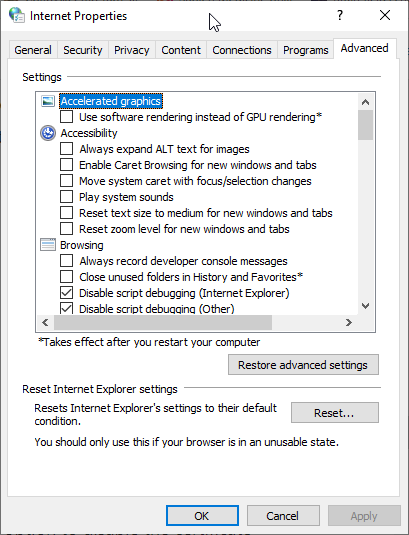
The same split explains a common mix-up. The Internet Options entry in Windows opens the dialog above, titled Internet Properties. Its own contents identify whose settings these are: a Reset Internet Explorer settings panel, and options such as Disable script debugging (Internet Explorer). It configures Internet Explorer and the WinINet applications that inherit its settings, not Chromium Edge, Chrome or Firefox, which each carry their own certificate handling.
The Error Is Named After a Field Browsers No Longer Read
The “CN” in the identifier stands for Common Name, the certificate subject field that once held the hostname. WinINet’s constants were named in that era and never renamed, because error codes end up in years of logs, scripts and support tickets. The certificates themselves moved on:
- The CA/Browser Forum Baseline Requirements have required the subjectAltName extension on publicly trusted certificates since 2012, and treat the Common Name as deprecated.
- Chrome 58, released in 2017, began requiring certificates to name their hosts in subjectAltName. Values in the Subject field, the Common Name included, are ignored for matching.
- Chrome 66 removed the enterprise policy that had temporarily restored the old behavior for locally installed roots, so there is no supported way to make Chromium read the Common Name.
- Firefox 101, released in 2022, dropped its own Common Name fallback and matches on subjectAltName only.
This matters even though your error came from the Windows stack. A certificate that only carries a correct Common Name, with no subjectAltName extension, is rejected outright by Chrome, Edge and Firefox. Aim your fix at the subjectAltName list and you satisfy every stack at once, the legacy one included. Aim it at the Common Name and you will fix nothing in a modern browser, no matter what the error is called.
Two rules decide whether a name is covered, and both catch people out:
- The match is exact. example.com and www.example.com are two different hostnames. Covering one does not cover the other, and a certificate has to list both if visitors can arrive at both.
- A wildcard replaces exactly one label, the leftmost one. A certificate for *.example.com covers shop.example.com and www.example.com, but not the bare example.com, and not dev.shop.example.com. Microsoft’s own wording for WinINet, “simple wildcarding rules”, describes the same restriction.
Read Which Flag You Actually Got, Because There Are Six
This is the correction that saves the most wasted effort. The WinINet certificate error page reports whichever checks failed, and DLG_FLAGS_SEC_CERT_CN_INVALID is only one of six flags defined in winineti.h. Expiry and an untrusted chain are separate flags with separate causes and separate fixes, and they are routinely blamed for this one. Four of the six correspond to a distinct documented WinINet error constant:
- DLG_FLAGS_SEC_CERT_CN_INVALID, matching ERROR_INTERNET_SEC_CERT_CN_INVALID (12038). The certificate does not cover the requested hostname. This page. The chain and the dates can both be perfect.
- DLG_FLAGS_SEC_CERT_DATE_INVALID, matching ERROR_INTERNET_SEC_CERT_DATE_INVALID (12037), which Microsoft describes as an SSL certificate date that “is bad. The certificate is expired.” Renew the certificate. Because certificate lifetimes are shrinking, this is worth automating with ACME certificate automation, which requests, installs and renews certificates before they lapse.
- DLG_FLAGS_INVALID_CA, matching ERROR_INTERNET_INVALID_CA (12045), documented as the function being “unfamiliar with the Certificate Authority that generated the server’s certificate”. That is a missing intermediate, a self-signed certificate, or an internal CA the machine does not trust. See how to fix NET::ERR_CERT_AUTHORITY_INVALID, which is the Chromium name for the same condition.
- DLG_FLAGS_SEC_CERT_REV_FAILED, matching ERROR_INTERNET_SEC_CERT_REV_FAILED (12057). The revocation check could not be completed, which usually means the client could not reach the CA’s OCSP or CRL endpoint. A separate constant, ERROR_INTERNET_SEC_CERT_REVOKED (12170), covers a certificate that really was revoked. See how to fix NET::ERR_CERT_REVOKED.
- DLG_FLAGS_WEAK_SIGNATURE and DLG_FLAGS_INSECURE_FALLBACK, the remaining two, cover a certificate signed with a weak algorithm and a connection that dropped to an older protocol version. They are seen far less often than the four above, but they are defined in the same header, so a flag you cannot place is not necessarily a typo.
More than one can be listed at the same time, which is normal on an old internal certificate: a self-signed certificate for the wrong hostname reports the CN flag and the CA flag together. Fix each one on its own terms. Nothing in the list above is fixed by a client-side setting.
Find Out Which Hostname Is Missing Before You Change Anything
The answer is always in one place: the list of names inside the certificate that server sends for that exact address. Read it first. It takes a minute and it stops you from reissuing a certificate that was never the problem.
1. Write down the exact hostname
Copy the address the failing component requested, character for character, including the www prefix or its absence, any port, and whether it is an IP address rather than a name. In an embedded application the address may not be visible on screen, in which case check the application’s configuration or its log for the URL it calls. The comparison that failed used that exact string, so an approximation is not good enough.
2. Read the certificate’s name list with PowerShell
Windows can retrieve and print the certificate without any extra tooling. Windows PowerShell 5.1, which ships with Windows, is enough. Replace the hostname on the first line and run:
$hostname = "example.com"

$client = New-Object System.Net.Sockets.TcpClient($hostname, 443)
$stream = New-Object System.Net.Security.SslStream($client.GetStream(), $false, { $true })
$stream.AuthenticateAsClient($hostname)

$cert = New-Object System.Security.Cryptography.X509Certificates.X509Certificate2 $stream.RemoteCertificate
$cert.Subject
$cert.Extensions | Where-Object { $_.Oid.Value -eq "2.5.29.17" } | ForEach-Object { $_.Format($true) }

$stream.Dispose()
$client.Dispose()
The OID 2.5.29.17 is the subjectAltName extension. Matching on the number rather than on the friendly name matters, because that name is translated on non-English installations of Windows. A healthy result for a site served on both the apex and the www host prints something like this:
DNS Name=example.com
DNS Name=www.example.com
Compare that against the hostname from step 1. If it is not there, you have found your cause. If nothing is printed at all, the certificate has no subjectAltName extension, which is a finding rather than a failed command, and is covered below.
Two things about this snippet are worth stating plainly. It deliberately accepts any certificate, which is what lets it read one that Windows has just rejected, so use it to inspect and never as a template for application code. And it passes the hostname to AuthenticateAsClient, which sends it through SNI, so the server picks the same certificate it picked for the failing request.
3. Or open the same URL in a modern browser
If scripting is not an option, use Chromium Edge or Chrome as the diagnostic tool. They receive the same certificate as the legacy component, report the mismatch as NET::ERR_CERT_COMMON_NAME_INVALID, and still let you inspect it. Click the icon at the left of the address bar, open the connection details, choose the certificate entry, then switch to the Details tab and find Certificate Subject Alternative Name under the extensions. That list, not the Common Name on the General tab, is the one that decides.
Avoid relying on Internet Explorer’s own certificate viewer for this. The application is retired and disabled on current Windows, and reaching the viewer through IE mode means clicking past a security warning first.
4. Confirm from outside your network
For anything published on the internet, run the domain through our free SSL Checker. It connects from outside your network and reports the certificate presented for that hostname along with the names it covers, which is how you catch a local DNS override, a hosts file entry or an internal load balancer. Test the www and non-www forms separately, since that difference is exactly what this error is about.
Internal hostnames cannot be tested that way, since an external service cannot resolve them. For those, the PowerShell snippet above run from a machine on the same network is the equivalent check.
How to Fix DLG_FLAGS_SEC_CERT_CN_INVALID on the Server
Every cause ends in the same place, a name list that does not contain the hostname being requested, but the repair differs. These are ordered by how often they turn out to be the answer in the legacy and internal setups where this error lives.
1. The hostname is missing from the certificate’s name list
The plain case: the certificate is valid, trusted and current, and simply does not list the name in use. On public sites this is nearly always the www and non-www split. On internal sites it is more often a host that was added later, or a service reached under an alias that nobody included when the certificate was requested.
Two details decide how you fix it:
- Adding a hostname requires a reissue, not a renewal. Names are fixed into the certificate at signing time and cannot be edited afterwards. Reissues are free with essentially every CA, and the existing certificate keeps working until you swap it.
- The names come from the CSR, so generate a new one listing every hostname that will be used, then install the reissued certificate on the server.
Once every name is covered, pick one canonical form and redirect the others to it. Our guide on switching from HTTP to HTTPS covers the redirect rules, and the SSL installation guides cover the platform you are on.
If several unrelated hostnames are involved, a multi-domain certificate lists them explicitly, while a wildcard certificate covers one level of subdomain under a single name. Our comparison of wildcard and SAN certificates covers which one fits which setup.
2. The certificate has no subjectAltName extension at all
This is the cause most likely to be behind a DLG_FLAGS error specifically, because the software showing it tends to be pointed at old internal infrastructure. A certificate carrying only a Common Name was ordinary practice for years. It is now rejected by every current browser regardless of how correct that Common Name is.
You will not meet this on a publicly trusted certificate, because CAs cannot issue one without the extension. It turns up on certificates generated in-house:
- Self-signed certificates made from a command line recipe written before 2017.
- Certificates from an internal CA whose issuing template still omits subjectAltName. On Active Directory Certificate Services this is a template setting, so fixing the template fixes every certificate issued afterwards.
- Certificates generated automatically by appliances: management controllers, NAS boxes, printers, switches and firewall interfaces.
The repair is to regenerate the certificate with the extension present. With OpenSSL 1.1.1 or later, the -addext option adds it in one step:
openssl req -x509 -newkey rsa:2048 -nodes -days 365 \
  -keyout internal.key -out internal.crt \
  -subj "/CN=app.corp.example" \
  -addext "subjectAltName=DNS:app.corp.example,DNS:app,IP:10.0.0.25" \
  -addext "basicConstraints=critical,CA:FALSE" \
  -addext "extendedKeyUsage=serverAuth"
The list after subjectAltName, not the value passed to -subj, is what gets matched. Repeat the hostname in both places, and include an IP entry only if the service is genuinely reached by IP address. Then confirm the extension landed before you deploy it:
openssl x509 -in internal.crt -noout -text | grep -A1 "Subject Alternative Name"Expect the error to change rather than disappear. A self-signed certificate with a correct name list clears the CN flag and then fails with DLG_FLAGS_INVALID_CA, because nothing trusts a certificate that vouches for itself. On an internal host, issue from your organization’s CA and distribute its root to the machines that need it. On anything public, use a certificate from a publicly trusted Certificate Authority.
3. You are connecting by IP address or a short internal name
Certificates cover names, and the name has to appear in the certificate exactly as it appears in the request. Two variants dominate in legacy environments, and both are usually configuration rather than certificate problems:
- A raw IP address. Requesting https://10.0.0.25/ asks for the literal IP to be matched against the certificate. A normal certificate lists DNS names only, so it fails. IP certificates exist but need an IP entry in the name list, and public CAs treat them as a separate product available only for public addresses.
- A short or internal hostname. Reaching a machine as https://server01/, https://intranet/ or https://app.local/ has the same problem. Public CAs have been prohibited from issuing for internal server names and reserved IP addresses since November 2015, and any that remained had to be revoked by October 2016, so a publicly trusted certificate can never cover them.
The tell is that the error appears on the short name or IP and never on the fully qualified name. Old bookmarks, hard-coded application settings, monitoring probes and Enterprise Mode Site List entries are the usual sources, which is precisely why this shows up in IE mode more than in ordinary browsing.
Where you can, change the caller to use the fully qualified name the certificate covers and let DNS resolve it, including on internal networks with split-horizon DNS. Where a service genuinely has to answer on a short name or an IP, issue that certificate from an internal CA with the matching DNS and IP entries in the name list, and distribute the internal root to the devices that connect.
4. The wrong site answers and hands over a default certificate
One address commonly hosts many sites, and the server chooses which certificate to present from the hostname the client sends through SNI. When no site matches that hostname, the server does not refuse the connection. It falls back to its default site and hands over whatever certificate is configured there.
The result is confusing because your certificate is installed and valid, it is simply not the one being served. The giveaway is in the diagnosis above: the subject that comes back belongs to a different site, to the hosting platform, or to a control panel’s placeholder. Check that a site or virtual host exists for the exact hostname, that it listens on port 443, and that it points at the right certificate.
If you want to compare behavior with and without SNI from a machine that has OpenSSL, one detail matters. Since OpenSSL 1.1.1, s_client fills the SNI extension automatically from the hostname passed to -connect, so a plain connection is not a no-SNI test. Suppress it explicitly:
openssl s_client -connect example.com:443 -noservernameRun this from Windows or Linux if you can. The LibreSSL binary that macOS ships as its system openssl rejects -noservername with “unknown option”, and since that flag is the only way to suppress SNI, the comparison cannot be made on a stock Mac at all. Install OpenSSL through Homebrew, or run it elsewhere. Check openssl version after installing, because /usr/bin comes first on the default PATH and a plain openssl can still reach LibreSSL; if it does, call the Homebrew build by its full path, /opt/homebrew/bin/openssl on Apple silicon or /usr/local/bin/openssl on Intel.
A related failure is worth recognizing while you are here. If the server rejects the hostname outright instead of falling back, the client reports ERR_SSL_UNRECOGNIZED_NAME_ALERT, which points at the same configuration from the other direction.
5. Something in front of the server presents its own certificate
The certificate that matters is the one installed on whatever terminates TLS, and in most networks that is not the web server. A load balancer, reverse proxy, CDN, WAF or application delivery controller in front of the origin is what the client actually negotiates with, so a perfectly configured origin behind a stale edge certificate still produces this error.
The common triggers are a hostname added to DNS and pointed at the edge before a certificate covering it was requested, and a certificate renewed on the origin but never copied to the device in front of it. To find out which layer is responsible, query the origin directly by its address while asking for your hostname, and compare what it returns with what the public name returns. Where they differ, the certificate to fix is the one at the edge.
6. The device cannot be reissued at all
This one has no equivalent on the Chromium side of the family, and it is common enough here to deserve naming. Plenty of hardware ships with a self-signed certificate issued to a serial number, a model name or a factory default hostname, and offers no way to replace it. Reaching such a device by its DNS name will always mismatch.
Options, in the order they are worth trying:
- Upload your own certificate. Most management interfaces from the last decade accept one, usually under a security or network settings page. Issue it from your internal CA with the name you actually use in the name list.
- Use the name in the certificate. If the device insists on its factory name, add a DNS record for that name pointing at the device and use it.
- Put a reverse proxy in front of it holding a proper certificate, and reach the device through the proxy. This is also how you keep an unpatched appliance off the general network.
- Accept the warning knowingly, only on equipment you administer, on a network you control, after confirming the certificate is the one the device is meant to present. Never as a standing configuration for users.
What is not on that list is switching the warning off globally. That is the subject of the next section.
Fixes That Circulate for This Error but Cannot Work
Most troubleshooting lists for certificate errors are written once and attached to whichever code the reader searched for. For a hostname mismatch on the Windows stack, the standard suggestions are not merely ineffective, they are describing different errors or different software.
Correcting the system date and time
A wrong clock makes valid certificates look expired or not yet valid. That is a real problem with a real error code, and on this stack it is DLG_FLAGS_SEC_CERT_DATE_INVALID, not this one. Hostname matching never consults the clock. If both flags are listed, fix the clock for the date flag and the certificate for the name flag.
Guides that add macOS date and time steps here are worth treating with suspicion generally, since WinINet is a Windows component and this error cannot occur on a Mac at all.
Clearing the browser cache or resetting the browser
The name comparison is recomputed on every connection from the certificate the server has just sent, so there is no stale match result sitting in a cache waiting to be flushed. Resetting a browser to defaults changes nothing about a certificate held on a server.
WinINet does keep a cache here, but it works the other way round. What it records, in the same DLG_FLAGS bits, is which certificate errors you chose to ignore in order to let a connection through. Clearing that state, through Clear SSL state on the Content tab of Internet Properties, brings suppressed warnings back rather than making a real mismatch go away. That is worth doing after you have repaired the certificate, or on a machine where somebody has been clicking through warnings for months, but it is not a fix.
Advice of this kind is doubly misplaced on this code, because it is usually written for Chrome or Firefox, and neither of them produces DLG_FLAGS_SEC_CERT_CN_INVALID in the first place.
Switching off “Warn about certificate address mismatch”
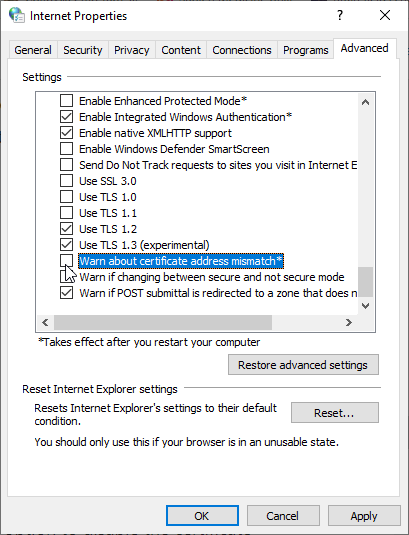
This setting, on the Advanced tab of Internet Properties under Security, is offered by many guides as a fix for this exact error. It is not a fix. It is the control that decides whether WinINet tells you about the mismatch, and the mismatch is still there once it is unchecked. The certificate still fails to identify the server, and the connection you were warned about proceeds silently.
Three things make it worse than an ordinary bad suggestion:
- It is not scoped to the site that annoyed you. It applies to every host reached through WinINet on that machine, including internal applications that carry credentials, and it will suppress genuine warnings later.
- It removes the one signal that separates a misconfiguration from an interception. A certificate that does not cover the requested host is exactly what a broken deployment looks like, and exactly what a machine-in-the-middle looks like. The warning exists because the software cannot tell them apart.
- It does not do what the guides claim. These are Internet Explorer’s settings. Chromium Edge, Chrome and Firefox do not read them, so anyone who unchecks the box expecting Edge to stop complaining has weakened the machine without changing the browser they were using.
Leave it enabled. In managed environments there is a Group Policy, Turn on certificate address mismatch warning, that enforces it centrally so a single user cannot disable it, and enforcing it is the reasonable position.
Installing missing intermediate certificates
An incomplete chain is a genuine and common server-side fault, and it is worth fixing. It just produces a different flag, DLG_FLAGS_INVALID_CA, because it is a trust failure rather than a naming failure. Adding intermediates will not clear a hostname mismatch.
If the chain really is what you are fixing, note that the usual instruction for Apache is out of date. The SSLCertificateChainFile directive became obsolete in Apache 2.4.8, when SSLCertificateFile was extended to load intermediate CA certificates from the server certificate file. On current Apache, concatenate the certificate and its intermediates into the file that SSLCertificateFile points at, ordered from leaf to root. Nginx has always worked that way through ssl_certificate.
Buying a different certificate before you have read the current one
A new certificate does fix this error when the name list is genuinely wrong, but it is the last step, not the first. Half the time the certificate already covers the name and something else is serving the wrong one, in which case a replacement changes nothing and costs a day. Read the name list first, as described above, then decide.
If You Cannot Change the Server
For a genuine mismatch there is no client-side fix. The names are written into the certificate when it is signed, and the comparison runs fresh on every connection using only what the server sent. Nothing on your machine takes part in it, so nothing you change on your machine alters the result.
One situation is the exception, with a distinctive signature: the error appears on every site rather than on one. Something between you and the internet is substituting its own certificate. The usual culprits are a captive portal you have not signed in to yet, on hotel, school or transport wifi, and security software doing HTTPS inspection, sold under names like encrypted web scan or SSL scanning. A captive portal clears once you complete the sign-in page. For an inspecting product, add the affected site to its exclusion list, or turn the inspection feature off long enough to confirm it is the cause.
What is worth doing is reporting it accurately, which gets it fixed faster. Whoever administers the site needs three things: the exact address you requested, the full error text including every DLG_FLAGS value listed, and the name shown on the certificate that came back. That is usually enough to identify the cause without any further investigation.
On the question of clicking through: an internal application you recognize, on a network you trust, is a judgment you are entitled to make. Anywhere you sign in, enter payment details or handle personal data, do not proceed. A certificate that fails to identify the server is precisely the condition the warning exists to report, and on a legacy component the warning may be the only protection in the path.
Frequently Asked Questions
Usually because that tab is running in Internet Explorer mode, which renders with the Trident MSHTML engine from IE11 rather than with Chromium. Edge shows an Internet Explorer logo at the left of the navigation bar when a tab is in IE mode, so check for it first. Sites land there through an Enterprise Mode Site List or the intranet policy, which makes this an organizational setup rather than something you switched on.
If there is no IE logo, Edge itself did not print this. The Chromium engine has no such string in it, and reports it as NET::ERR_CERT_COMMON_NAME_INVALID. In that case either the page came from a different WinINet component on the machine, or something local is intercepting HTTPS and presenting its own certificate. The tell for the second one is that every site fails rather than one.
Because the Common Name is no longer the field that gets matched. The CA/Browser Forum has required the subjectAltName extension on publicly trusted certificates since 2012, Chrome has matched on subjectAltName only since version 58, Chrome 66 removed the last policy that could restore the old behavior, and Firefox 101 dropped its own fallback. A certificate with a perfect Common Name and a missing or incomplete subjectAltName list fails in every current browser. Read the subjectAltName list and make sure the hostname appears there.
No. It hides the warning without repairing the certificate, and it does so for every WinINet application on that machine rather than for the one site that prompted it. It also does not affect Chromium Edge, Chrome or Firefox, which read their own settings, so it usually fails to achieve even what the person unchecking it intended. In managed environments, the Group Policy named Turn on certificate address mismatch warning keeps it enforced.
Neither can affect this code. There is no cached name-match result to clear, because the comparison is recomputed on every connection from the certificate just received. A wrong clock causes a separate flag, DLG_FLAGS_SEC_CERT_DATE_INVALID, by making valid certificates look expired. Both suggestions come from generic browser-error checklists rather than from anything specific to a hostname mismatch.
Those are two distinct hostnames and only one is listed in the certificate. There is no rule that treats www as an optional prefix. Reissue the certificate with both names in the subjectAltName list, install it, then pick one form as canonical and redirect the other to it with a 301.
Use the PowerShell snippet in this guide, which opens a connection, reads the certificate the server returns and prints the subjectAltName extension by its OID, 2.5.29.17. Matching on the OID rather than the friendly name keeps it working on non-English installations of Windows. If you prefer a graphical route, open the same URL in Chromium Edge or Chrome and inspect the certificate through the address bar icon, since those browsers receive exactly the same certificate.
Yes, but the obvious check is misleading. By default s_client verifies the certificate chain and not the hostname, so it prints “Verify return code: 0 (ok)” even for a certificate that fails this exact error. Ask it to run the browser’s check instead:openssl s_client -connect example.com:443 -servername example.com -verify_hostname example.com
A covered hostname still reports code 0. A mismatch reports “Verify return code: 62 (hostname mismatch)”, which is the command line equivalent of this error. Note that the LibreSSL binary macOS ships as its system OpenSSL does not accept -verify_hostname.
No. The hostnames are fixed into the certificate when it is signed, and the check runs on every connection using only what the server sends. Report the exact address, the full error text and the name on the certificate to whoever runs the site or the application. Do not proceed past the warning on anything where you sign in or enter personal data.
For more SSL error troubleshooting, check our detailed tutorials about fixing different SSL errors.
Save 10% on SSL Certificates when ordering from SSL Dragon today!
Fast issuance, strong encryption, 99.99% browser trust, dedicated support, and 25-day money-back guarantee. Coupon code: SAVE10

