



NET::ERR_CERT_COMMON_NAME_INVALID is named after a certificate field that Chrome stopped reading in 2017. The error still means what its name suggests, that the certificate a server presented was issued for a different hostname than the one in the address bar, but the field Chrome compares is no longer the Common Name. It is the subjectAltName extension, usually shortened to SAN, and troubleshooting advice built around the Common Name will send you to the wrong place.
This guide covers what Chrome actually checks, how to read the SAN list of the certificate your server is really sending, and the six server-side configurations that produce this error. It also explains why the fixes usually suggested to visitors, such as correcting the clock or clearing the SSL state, cannot affect this particular code.
Quick answer:
NET::ERR_CERT_COMMON_NAME_INVALID, which Chromium tracks internally as error -200, means the hostname you requested is not listed in the certificate’s subjectAltName extension. Chrome has matched hostnames against subjectAltName only since Chrome 58, and the Common Name field is ignored, so a certificate whose Common Name looks correct still fails if the SAN list is wrong.
The fix is always on the server: read the SAN list with OpenSSL or our SSL checker, then reissue the certificate so it names every hostname you serve (typically both example.com and www.example.com) and install it on whatever terminates TLS, which may be a CDN or load balancer rather than the web server. A visitor cannot fix this error, because it is a property of the certificate the server sends.
What NET::ERR_CERT_COMMON_NAME_INVALID Actually Means
Chromium’s internal error list describes -200 as a certificate “whose common name did not match the host name”. That wording is a leftover from an earlier era of TLS, and it is the single biggest reason this error gets misdiagnosed. Here is what changed.
- The CA/Browser Forum Baseline Requirements have required the subjectAltName extension on publicly trusted certificates since 2012, and treat the Common Name as deprecated.
- Chrome 58, released in 2017, began requiring certificates to name their hosts in subjectAltName. Values in the Subject field, including the Common Name, are ignored for matching.
- Chrome 66 removed the EnableCommonNameFallbackForLocalAnchors policy, the enterprise setting that had temporarily restored the old behavior for locally installed roots. After that release there is no supported way to make Chrome read the Common Name.
- Firefox 101, released in 2022, dropped its own Common Name fallback and now matches on subjectAltName only, so the two engines behave the same way.
The practical consequence is worth stating directly. A certificate whose Common Name reads example.com, but whose SAN list does not contain example.com, is rejected by every current browser. The Common Name plays no part in the decision.
The two messages Chrome shows, and what each one tells you
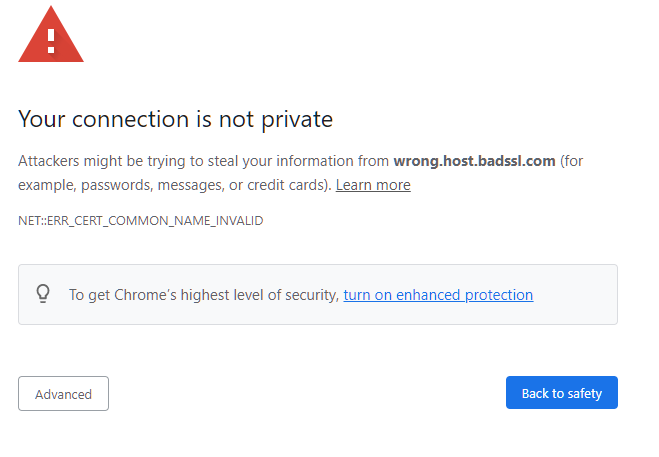
Under the Your connection is not private headline, Chrome prints a details line, and which of the two variants you get already narrows the cause before you touch the server.
- If the line says the server’s certificate is from some other hostname, the certificate has a SAN list and the name you requested is not in it. Chrome is showing you one entry out of that list.
- If it says the certificate does not specify Subject Alternative Names, the certificate has no SAN extension at all. This is the message that identifies a hand-made self-signed or internal certificate, and it is the clearest signal on the whole warning page.
Chrome’s own short summary of the condition is “Server’s certificate does not match the URL”, which is a more accurate description of the error than its name is.
Why the error is still called “common name invalid”
Error codes are effectively a public interface, so Chromium kept the old name rather than renaming a constant that appears in years of documentation, logs and support tickets. But there is one place where the Common Name genuinely still shows up, and knowing about it prevents a common misreading.
When Chromium builds the error message, it reads the certificate’s SAN entries and then has to choose which single hostname to print. It looks for a SAN entry that happens to equal the certificate’s Common Name and shows that one. If none matches, it shows the first entry in the list. So the Common Name influences only which name appears in the warning, never whether the connection is allowed.
That has a direct practical effect: the hostname Chrome displays is not “the name this certificate is for”. It is one entry out of a list that may hold dozens. Never conclude from the warning alone that your certificate covers only that name. Read the whole SAN list, as described in the next section.
Do not confuse it with the neighboring certificate errors
Chrome’s certificate warnings look identical, so read the code printed under the message before you start fixing anything:
- NET::ERR_CERT_COMMON_NAME_INVALID (-200): the hostname is not in the certificate’s SAN list. That is this page. The chain and the dates can both be perfect.
- NET::ERR_CERT_DATE_INVALID (-201): the certificate has expired or is not yet valid, or the device clock is wrong. See how to fix NET::ERR_CERT_DATE_INVALID.
- NET::ERR_CERT_AUTHORITY_INVALID (-202): the browser cannot build a chain from the certificate to a trusted root. Self-signed certificates, missing intermediates and TLS-inspecting security software all land here, not on -200. See how to fix NET::ERR_CERT_AUTHORITY_INVALID.
Other browsers report the same name mismatch in their own wording:
- Chrome, Edge, Brave and Opera are all built on Chromium and show this identical code.
- Internet Explorer and the older WinINet stack, which some Windows applications and Edge compatibility modes still use, report DLG_FLAGS_SEC_CERT_CN_INVALID. It is the same name mismatch under a different naming scheme, so a server-side fix here clears that error too.
- Firefox reports SSL_ERROR_BAD_CERT_DOMAIN and tells you which name the certificate is valid for.
- Safari prints no code and says only that it cannot verify the website’s identity.
Save 10% on SSL Certificates when ordering from SSL Dragon today!
Fast issuance, strong encryption, 99.99% browser trust, dedicated support, and 25-day money-back guarantee. Coupon code: SAVE10

Read the Certificate’s SAN List Before You Change Anything
Every cause in this guide is visible in one place: the SAN list of the certificate your server actually returns for that exact hostname. Two minutes of reading tells you which of the six causes you are in, and stops you from reissuing a certificate that was never the problem.
1. Read the SAN list in Chrome
Chrome still lets you inspect the certificate it rejected. From the warning page:
- Click the Not secure indicator at the left of the address bar. A page blocked by this error always shows that label, never the sliders icon (a padlock in older versions) that a normally loaded page shows.
- Open the connection details, then choose the certificate entry to open the certificate viewer.
- Switch to the Details tab and find Certificate Subject Alternative Name under the extensions. That list, not the Common Name shown on the General tab, is what Chrome matched against.
If there is no Subject Alternative Name entry in the extensions at all, you have already found your cause and can skip to the certificate with no SAN extension below.
2. Read the SAN list with OpenSSL
The command line gives you the same information for any hostname, from any machine, without clicking through a warning page. Ask the server for its certificate and print the extension:
openssl s_client -connect example.com:443 -servername example.com < /dev/null 2>/dev/null \
  | openssl x509 -noout -subject -text \
  | grep -A1 "Subject Alternative Name"
A healthy result for a site served on both the apex and the www host looks like this:
X509v3 Subject Alternative Name:
    DNS:example.com, DNS:www.example.com
Compare that list against the hostname in the address bar, character for character. The match has to be exact: example.com and www.example.com are two different names, and covering one does not cover the other.
On OpenSSL 1.1.1 and later there is a shorter form that prints the extension directly:
openssl s_client -connect example.com:443 -servername example.com < /dev/null 2>/dev/null \
  | openssl x509 -noout -ext subjectAltName
One portability note that costs people time: macOS ships LibreSSL as its system OpenSSL binary, and LibreSSL does not support the -ext option. If you get an “unknown option” message on a Mac, use the longer form above, which works everywhere, or install OpenSSL separately.
If nothing at all is printed, the certificate has no SAN extension. That is a finding, not a failed command.
3. “Verify return code: 0 (ok)” does not mean the name matched
This trips up almost everyone who tries to confirm a name mismatch with OpenSSL. By default, s_client verifies the certificate chain and nothing else. It does not check the hostname unless you ask it to, so a certificate that Chrome refuses with this exact error still reports:
Verify return code: 0 (ok)Reading that line and concluding the certificate is fine is a genuine dead end. To make OpenSSL perform the same check the browser performs, add -verify_hostname:
openssl s_client -connect example.com:443 -servername example.com \
  -verify_hostname example.com < /dev/null 2>/dev/null \
  | grep "Verify return code"
When the hostname is not covered, the result changes to:
Verify return code: 62 (hostname mismatch)Code 62 is the command line equivalent of NET::ERR_CERT_COMMON_NAME_INVALID and is the fastest confirmation you will get. The -verify_hostname option needs a real OpenSSL build, so the LibreSSL binary bundled with macOS does not accept it either. Reading the SAN list, as in step 2, works on every build and answers the same question.
If you want to practice these commands against a server that is meant to fail, the public test host wrong.host.badssl.com serves a certificate covering badssl.com and *.badssl.com, which by the wildcard rule below does not cover wrong.host.badssl.com, since two labels sit below badssl.com in that name. It reproduces this error exactly, and it is a safe place to confirm that your command line reads the SAN list the way you expect. We have deliberately not linked it, since visiting it triggers the browser warning by design.
4. Check which certificate that hostname really gets
A server can hold several certificates and pick one per request, so “the certificate is installed” and “the certificate is served for this hostname” are different statements. Print just the subject for a specific name:
openssl s_client -connect example.com:443 -servername example.com < /dev/null 2>/dev/null \
  | openssl x509 -noout -subject
If the subject that comes back belongs to a different site, your hosting provider, or a control panel’s default certificate, you are looking at a virtual host problem rather than a certificate problem. The -servername flag sends the hostname through SNI, which is how the server decides what to present.
Clients that send no SNI at all always receive the server’s default certificate. To reproduce that case, you have to suppress SNI explicitly:
openssl s_client -connect example.com:443 -noservername < /dev/null 2>/dev/null \
  | openssl x509 -noout -subject
The -noservername flag is not optional here. Since OpenSSL 1.1.1, s_client fills the SNI extension automatically from the hostname you pass to -connect, so a plain connection without -servername is not a no-SNI test and proves nothing. The flag requires OpenSSL 1.1.1 or later and is absent from the LibreSSL build on macOS.
5. Confirm from outside your network
Run the domain through our free SSL certificate checker. It connects from outside your network and reports the certificate presented for that hostname along with the names it covers, which is useful when a local DNS override, a hosts file entry, or an internal load balancer is sending you somewhere your visitors never reach. Test both the www and non-www forms separately, since that is exactly the distinction this error is about.
How to Fix NET::ERR_CERT_COMMON_NAME_INVALID as a Website Owner
The causes below are ordered by how often they turn out to be the answer. All of them end in the same place, a SAN list that does not contain the hostname visitors are using, but the repair is different in each case.
1. The SAN list is missing the www or the non-www form
This is the most frequent trigger by a wide margin. To a browser, example.com and www.example.com are two unrelated hostnames, and a certificate has to list both if visitors can arrive at both. A certificate issued for example.com alone produces this error the moment someone types the www form, follows an old link, or lands on it through a redirect.
It is easy to miss because the site looks perfectly healthy on whichever form you personally use. Your browser autocompletes the address you always type, so the broken half of the site can stay broken for months.
Most Certificate Authorities include the www form automatically when you validate a bare domain, but that behavior varies by CA and by product, and it is not something to assume. Check what you actually received with the OpenSSL command above rather than what you expected to receive.
To fix it, reissue the certificate with both names in the SAN list. Two details matter here:
- Adding a hostname requires a reissue, not a renewal. The names are baked into the certificate at signing time and cannot be edited afterwards. Reissues are free with essentially every CA, and your existing certificate keeps working until you swap it.
- The names come from the CSR, so generate a new one that includes every hostname. You can check a CSR before you submit it:
openssl req -in example_com.csr -noout -text | grep -A1 "Subject Alternative Name"Once both names are covered, pick one canonical form and redirect the other to it with a 301. That is good practice for search engines and it keeps the surface you have to test small. Our guide on switching from HTTP to HTTPS covers the redirect rules.
2. The certificate has no subjectAltName extension at all
This is the defining modern cause, and the one that did not exist before 2017. A certificate that carries only a Common Name, with no SAN extension, was perfectly normal for years. Today it fails in every browser, no matter how correct that Common Name is.
You will not hit this with a publicly trusted certificate, because CAs cannot issue one without a SAN. It shows up on certificates you or your organization generated:
- Self-signed certificates created from an old command line recipe or a tutorial written before 2017.
- Development and localhost certificates generated by scripts that were never updated.
- Certificates from an internal CA whose issuing template still omits the extension.
- Self-signed certificates auto-generated by appliances, NAS boxes, printers and management interfaces.
Chrome names this case explicitly in the warning, saying the certificate does not specify Subject Alternative Names, so you rarely have to guess.
The fix is to regenerate the certificate with the extension present. With OpenSSL 1.1.1 or later, -addext adds it in one step:
openssl req -x509 -newkey rsa:2048 -nodes -days 365 \
  -keyout dev.key -out dev.crt \
  -subj "/CN=dev.example.com" \
  -addext "subjectAltName=DNS:dev.example.com,DNS:localhost,IP:127.0.0.1" \
  -addext "basicConstraints=critical,CA:FALSE" \
  -addext "extendedKeyUsage=serverAuth"
Note that the SAN list, not the -subj value, is what browsers read. Repeat the hostname in both places, and include an IP entry only if you actually reach the service by IP address. Then confirm the extension landed:
openssl x509 -in dev.crt -noout -text | grep -A1 "Subject Alternative Name"A self-signed certificate with a correct SAN list clears this error, but it will then fail with NET::ERR_CERT_AUTHORITY_INVALID instead, because no browser trusts a certificate that vouches for itself. That is expected on an internal or development host where you trust the certificate manually. On anything public, use a certificate from a publicly trusted Certificate Authority.
3. The wrong virtual host answers, so the default certificate is served
One IP address commonly hosts many sites. The server chooses which certificate to present from the hostname the client sends through SNI. When no virtual host matches that hostname, the server does not refuse the connection. It falls back to its default site and hands over whatever certificate is configured there.
The result is confusing precisely because your certificate is installed and valid. It is simply not the one being served. The giveaway is step 4 of the diagnosis: the subject that comes back belongs to another domain, to the hosting provider, or to a control panel’s placeholder certificate.
Check that a virtual host exists for the exact hostname, that it listens on port 443, and that it points at the right certificate. In nginx, every name you serve has to appear in server_name:
server {
    listen 443 ssl;
    server_name example.com www.example.com;

    ssl_certificate     /etc/ssl/certs/fullchain.crt;
    ssl_certificate_key /etc/ssl/private/example_com.key;
}
In Apache, the equivalent is ServerName plus a ServerAlias for every additional hostname:
<VirtualHost *:443>
    ServerName  example.com
    ServerAlias www.example.com
    SSLEngine on

    SSLCertificateFile    /etc/ssl/certs/fullchain.crt
    SSLCertificateKeyFile /etc/ssl/private/example_com.key
</VirtualHost>
Test the configuration before applying it, then reload:
sudo nginx -t && sudo systemctl reload nginxsudo apachectl configtest && sudo systemctl reload apache2A related SNI failure is worth recognizing while you are in this area. If the server rejects the hostname outright instead of falling back, the browser reports ERR_SSL_UNRECOGNIZED_NAME_ALERT, which points at the same virtual host configuration from the other direction.
4. You are reaching the site by IP address or an internal hostname
Certificates cover names, and the name has to be in the certificate exactly as it appears in the address bar. Two variants of this catch people out regularly:
- Access by raw IP address. Opening https://203.0.113.10/ asks the browser to match the literal IP against the certificate. A normal certificate lists DNS names only, so the match fails. IP address certificates do exist, but they require an IP entry in the SAN list and most CAs treat them as a special product.
- Access by an internal or short hostname. Reaching a server as https://server01/, https://intranet/ or https://app.local/ has the same problem. Public CAs have been prohibited from issuing certificates for internal server names and reserved IP addresses since November 2015, and any that were still in circulation had to be revoked by October 2016, so a publicly trusted certificate can never cover them.
The tell is that the error appears only on the IP or short-name URL and never on the public domain name. This often surfaces in monitoring checks, health probes and internal bookmarks rather than in real visitor traffic.
Where possible, use the fully qualified DNS name that the certificate covers and let DNS resolve it, including on internal networks with split-horizon DNS. Where a service genuinely has to be reached by IP or by a short internal name, issue that certificate from an internal CA with the appropriate DNS and IP entries in the SAN list, and distribute the internal root to the devices that need it.
5. A wildcard certificate that does not cover the hostname
Wildcards cover less than people expect. A wildcard replaces exactly one label, the leftmost one, and browsers implement that rule strictly. So a certificate for *.example.com behaves like this:
- It covers shop.example.com, blog.example.com, www.example.com and any other single label.
- It does not cover the bare domain example.com, because there is no label for the wildcard to replace.
- It does not cover multi-level names such as dev.shop.example.com, because the wildcard matches one label and not several.
The apex case is the one that bites hardest, since a wildcard is often bought precisely to avoid thinking about coverage. In practice CAs include the bare domain alongside the wildcard, so a well-formed SAN list reads DNS:example.com, DNS:*.example.com. If yours holds the wildcard only, the main site fails while every subdomain works, which is a distinctive symptom.
For deeper names you have two options: a second wildcard issued for *.shop.example.com, or a multi-domain certificate listing the exact hostnames. Our comparison of wildcard and SAN certificates covers which fits which setup, and we have a dedicated guide on wildcard certificates for multi-level subdomains.
6. A CDN, load balancer or shared host presents its own certificate
The certificate that matters is the one installed on whatever terminates TLS, and that is often not your web server. When a CDN, reverse proxy or load balancer sits in front of your origin, the browser only ever sees the certificate at that edge. A perfectly configured origin behind a misconfigured edge still produces this error.
The usual triggers are:
- A new hostname added to DNS but not to the edge certificate. Pointing shop.example.com at your CDN takes effect immediately, while the certificate covering it does not exist until you request it.
- Multi-level subdomains on a CDN’s default certificate. A provider’s automatic certificate typically covers the apex and one level of subdomain, so dev.shop.example.com falls outside it for the reason described above.
- Shared hosting answering with the host’s own certificate. On shared hosting, a domain that has no certificate of its own does not simply refuse HTTPS. The server answers with the shared platform’s default certificate, which names the hosting provider rather than your site, and the browser reports the name mismatch. This is the real mechanism behind “I never installed a certificate”, and it is worth being precise about: a server with genuinely nothing listening on port 443 returns ERR_CONNECTION_REFUSED, and one that answers HTTP on the HTTPS port returns ERR_SSL_PROTOCOL_ERROR. Neither of those is this error.
A WordPress variant is common enough to name. Setting the site URL to https:// in the dashboard, or switching on an HTTPS plugin, before a certificate exists for that hostname makes every page load hit whatever certificate the platform serves. Install the certificate first, then move the site to HTTPS.
To find out which layer is responsible, query the origin directly by its IP address while asking for your hostname, and compare what it returns with what the public name returns:
openssl s_client -connect 203.0.113.10:443 -servername example.com < /dev/null 2>/dev/null \
  | openssl x509 -noout -subject -text \
  | grep -A1 "Subject Alternative Name"
If the origin returns a correct SAN list and the public hostname does not, the certificate to fix is the one at the edge, in your CDN or load balancer dashboard, not on the server.
What to Do If You Are a Visitor, Not the Site Owner
There is no polite way to put this: you cannot fix NET::ERR_CERT_COMMON_NAME_INVALID from your side. The names in a certificate are fixed when it is signed, and matching them against the address bar happens fresh on every connection using only what the server sent. Nothing on your device participates in that comparison, so nothing you change on your device can alter the outcome.
What is worth doing is establishing whether the problem really is the site. Open the same address on a phone using mobile data rather than your Wi-Fi. If it fails there too, the server is misconfigured and the only useful action is to report it to the site owner. If it fails only on your own network, something on that network is intercepting HTTPS connections and re-signing them, which usually shows up as NET::ERR_CERT_AUTHORITY_INVALID rather than this code. Our guide on SSL inspection explains how that works.
One exception is worth knowing, and Chromium lists it among the documented causes of this error: a public Wi-Fi network that redirects your first request to its own sign-in page. Hotel, airport and cafe portals intercept that request, and when the address was an HTTPS one, the certificate that comes back belongs to the portal rather than to the site, which is a genuine name mismatch. Chrome often detects this and offers a Connect to Wi-Fi prompt instead, but detection is not reliable. Sign in to the network, or load any plain HTTP address to make the portal appear, then retry. That is the one case on this page where the visitor, rather than the site owner, is the person who can clear the error.
Fixes that circulate for this error but cannot work
Most troubleshooting lists for Chrome certificate errors are written generically and then attached to whichever code the reader searched for. For a name mismatch, the standard suggestions are not merely ineffective, they are addressing different errors entirely:
- Correcting the date and time. A wrong clock makes valid certificates look expired, which produces NET::ERR_CERT_DATE_INVALID (-201). Hostname matching never consults the clock.
- Clearing the SSL state in Internet Options. That button empties the Windows Schannel cache, which Internet Explorer and some Windows applications use. Chrome has its own network stack and does not read it. There is also nothing to clear: the browser recomputes the name match on every connection, so no stale result exists.
- Disabling browser extensions. Extensions operate above the network layer. They cannot change which certificate a server sends or how Chrome evaluates it.
- Updating Chrome. Staying current is sensible generally, but every Chrome release since version 58 handles this check identically. If anything, updating removed the old Common Name behavior rather than restoring it, so an update cannot make a certificate with a wrong SAN list start working.
- Changing proxy settings. A proxy that inspects HTTPS re-signs traffic with its own certificate, and that shows up as an untrusted issuer (-202), not a name mismatch.
- Turning off your antivirus. Security software that intercepts HTTPS also produces the untrusted issuer error rather than this one. More importantly, switching off your protection to reach a site whose identity has just failed to verify is the wrong response to this specific warning. If you do suspect HTTPS scanning, disable only that one feature in the product’s web protection settings and leave the rest of the antivirus running.
Think before you click through
Chrome offers an Advanced link with a proceed option. On a development server you control, or an internal appliance whose certificate you recognize, using it is reasonable.
Everywhere else, weigh it carefully. A certificate that does not cover the hostname you asked for is exactly what a misconfiguration looks like, and also exactly what an intercepted connection looks like. Chrome cannot distinguish the two, which is why it blocks rather than warns. If a bank, mail service or shop triggers this error, do not proceed and do not enter credentials. Reach the site over a different network and report the problem to its operator.
Frequently Asked Questions
Because Chrome does not read the Common Name. Since Chrome 58 it matches hostnames only against the subjectAltName extension, and Chrome 66 removed the enterprise policy that could temporarily restore the old behavior. Firefox made the same change in version 101. A correct Common Name with a missing or incomplete SAN list fails in every current browser. Read the SAN list with the OpenSSL command in this guide and make sure the hostname appears there.
No. Expiry produces a different code, NET::ERR_CERT_DATE_INVALID (-201). NET::ERR_CERT_COMMON_NAME_INVALID is -200 and concerns names only. A certificate issued an hour ago triggers it if the hostname is missing from the SAN list, and renewing the certificate will not clear it unless you also add the missing name, which requires a reissue.
Because those are two distinct hostnames and only one of them is in the certificate. Browsers do not treat www as an optional prefix. Reissue the certificate with both names listed in the SAN extension, install it, then pick one form as canonical and redirect the other to it with a 301.
Not on its own. A wildcard replaces exactly one label, so *.example.com covers shop.example.com and www.example.com but not example.com itself, and not dev.shop.example.com. Most CAs add the bare domain alongside the wildcard, giving a SAN list of DNS:example.com, DNS:*.example.com. Check what you actually have, and add the apex or use a multi-domain certificate if it is missing.
No. The hostnames are written into the certificate when the CA signs it, and the browser checks them against the address bar on every connection using only what the server sends. Clearing the SSL state, adjusting the clock, removing extensions, updating Chrome or disabling antivirus changes nothing on this code. Report the problem to the site owner, and do not click through on a site where you sign in or pay. The one exception is a public Wi-Fi sign-in page intercepting the request, which clears once you log in to the network.
Two possibilities. Either the server is answering from the wrong virtual host and handing you another site’s certificate or a hosting platform’s default, or the certificate is yours and Chrome is simply printing one entry from its SAN list. Chrome picks the SAN entry that matches the certificate’s Common Name and falls back to the first entry, so the name displayed is not necessarily the only name covered. Read the whole list before drawing conclusions.
Ask the server for its certificate and print the extension:openssl s_client -connect example.com:443 -servername example.com < /dev/null 2>/dev/null \ | openssl x509 -noout -subject -text \ | grep -A1 "Subject Alternative Name"
Be careful with the verify line in s_client output. It reports on the certificate chain only and prints Verify return code: 0 (ok) even when the hostname does not match. Add -verify_hostname to make OpenSSL run the browser’s check, which returns code 62 for a mismatch. Our SSL checker reports the same information from outside your network.
Regenerate it with the extension included. On OpenSSL 1.1.1 and later the -addext option handles it in a single command, as shown earlier in this guide. Adding the hostname only to the -subj value is not enough, since that populates the Common Name, which browsers ignore. After regenerating, expect the error to change to NET::ERR_CERT_AUTHORITY_INVALID, which is the separate and expected complaint that a self-signed certificate is not trusted.
DLG_FLAGS_SEC_CERT_CN_INVALID, which comes from the older Windows networking stack rather than from Chromium. It reports the same condition, a certificate that does not cover the requested hostname, so the server-side fixes in this guide resolve it as well. Firefox calls it SSL_ERROR_BAD_CERT_DOMAIN and Safari says only that it cannot verify the site’s identity.
Not directly, but the damage is real. HTTPS is a lightweight ranking signal that Google announced in 2014, and it has never been a requirement for being indexed, so pages served over HTTP are crawled and ranked normally. What hurts is the block itself: visitors and search engine crawlers reaching a page behind a full-screen browser interstitial cannot load the content, which affects traffic, conversions and how the page is assessed far more than any ranking signal would.
For more SSL error troubleshooting, check our detailed tutorials about fixing different SSL errors.
Save 10% on SSL Certificates when ordering from SSL Dragon today!
Fast issuance, strong encryption, 99.99% browser trust, dedicated support, and 25-day money-back guarantee. Coupon code: SAVE10

