



You’re installing an SSL certificate on your server, and suddenly you’re stuck. The configuration asks for a “CA Bundle” file, and you’re not sure what it is or where to find it. You’re not alone—this trips up plenty of people during SSL installation.

CA Bundles aren’t complicated once you understand what they do. In this guide, we’ll walk through exactly what a CA Bundle is, why your server needs it, and how to create or obtain one in just a few minutes. By the end, you’ll be able to handle CA Bundles confidently and avoid those frustrating “certificate not trusted” errors.
Table of Contents
- What is a CA Bundle?
- Why the CA Bundle Matters for SSL Security
- How to Get Your CA Bundle
- How to Create a CA Bundle
- Verifying Your CA Bundle
- Installing the CA Bundle on Your Server
- Common CA Bundle Issues and Solutions
- CA Bundle Best Practices
Save 10% on SSL Certificates when ordering from SSL Dragon today!
Fast issuance, strong encryption, 99.99% browser trust, dedicated support, and 25-day money-back guarantee. Coupon code: SAVE10

What is a CA Bundle?
A CA Bundle is a single file that contains intermediate certificates and root certificates from your Certificate Authority. When combined with your server certificate, it completes your SSL certificate chain of trust—the sequence of certificates that browsers use to verify your site is legitimate.
Think of it this way: your server certificate says “I’m example.com,” but browsers need proof. The CA Bundle provides that proof by showing the trusted path from your certificate all the way up to a root certificate that browsers already trust.
Most SSL certificates require a CA Bundle (the main exception being PKCS#7 format certificates, which already include the bundle). Without it, browsers can’t verify your certificate’s authenticity, leading to security warnings that drive visitors away.
CA Bundle Components
A typical CA Bundle contains two types of certificates:
- Intermediate Certificates. These are certificates issued by the Certificate Authority to bridge the gap between your server certificate and the root certificate. Large CAs like Sectigo and DigiCert often use multiple intermediates to distribute the certificate signing workload and manage different certificate types.
- Root Certificates. These are the top-level certificates in the chain of trust. Browsers and operating systems come pre-loaded with root certificates from trusted CAs. When a browser sees a root certificate it recognizes, it knows the entire certificate chain is valid.
The file itself usually has a .pem, .crt, or .ca-bundle extension. Inside, you’ll find the certificates in PEM format—blocks of text starting with —–BEGIN CERTIFICATE—– and ending with —–END CERTIFICATE—–.
The Certificate Chain of Trust
Here’s how the SSL certificate chain works in practice:
- Server Certificate (your website’s certificate) – Contains your domain name and public key
- Intermediate Certificate(s) (from CA Bundle) – Signed by the root CA, signs your certificate
- Root Certificate (from CA Bundle) – Pre-trusted by browsers and operating systems
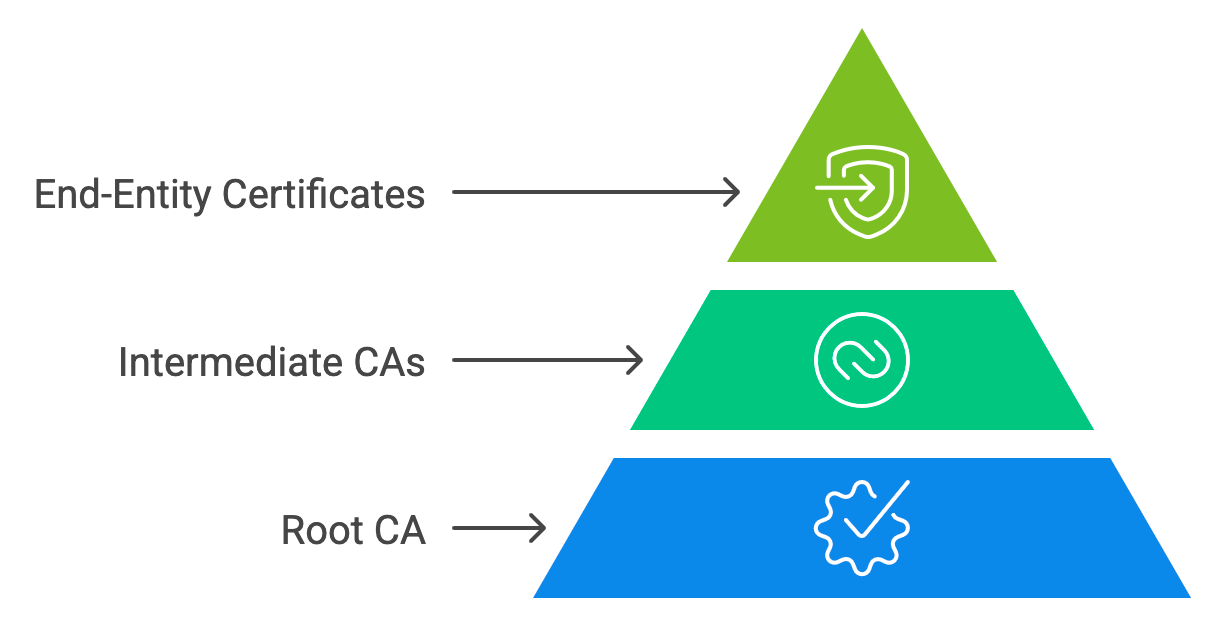
When someone visits your site over HTTPS, their browser performs an SSL handshake. During this process, the browser validates each link in the chain, starting with your server certificate and working its way up to a trusted root. This is PKI (Public Key Infrastructure) in action.
If any link in this chain is missing—typically because the CA Bundle wasn’t installed—the browser can’t complete the validation. The result? Security warnings like “Your connection is not private” or “Certificate not trusted.”
Why the CA Bundle Matters for SSL Security
The CA Bundle serves several critical functions beyond just making the padlock icon appear.
Browser Compatibility
Different browsers and operating systems maintain different certificate trust stores. Your CA Bundle ensures compatibility across desktop browsers, mobile devices, email clients, and API tools. This is especially important for older browser versions that might not have the latest intermediate certificates.
Protection Against Security Threats
A properly configured CA Bundle helps prevent man-in-the-middle attacks by verifying certificate authenticity at multiple levels. The certificate chain makes forgery nearly impossible because each certificate is cryptographically signed by the one above it.
Meeting Compliance Requirements
Many industries require proper SSL/TLS configuration:
- PCI DSS requires secure transmission of cardholder data
- GDPR mandates appropriate security measures for personal data
- HIPAA requires secure communication for healthcare information
A missing or incorrectly configured CA Bundle can put you out of compliance, even if your certificate itself is valid.
How to Get Your CA Bundle
You don’t need to create a CA Bundle from scratch every time. Here are the main ways to obtain one:
1. From Your Certificate Authority
When you purchase an SSL certificate from providers like Sectigo, DigiCert, or GeoTrust, they typically provide the CA Bundle along with your server certificate. For SSL Dragon customers, you’ll find your CA Bundle in your certificate dashboard right after issuance.
2. Download from Official CA Repositories
Most major Certificate Authorities maintain public repositories where you can download root and intermediate certificates. Sectigo, DigiCert, Let’s Encrypt, and other CAs publish their certificate chains on their support sites.
3. Extract from Certificate Store
Operating systems maintain certificate trust stores you can access:
- Windows: Use certmgr.msc to access the certificate manager
- Linux/macOS: /etc/ssl/certs/ directory
How to Create a CA Bundle (Step-by-Step Guide)
Sometimes you need to create a CA Bundle manually—maybe you only received individual certificate files. Here’s how to do it properly.
Prerequisites
Before you start, make sure you have:
- Your intermediate certificate file(s)
- Your root certificate file
- A text editor (Notepad++, nano, vim, or even basic Notepad)
Method 1: Using a Text Editor
This method works on any platform and doesn’t require technical expertise.
Step 1: Locate Your Certificate Files
Find the certificate files provided by your CA. You’re looking for the intermediate and root certificates—not your server certificate. The files usually have extensions like .crt, .pem, or .cer.
Step 2: Open Each Certificate
Open your intermediate certificate in a text editor. You’ll see content like:
-----BEGIN CERTIFICATE-----
MIIGEzCCA/ugAwIBAgIQfVtRJrR2uhHbdBYLvFMNpzANBgkqhkiG9w0BAQwFADCB
[many lines of encoded data]
-----END CERTIFICATE-----
The important parts are the —–BEGIN CERTIFICATE—– header and —–END CERTIFICATE—– footer. Make sure both are present and complete.
Step 3: Create Your Bundle File
Create a new blank file in your text editor. Name it yourdomain.ca-bundle or ca-bundle.crt. The extension doesn’t matter much—you can use .pem, .crt, or .ca-bundle.
Step 4: Copy Certificates in the Correct Order
This is the critical step. The order must be:
- First: Your intermediate certificate (the one that directly signed your server certificate)
- Second: Any additional intermediate certificates (if you have multiple)
- Last: The root certificate
Copy each certificate completely, including the BEGIN and END lines. Don’t add extra spaces or blank lines between certificates.
Here’s what a correct CA Bundle looks like:
-----BEGIN CERTIFICATE-----
[Intermediate Certificate 1]
-----END CERTIFICATE-----
-----BEGIN CERTIFICATE-----
[Root Certificate]
-----END CERTIFICATE-----
Step 5: Save the File
Save your file with UTF-8 encoding. Double-check that each certificate starts with —–BEGIN CERTIFICATE—– and ends with —–END CERTIFICATE—– with no extra spaces.
Method 2: Using Command Line
If you’re comfortable with the command line, you can create a CA Bundle in seconds.
Linux/macOS:
cat intermediate.crt root.crt > ca-bundle.crtWindows Command Prompt:
copy /b intermediate.crt + root.crt ca-bundle.crtThese commands concatenate the certificate files in order. Make sure you list them in the right sequence: intermediate certificates first, then root certificate.
Common Mistakes to Avoid
- Wrong certificate order – The most common error is putting the root certificate first
- Extra whitespace – Don’t add blank lines between certificates
- Missing headers – Copy the entire certificate block including BEGIN/END lines
- Including your server certificate – The CA Bundle should only contain intermediate and root certificates
Save 10% on SSL Certificates when ordering from SSL Dragon today!
Fast issuance, strong encryption, 99.99% browser trust, dedicated support, and 25-day money-back guarantee. Coupon code: SAVE10
Verifying Your CA Bundle
Before you install your CA Bundle on a production server, verify that it’s correct.
Using OpenSSL
OpenSSL is the standard tool for working with SSL certificates:
openssl verify -CAfile ca-bundle.crt your-server-certificate.crtIf everything is correct, you’ll see:
your-server-certificate.crt: OKIf there’s a problem, OpenSSL will tell you what’s wrong, such as missing certificates or incorrect ordering.
Using Online SSL Checker Tools
SSL Dragon offers a free SSL Checker tool that validates your certificate chain. Once your certificate is installed, the tool will:
- Show the complete certificate chain
- Identify any missing intermediate certificates
- Check certificate expiration dates
- Test compatibility across different browsers
Installing the CA Bundle on Your Server
The installation process varies by platform. Here’s a quick overview:
Apache. Use the SSLCertificateChainFile directive:
SSLCertificateChainFile /path/to/ca-bundle.crtNginx. Specify the trusted certificate:
ssl_trusted_certificate /path/to/ca-bundle.crt;cPanel/WHM. Use the web interface to paste your CA Bundle into the “Certificate Authority Bundle” field.
IIS (Windows Server). Import intermediate certificates to “Intermediate Certification Authorities” and root certificates to “Trusted Root Certification Authorities” using the Certificate Manager.
For detailed installation guides specific to your server environment, check SSL Dragon’s installation documentation.
Common CA Bundle Issues and Solutions
Issue 1: “Certificate Chain Incomplete” Error
Symptoms: SSL testing tools report a missing intermediate certificate, or some browsers show warnings.
Solution: Download the complete certificate bundle from your CA’s website. Check that you’ve included ALL intermediate certificates, not just one. Verify the order is correct.
Issue 2: Wrong Certificate Order
Symptoms: Certificate validation errors, or intermittent SSL warnings in browsers.
Solution: Rearrange your certificates so the one that signed your server cert comes first, with the root certificate last. Save and re-upload to your server.
Issue 3: PKCS#7 Format Confusion
Symptoms: You received a .p7b file and you’re not sure if you need a CA Bundle.
Solution: PKCS#7 (.p7b) files already include the CA Bundle. You don’t need to create a separate one. If your server requires PEM format, convert it:
openssl pkcs7 -print_certs -in certificate.p7b -out certificate-with-chain.pemIssue 4: Expired Intermediate Certificate
Symptoms: Sudden SSL errors on a previously working site.
Solution: Download the latest CA Bundle from your Certificate Authority. Major CAs publish updated intermediates before old ones expire. Replace your old bundle with the new one.
CA Bundle Best Practices
- Keep Backups – Store your server certificate, private key, and CA Bundle in a secure location. You’ll need these if you move servers or reinstall.
- Use Official Sources Only – Always get your CA Bundle from your Certificate Authority’s official website. Third-party repositories might be outdated or compromised.
- Monitor Expiration Dates – Root and intermediate certificates expire too. Set reminders to check for CA updates.
- Test Before Production – Test new configurations in a staging environment first. Use SSL testing tools to verify everything works before pushing to production.
- Document Your Setup – Keep notes about which certificates you’re using, where they’re installed, and renewal dates. Future you will appreciate this.
CA Bundle FAQs
Can I generate a CA Bundle automatically?
No. Unlike a CSR, which you generate yourself, a CA Bundle must come from your Certificate Authority. You can create one manually by combining the certificates they provide.
What’s the difference between a CA Bundle and a certificate chain?
The CA Bundle contains just the intermediate and root certificates. The complete certificate chain includes your server certificate plus the CA Bundle.
Do all certificates require a CA Bundle?
Most SSL/TLS certificates require one. The main exception is PKCS#7 format certificates (.p7b files), which include the intermediates in the file itself.
Is the CA Bundle the same for all certificates from one CA?
Generally yes. Certificates of the same type (DV, OV, or EV) from the same CA typically use the same intermediate certificates.
Get Your SSL Certificate with Hassle-Free CA Bundle from SSL Dragon
Setting up SSL certificates doesn’t have to be complicated. SSL Dragon provides everything you need for a smooth installation, including pre-configured CA Bundles, detailed installation guides, and expert support.
Why SSL Dragon customers avoid CA Bundle headaches:
✓ Complete installation packages – Server certificate, private key, and CA Bundle together
✓ Pre-validated bundles – All certificates tested before delivery
✓ 24/7 expert support – Real people who understand SSL
✓ Fast issuance – Domain Validated certificates in as little as 5 minutes
✓ Universal compatibility – 99.99% browser recognition
✓ 25-day money-back guarantee – Try risk-free
Save 10% on SSL Certificates when ordering from SSL Dragon today!
Fast issuance, strong encryption, 99.99% browser trust, dedicated support, and 25-day money-back guarantee. Coupon code: SAVE10