



Installing OpenSSL on Windows lets developers and administrators use its encryption tools to generate keys and CSRs, inspect certificates, and secure data. This guide shows you how to install OpenSSL on Windows, add it to your PATH, verify it, and fix the issues that most often come up.
Quick answer: download the OpenSSL installer from Shining Light Productions, run it, add the OpenSSL bin folder to your system PATH, then confirm the installation by running openssl version in Command Prompt.
Before you install
Make sure you have the following in place:
- Administrative privileges on the Windows machine (needed to install software and edit the PATH).
- The latest Microsoft Visual C++ Redistributable installed. The Windows OpenSSL builds depend on it.
- A reliable internet connection and a little free disk space for the download and install.
Step 1: Download OpenSSL
Windows does not include OpenSSL, so you download a pre-built installer:
1. Open your browser and go to the OpenSSL for Windows packages (Shining Light Productions).
2. Choose the latest stable version for security and performance. On virtually all modern PCs you want the 64-bit build (pick the 32-bit build only if you are on legacy 32-bit Windows).
3. For most certificate and encryption tasks, the Light installer (EXE or MSI) is enough; the full version adds development headers and libraries.
Step 2: Install OpenSSL
1. Locate the downloaded installer (usually in your Downloads folder) and double-click it.
2. If User Account Control (UAC) prompts you, click Yes to allow the installer to run.
3. Follow the wizard. Accept the license, then choose the installation directory. The default for the 64-bit build is C:\Program Files\OpenSSL-Win64.
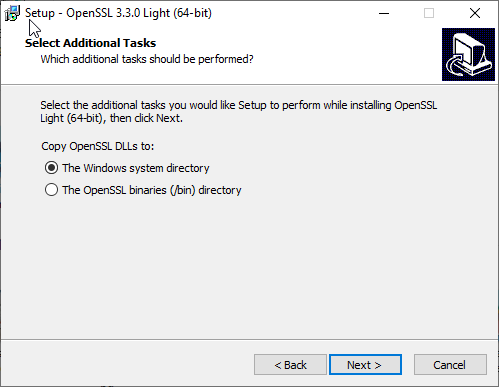
4. When asked, keep the default option to copy the OpenSSL DLLs to the OpenSSL /bin directory (rather than the Windows system folder).
5. Click Next, then Install, and wait for the files to copy.
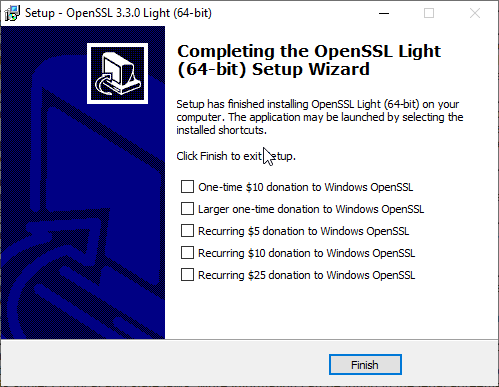
6. When you see the confirmation, click Finish to close the installer.
Step 3: Add OpenSSL to the PATH
Adding OpenSSL to the PATH lets you run the openssl command from any folder in Command Prompt:
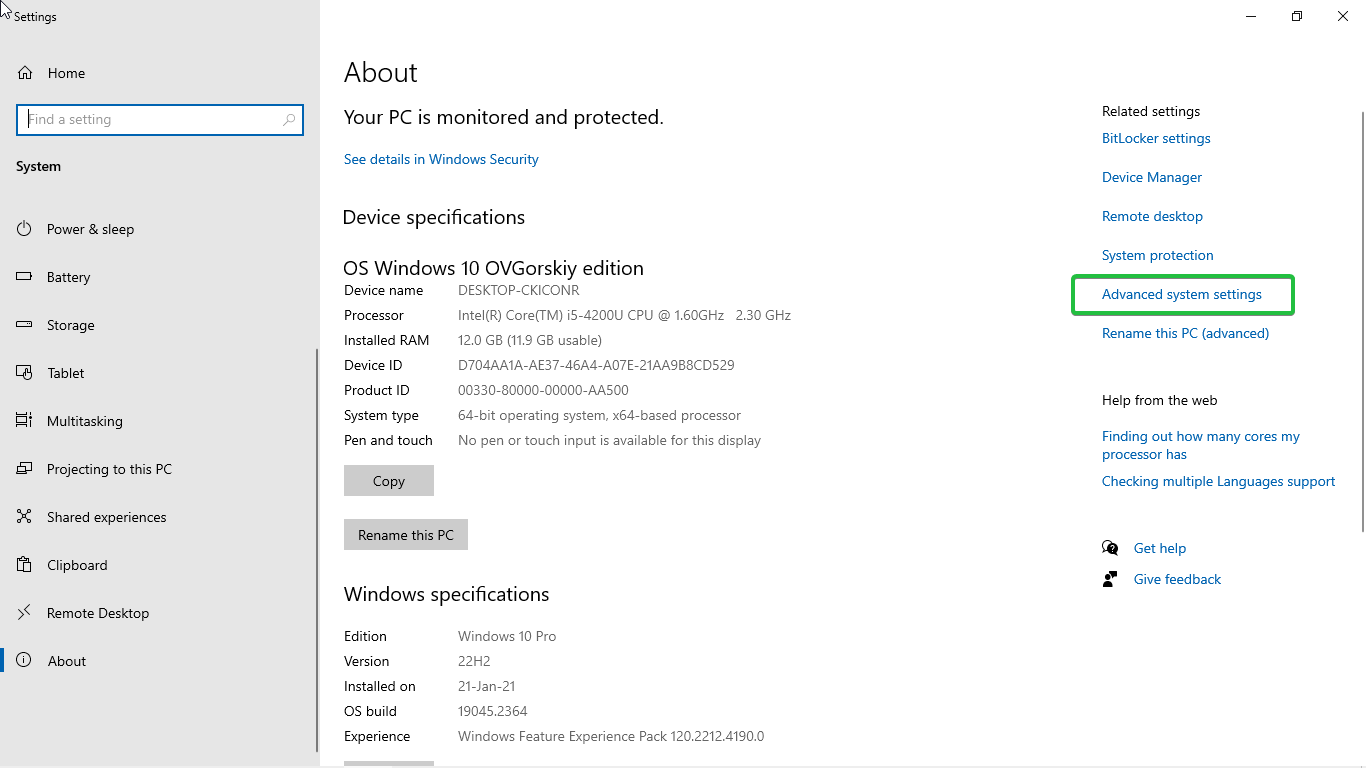
1. Right-click the Start button and choose System.
2. Click Advanced system settings.
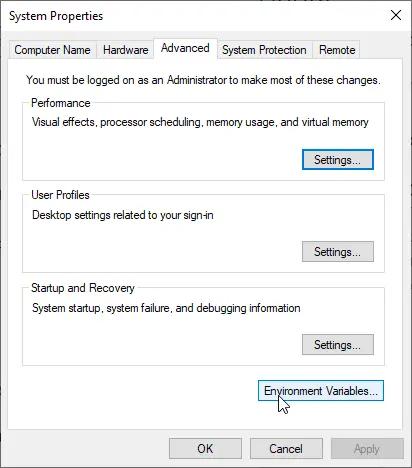
3. In the System Properties window, click Environment Variables…
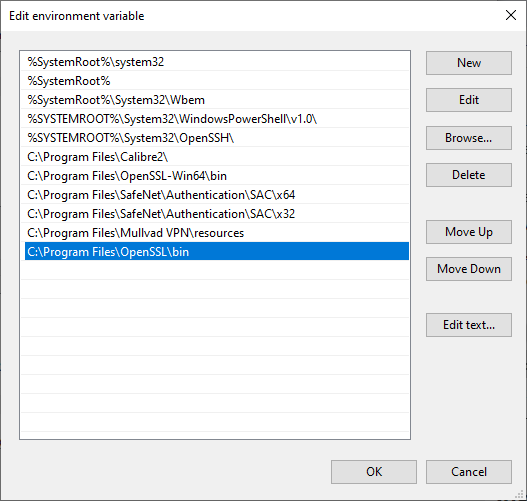
4. Under System variables, select Path and click Edit…
5. Click New and add the path to the OpenSSL bin folder. For the default 64-bit install this is C:\Program Files\OpenSSL-Win64\bin (adjust it if you installed elsewhere).
6. Click OK on each window to save and close.
Step 4: Verify the installation
Open Command Prompt (type cmd in the Windows search bar and press Enter). If it was already open, close and reopen it so it picks up the new PATH.
Run:
openssl versionIf OpenSSL is installed correctly, it prints the version number and date. (Not sure how to read it? See our guide on how to check the OpenSSL version.)

Step 5: Test OpenSSL
To confirm OpenSSL works, run a quick encryption and decryption test:
1. Create a text file named plaintext.txt with some sample text in it.
2. Open Command Prompt and use cd to move to the folder that contains the file, for example:
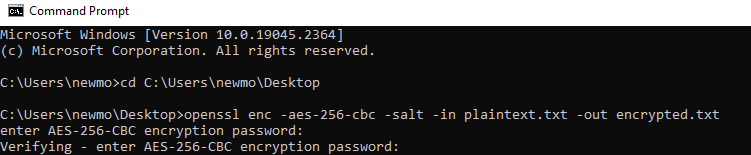
cd C:\Path\To\Directory3. Encrypt the file (OpenSSL will ask you to set a passphrase, remember it):
openssl enc -aes-256-cbc -salt -pbkdf2 -in plaintext.txt -out encrypted.txt4. This creates encrypted.txt. To decrypt it back (enter the same passphrase):
openssl enc -d -aes-256-cbc -pbkdf2 -in encrypted.txt -out decrypted.txtIf you can encrypt and decrypt the file, OpenSSL is installed and working. (For more, see common OpenSSL commands.)
Common issues and how to fix them
- “openssl” is not recognized: the PATH is not set (or Command Prompt was open before you set it). Re-check that the OpenSSL bin folder is in the system PATH, then open a fresh Command Prompt.
- “Access Denied” errors: run Command Prompt as administrator (right-click → Run as administrator).
- Antivirus interference: some antivirus tools flag command-line crypto utilities. Add the OpenSSL install folder to your antivirus exclusions if needed.
- Missing dependencies: if the install or commands fail, confirm the Microsoft Visual C++ Redistributable is installed.
- Outdated version: an old OpenSSL build can carry known vulnerabilities. Reinstall the latest stable version to stay patched.
Frequently Asked Questions
Windows cannot find the OpenSSL executable because its bin folder is not on the PATH. Add C:\Program Files\OpenSSL-Win64\bin (or your install path) to the system PATH as shown in Step 3, then close and reopen Command Prompt.
With the Shining Light installer, the default 64-bit location is C:\Program Files\OpenSSL-Win64, and the executable lives in the \bin subfolder. The 32-bit build installs to C:\Program Files (x86)\OpenSSL-Win32.
The Light installer is enough for everyday tasks like generating keys and CSRs, inspecting certificates, and encrypting files. Choose the full version only if you need the development headers and libraries to compile software against OpenSSL.
Yes. OpenSSL is open-source software released under the Apache License 2.0. The Windows installer from Shining Light Productions is a free third-party build of that project.
Save 10% on SSL Certificates when ordering from SSL Dragon today!
Fast issuance, strong encryption, 99.99% browser trust, dedicated support, and 25-day money-back guarantee. Coupon code: SAVE10