



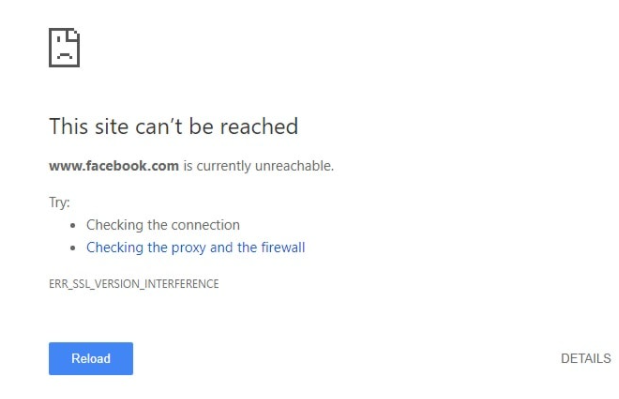
If you landed here after searching for ERR_SSL_VERSION_INTERFERENCE, start with the part most guides leave out: Google Chrome does not produce this error anymore, and has not since 2019. The code was retired from the browser, so a current version of Chrome cannot display that message at all.
That does not mean the problem behind it disappeared. The condition the error was invented to detect is still very much alive, it simply surfaces under different names now. This guide explains what the error meant, why Chrome dropped it, what the browser reports in its place, and how to fix the thing that actually causes it.
Quick answer:
ERR_SSL_VERSION_INTERFERENCE was a temporary Chrome-only error from the browser’s TLS 1.3 rollout. Chrome removed it in version 76 (July 2019), so current versions cannot show it. The underlying cause still exists: antivirus HTTPS scanning, a corporate proxy, or a firewall sitting between your browser and the server and mishandling the TLS 1.3 handshake. Chrome now reports that same condition as ERR_SSL_PROTOCOL_ERROR, ERR_CONNECTION_RESET, or ERR_TLS13_DOWNGRADE_DETECTED. Fix it by updating or reconfiguring the software doing the interception, as described below. Do not fix it by disabling TLS 1.3.
What ERR_SSL_VERSION_INTERFERENCE meant
When Chrome began shipping TLS 1.3 around 2018, it ran into a problem that had nothing to do with websites. A large number of devices and programs sitting in the middle of connections, corporate proxies, firewalls, and antivirus products that inspect HTTPS traffic, had been written to expect the older TLS 1.2 handshake. Shown a handshake they did not recognize, they mangled or dropped it. The connection failed, even though both the browser and the web server were perfectly capable of talking to each other.
Chrome added a diagnostic to tell that situation apart from an ordinary failure. When a TLS 1.3 connection failed, the browser quietly retried the same connection with a lower maximum protocol version. If the retry succeeded where the first attempt had failed, something in the path was clearly reacting badly to TLS 1.3 specifically, and Chrome reported ERR_SSL_VERSION_INTERFERENCE. The name is literal: some component was interfering with the TLS version being negotiated.
Chromium’s own source listed three possible meanings for the code: a transient network error, a buggy middlebox, firewall, or proxy interfering with TLS 1.3, or a buggy server that implemented version negotiation incorrectly. The source noted the third case was unlikely, because TLS 1.3 had been deliberately designed to avoid the common server bug in that area. In practice the middle case dominated, which is why Chrome’s own error page for this code suggested checking the connection, the firewall, and the proxy settings, and never mentioned the browser cache, the system clock, or the certificate.
Chrome removed the error in 2019
The retry-and-compare probe was always meant to be temporary scaffolding for the TLS 1.3 rollout. Once TLS 1.3 had been shipping for over a year and the enterprise policy that let administrators postpone it had expired, the probe had no job left to do. A Chromium commit in April 2019 titled “Unwind the SSL version interference probe” removed the mechanism and the error code along with it. The change landed for Chrome 76, which reached the stable channel on July 30, 2019.
You can still see the result in the current Chromium source. The file that defines every network error, net/base/net_error_list.h, no longer defines error -175. In its place sits a one-line tombstone recording that the code was removed, so the number is never reused:
// Error -175 was removed (SSL_VERSION_INTERFERENCE).That detail matters more than it looks. Chrome builds its list of error names directly from that file, so removing the entry removed the text as well. There is no longer any code path in the browser that can produce the string ERR_SSL_VERSION_INTERFERENCE. If you are running a current Chrome, you will not see this error, and any guide that tells you how to fix it in today’s browser is describing something that cannot happen. You can verify this yourself in the public Chromium source.
Save 10% on SSL Certificates when ordering from SSL Dragon today!
Fast issuance, strong encryption, 99.99% browser trust, dedicated support, and 25-day money-back guarantee. Coupon code: SAVE10

What Chrome reports instead today
Removing the probe did not make broken middleboxes work. The commit that removed it said as much: connections through TLS-1.3-intolerant networks still fail, the failure simply carries whatever error the network or server actually produced. Depending on how the interfering device misbehaves, you will now see one of these:
- ERR_SSL_PROTOCOL_ERROR, the most common outcome, meaning the handshake was malformed or unintelligible. See our guide on how to fix ERR_SSL_PROTOCOL_ERROR.
- ERR_CONNECTION_RESET, when the device drops the connection outright rather than returning a TLS error.
- ERR_TLS13_DOWNGRADE_DETECTED, a narrower and still-current check. A server that supports TLS 1.3 places a specific marker in its handshake reply when it negotiates something lower. Some proxies copy that reply from the real server instead of generating their own, which makes a legitimate connection look like a downgrade attack, and Chrome refuses it.
- ERR_SSL_VERSION_OR_CIPHER_MISMATCH, when the two sides genuinely share no protocol version or cipher suite. This one usually points at the server rather than the network. See how to fix ERR_SSL_VERSION_OR_CIPHER_MISMATCH.
ERR_TLS13_DOWNGRADE_DETECTED is the closest living relative of the old error, and Chrome still offers the same three suggestions for it that it once offered for version interference: check the connection, the firewall, and the proxy.
How to fix TLS interference from antivirus, proxies, and firewalls
If you are hitting one of the errors above on multiple HTTPS sites, and especially if the same sites load fine from a phone on mobile data, the problem is almost certainly something on your network or your machine inspecting TLS traffic. Work through these checks.
1. Confirm the interception is happening
The fastest tell is the certificate issuer. Load an HTTPS site, click the icon to the left of the address bar, and view the certificate. If the issuer is your antivirus vendor or your employer’s internal certificate authority instead of a public CA, then something is decrypting and re-encrypting your traffic, and that something is the prime suspect.
From a terminal, the same check looks like this:
openssl s_client -connect example.com:443 -servername example.com -verify_hostname example.com < /dev/null | grep issuerThe -verify_hostname flag is worth including. Without it, OpenSSL reports a successful verification even when the certificate is issued for a completely different hostname, which can send you chasing the wrong problem. On macOS the bundled openssl is LibreSSL, which rejects the flag with unknown option -verify_hostname. Install OpenSSL through Homebrew and run it by its full path, /opt/homebrew/opt/openssl@3/bin/openssl, because typing openssl on its own still finds the system LibreSSL on most Macs.
2. Check whether the server negotiates TLS 1.3 at all
Before blaming the network, confirm what the server supports. Ask for TLS 1.3 explicitly:
openssl s_client -connect example.com:443 -servername example.com -tls1_3 -verify_hostname example.comRead the line beginning New, in the output, which names the protocol and cipher that were negotiated. On a TLS 1.3 connection that line is the only place the version appears, because the session block that carries a separate Protocol line is printed only for TLS 1.2 and below, or when a session ticket arrives. If it reports TLSv1.3 from a network without the inspecting device, but the same site fails inside your office or with your antivirus running, you have isolated the fault to the middle of the path rather than the endpoints. If you are troubleshooting your own site, a scan with our free SSL Checker will show the protocol versions and chain your server presents to the public internet.
3. Update or reconfigure the intercepting software
This is the actual fix. Nearly every product that broke on TLS 1.3 has since shipped a version that handles it correctly, so updating is usually enough. Google published minimum firmware versions for the enterprise gear most affected at the time, including Palo Alto Networks PAN-OS and Cisco Firepower and ASA, and comparable fixes exist for the consumer antivirus products that scan HTTPS.
- On a personal machine: update your antivirus to the current release. If the error persists, turn off its HTTPS scanning feature specifically, often called SSL scanning, HTTPS scanning, or web shield, rather than switching off the whole product and leaving yourself unprotected.
- On a managed or corporate network: this is not yours to fix from the browser. Send the error name and an example URL to whoever runs the proxy or firewall so they can patch the appliance.
4. Test on a different network
Loading the same page over a mobile hotspot separates the two possibilities in seconds. If the site works there and fails on your usual connection, the fault is in the network path. If it fails everywhere, the server is the problem and you should be troubleshooting its TLS configuration instead.
What does not fix this error
A standard list of browser tweaks circulates for this error, most of it carried over from generic SSL troubleshooting. None of these steps can affect a TLS version negotiation problem, and one of them actively makes your connection less secure. They are worth naming so you do not lose time on them.
- Disabling TLS 1.3. This is the advice you will see most often, and it is the one to avoid. TLS 1.3 is the current, most secure version of the protocol, and turning it off to paper over a broken middlebox leaves you on an older handshake for every site you visit. It is also no longer possible: the Chrome flag that guides point to, chrome://flags/#tls13-variant, was removed from the browser years ago and does nothing today. Fix the device that cannot handle TLS 1.3 instead.
- Renewing the SSL certificate. Version interference happens during protocol negotiation, before the certificate is evaluated. An expired certificate produces a different and clearly labelled error, NET::ERR_CERT_DATE_INVALID. Renewing a valid certificate changes nothing here.
- Correcting the date and time. A wrong system clock breaks certificate validity checks, which again yields a certificate date error rather than a version error. Worth keeping accurate, but not a fix for this.
- Clearing the browser cache. The TLS handshake happens before any HTTP request is made, so cached pages and cookies cannot influence it.
- Disabling QUIC. QUIC is a separate transport with its own error, ERR_QUIC_PROTOCOL_ERROR. The version interference probe only ever applied to TLS over TCP, and Chrome already falls back to TCP by itself when QUIC fails.
- Turning off hardware acceleration. This setting controls whether Chrome uses the GPU to render pages. It has no connection to networking or cryptography of any kind.
Disabling antivirus software is the one item on the usual list with a real basis, but the useful version of it is narrower: turn off HTTPS inspection, or update the product, rather than removing your protection entirely.
Frequently Asked Questions
No. It was error -175 in Chromium’s network error list, and it was removed in April 2019 for Chrome 76. Chrome generates its error names from that list, so the string no longer exists anywhere in the browser. If you are seeing an SSL error in a current Chrome, it carries a different name.
The error was widely written about during Chrome’s TLS 1.3 rollout in 2018 and early 2019, when it was genuinely common. Most of those articles were never revisited after the code was removed, so they still describe it in the present tense and recommend steps for a browser state that no longer exists.
No. TLS 1.3 is the current version of the protocol and disabling it downgrades every connection you make, not just the one that failed. When TLS 1.3 appears to cause a failure, the fault lies with something in the path that cannot handle it correctly, and that component is what needs updating. Chrome also no longer provides a user-facing setting to disable it.
Update Chrome first. A browser old enough to still contain this code is several years out of date and missing a long list of security fixes. If updating is not an option because the machine is centrally managed, report the error to whoever manages it, since the remedy is a proxy or antivirus update on their side.
Version interference was, by design, a diagnosis of the network path rather than either endpoint. The quickest way to confirm it is to load the same site from another network, such as a phone on mobile data. Success there points to your local network, proxy, or antivirus. Failure everywhere points to the server’s TLS configuration.
Yes. Chrome retires error codes once the condition they described stops occurring, and leaves the same kind of tombstone comment behind. NET::ERR_CERT_SYMANTEC_LEGACY is one: error -215, dropped once the distrusted Symantec roots had been out of Chrome’s root store long enough for the special case to serve no purpose. Renaming is a different thing and is easy to mistake for retirement: ERR_SPDY_PROTOCOL_ERROR became ERR_HTTP2_PROTOCOL_ERROR, and that code is still live under its new name. Either way, the old name outlasts the browser change in search results by years.
For more SSL error troubleshooting, check our detailed tutorials about fixing different SSL errors.
Save 10% on SSL Certificates when ordering from SSL Dragon today!
Fast issuance, strong encryption, 99.99% browser trust, dedicated support, and 25-day money-back guarantee. Coupon code: SAVE10

