


Wait! Don't Leave Without Securing Your Site
Get enterprise - grade SSL certificates at a fraction of retail prices.
Save 10% on your first order, by entering coupon code SAVE10 during checkout.

When requesting an SSL Certificate you have to prove that you own or you have management rights over the domain or sub-domain that you are requesting an SSL Certificate for.
Important! As of June 16, 2021, Sectigo no longer accepts WHOIS-based email addresses for Domain Control Validation (DCV).
STEP 1: Domain Validation (DV)
A. EMAIL
If you have an SSL Certificate issued by Sectigo, GoGetSSL, GeoTrust, Thawte, DigiCert, and RapidSSL, then you can complete the domain validation is by responding to an automated domain validation message sent to your email address. You will be given a list of emails to choose from, and the automated domain validation message will be sent to the email address that you choose.
Always check your email address (including your Spam folder) so as you should receive an email message from the Certificate Authority with instructions on how to validate (prove the ownership of) your domain name. The email message will ask you to copy a unique code and paste it on a specific link provided in the same email message.
Important: Only 5 e-mail addresses are allowed for domain validation: admin@, administrator@, hostmaster@, webmaster@, and postmaster@.
In some cases, the Certificate Authority may allow your administrative e-mail from WHOIS, too, but ONLY IF the Private registration is disabled.
B. HTTP / HTTPS method
This method is Not Available for Wildcard SSL Certificates
The HTTP validation consists of uploading a TXT validation file to a pre-defined location on your website. You have to make sure that you can access this file and link from any web browser. Once you proceed with this domain validation method, the CA will run a scan of your website and will look particularly for this file at the given link. Your SSL Certificate will pass the domain validation within a few minutes after the CA’s crawler system finds the TXT file on your website.
The HTTPS validation method is the same validation method as described above. You should choose the HTTPS option if you already have an SSL Certificate installed on your website.
C. DNS method
You can also add a pre-defined domain record to your domain registrar (the website where you registered your domain name). Make sure that your firewall doesn’t block the CA’s validation robot.
Sectigo and GoGetSSL require CNAME DNS type, which looks like:
_b2013ea8353c9760c0221c49dc3e8ca7.yourwebsite.com CNAME
165b83449f4fdf83021de4e6f6ee795a.4ae75dbefe3r7bb8a1878616d8b5ae4.5r4r46855d28f6903.comodoca.com
while DigiCert (Thawte, GeoTrust, RapidSSL) require TXT DNS type, which looks like:
yourwebsite.com TXT “w34f54t4t45t354eer98rn4jf4449nfrf”
or
dnsauth.yourwebsite.com TXT “w34f54t4t45t354eer98rn4jf4449nfrf”
Please note that newly added DNS records take between 10-48 minutes to propagate. This means that you will have to wait up to 48 hours to pass the domain validation if you go with this method. That is why we recommend the Email, HTTP, and HTTPS methods better because they would allow you to pass the domain validation instantly.
STEP 2: CAA Check
As of 8th September 2017, all Certificate Authorities (CAs) are obliged to respect your CAA policy, as a security measure.
The CAA record should allow the CA to issue the SSL for your domain name, otherwise, the order would be set as Pending until you update the record.
By default, if no CAA record found, any CA may issue SSL for your domain name. Otherwise, you should update your CAA record.
Here is how to do it:
– https://support.sectigo.com/Com_KnowledgeDetailPage?Id=kA01N000000zFMO
– https://docs.digicert.com/manage-certificates/dns-caa-resource-record-check/
Here is how to test the record:
– https://toolbox.googleapps.com/apps/dig/#CAA/
– https://caatest.co.uk/scan.org.ua
Optional (Rare) – Brand Validation (Manual Check)
In some cases, the CAs may require manual verification if your order fails any internal rules of Brand Validation.
It takes around 24-48 hours to pass this manual check, and the CA will either issue or reject an order in such cases.
Here are the reasons why your order is under Brand Validation.
How to change the domain validation method?
If you chose one of these domain validation methods described above, and you see that your domain doesn’t get validated, then you can always change your domain validation method. Please go to this link to learn how to do that.
Copy Link
You have to pass the Extended Validation when you buy a new or reissue/renew an EV SSL Certificate.
At the same time, the process of completing the Extended Validation is easier the following years, so as the Certificate Authority has more information about your company in their system, based on your previous EV SSL Certificates requests.
Please check the Renew/Reissue EV instructions.
Copy Link
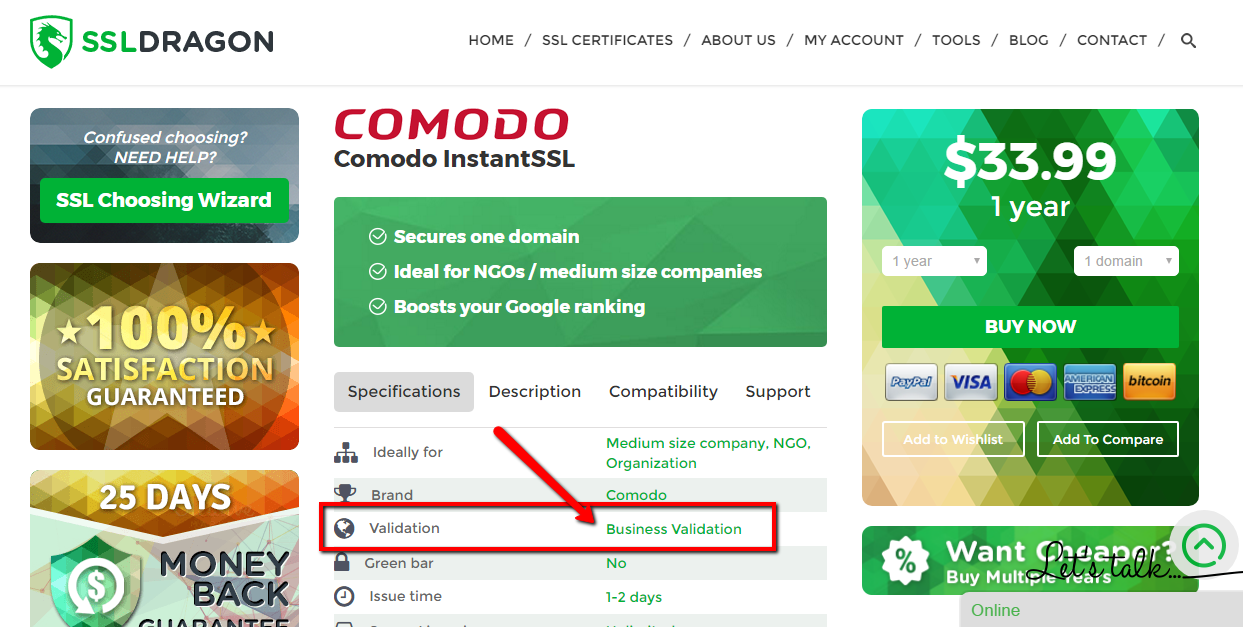
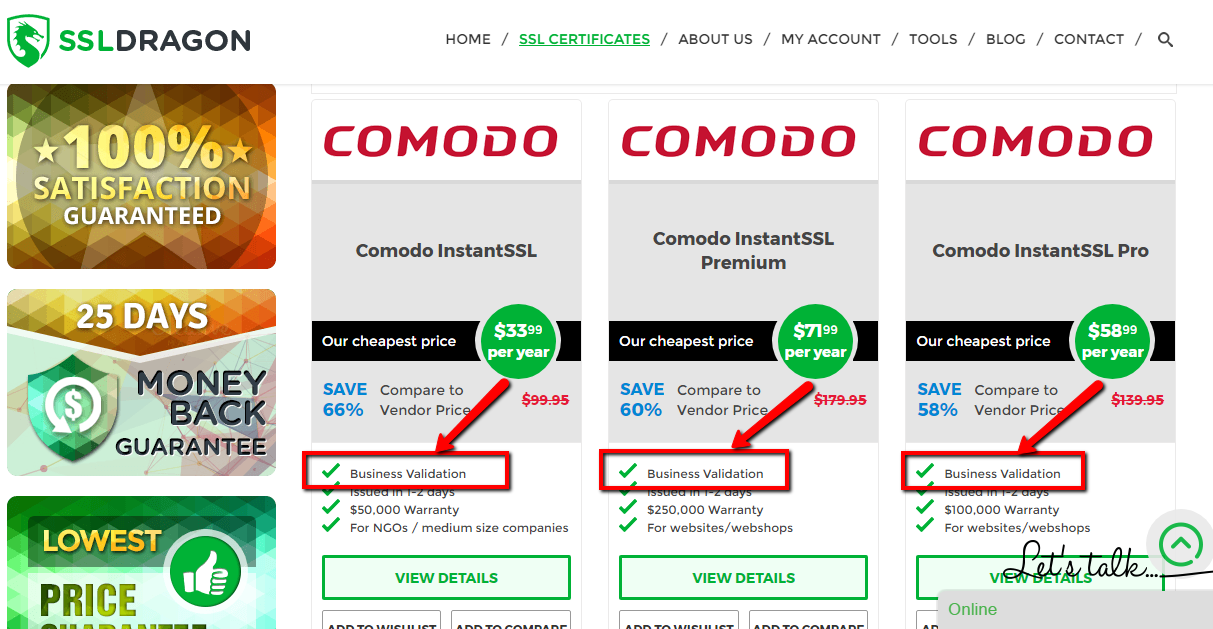 You can check if you have an Organization Validation SSL Certificate by looking at the attributes of your SSL Certificate. Business Validation equals to Organization Validation. This being said, wherever you see “Business Validation” it also means “Organization Validation”. Please open the two screenshots on the right in order to see where you can find the information about the validation type of your SSL Certificate.
Different SSL Certificate brands have different Organization Validation procedures. Please read the section that applies to your SSL Certificate brand below.
DigiCert (including Thawte & GeoTrust)
If you bought an Organization Validation SSL Certificate with Thawte, GeoTrust, DigiCert, then the certificate authority will work on validating the legal existence of your organization via local public databases, as a part of the Organization Validation process. This may take between 1-3 working days. Please wait until one of the certificate authority representatives contacts you about any additional information that they may need you to provide them.
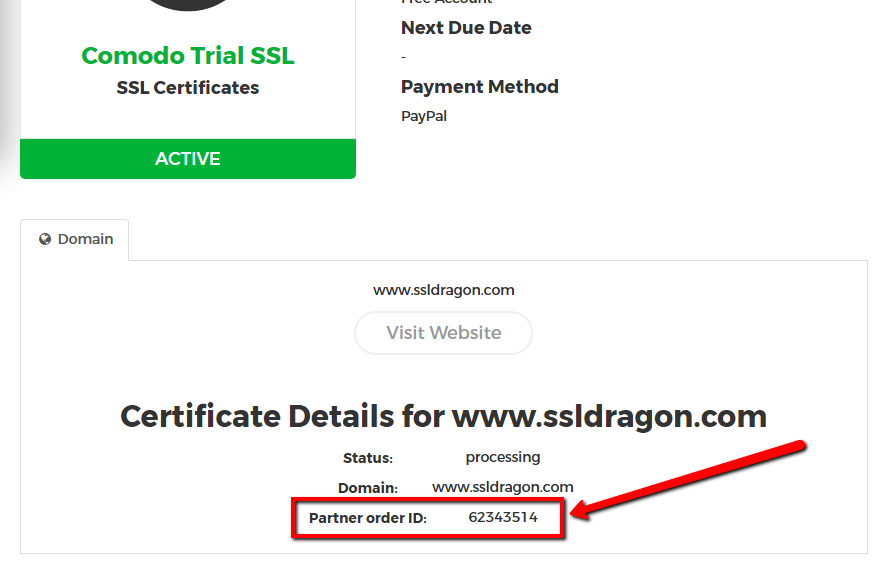 If you do not hear from the Certificate Authority representatives in the next 5-7 days, then please call +1 (877) 438-8776 to check the status of your SSL Certificate with the Certificate Authority. Please note that Thawte, GeoTrust, DigiCert are all owned by DigiCert, and they all have the same phone number provided above. When you talk to them, you will need to provide the “Partner Order ID”, which you can find on the details page of your SSL Certificate inside your SSL Dragon account. See the screenshot on the right.
Sectigo/GoGetSSL
Please send the necessary forms described below to Sectigo by opening a ticket with Sectigo Validation Center at https://sectigo.com/support. Click on “Submit a ticket”, select Validation Department, and submit your request. Please mention your “Partner Order ID” in your message.
You can find your “Partner Order ID” on the details page of your SSL Certificate inside your SSL Dragon account. See the screenshot on the right.
I. New Orders
STEP 1: Organization Validation
To pass Organization validation, you may have to provide an official registration document, such as Business License, Article of Incorporation, and or Registration application.
Here are the BV options:
A. No paperwork. Your company’s legal existence will be checked via public government database using your company name and your unique Registration/Identification number OR via verified public 3rd party databases, such as GLEIF, Duns & Bradstreet, Hoovers, Companies House GOV.UK.
B. Paperwork. Your company will be verified using:
STEP 2: Callback process
The last step is a callback process called Phone Validation. Sectigo will call you and asks to confirm your name and order to validate the official company’s phone number.
Below are the 4 callback options. You don’t have to do all four things from below. Doing just one of them will be enough.
A. Yellow Pages Databases. Sectigo verifies your phone number via public Yellow pages Databases.
B. DUNS. The second way is to provide your DUNS number to Sectigo. You can get your company’s DUNS number from this website: https://www.dandb.com/. If Sectigo gets back to you and says that your DUNS listing does not contain a phone number, then you need to contact Dun & Bradstreet (at https://www.dandb.com/) and ask them to “add your company’s phone number to their business directory and on the report”.
C. Local phone database. If you don’t have a DUNS number, then the other thing you can do is to provide your company’s registration number for Sectigo to check your company with your country’s governmental directories (e.g.: Corporation Division, Companies House, Department of State, etc). Please note that Sectigo will be looking to see your company’s phone number listed there as well. Not all governmental directories have the companies’ phone numbers. If the governmental directory allows you to call them, email them, or use their website to add your phone number, then please go ahead and do that.
D. Legal Opinion. If the above two options (2.1 and 2.2) don’t work for you, then the third and last option to validate your phone number is to ask a CPA (Certified Public Accountant), or a Latin Notary, or an Attorney (Lawyer) to write, sign and send a letter to Sectigo where they confirm your company name, address, and phone number. You can find the sample letters below:
– Sample Accountant Letter
– Sample Legal Opinion Letter
II. Renewal/Reissue Orders
For reissues and renewal order, instead of Step 1 and 2, you must contact Sectigo Validation Center at https://sectigo.com/support. Click on “Submit a ticket”, or choose Live Chat, select Validation Department and submit the following request (please replace [] fields with the corresponding info):
Reason for the ticket: Validation
Order number: [Your Partner Order ID]
Subject: Organization Validation
Dear Sectigo!
Please validate order [Partner Order ID] using the company name [Your Company Name], with [Registration/ID number] and [DUNS number].
Sectigo will then contact you for Step 2 or any necessary updates to the Step 1.
Copy Link
Certain SSL Certificates allow you to secure an IP address, only if it is a public IP address. The validation process for IP addresses is similar to validating a domain name, but it has its particularities. That is why we encourage you to follow the guidelines below.
GoGetSSL
STEP 1. First of all, you have to configure your SSL Certificate by filling in the configuration form inside your SSL Dragon account.
Important! When configuring your certificate, you will be asked to generate a CSR with NO Common Name. Here is how to do it.
STEP 2. Mention your IP address / IP addresses in the SANs field.
If you have just 1 IP address, just insert it in the SANs field, with no extra spaces or characters, e.g.:
123.34.34.234
If you have 2 or more IP addresses (if you purchased additional SANs), insert your IP address list in the SANs field, with each IP address space-separated, e.g.:
123.34.34.234
124.34.24.234
Important! This step is mandatory. Since the CSR has no IP address included in its fields, it’s important to mention your IP address / IP addresses in the SANs field. Otherwise, if you leave the SANs field blank, the SSL Certificate won’t be further configured and you’ll see an error message.
NOTE: if you need to secure an IP address and a domain name, GoGetSSL PublicIP SAN allows you to do that, but it needs manual configuration. Please open a ticket with us, send us the CSR (with No Common Name), the IP address, and the domain name. We’ll configure the SSL manually and provide you the instructions for further validation.
STEP 3. Once your certificate is configured, you have to prove the ownership or right to use that IP address. To do that, you have to pass the HTTP/HTTPS validation for your SSL Certificate. Email or DNS validation are not available for IP validation. To pass the HTTP/HTTPS validation, you have to create a .TXT file that contains the validation code provided on the “Content” field on the details page of your SSL Certificate page. The “Content” that you have to add to the .TXT file looks similar to this:
38622319C755B5952FA4CD590655F05000C4951C2EF07BFFCB2BBA23623BE9D6
COMODOCA.COM
t0520161001553133275
Then you have to upload the TXT file at a location on your server that looks like this:
http://127.0.0.1/.well-known/pki-validation/B34037F1D9BFE9F5936AFEA9798174AB.txt
127.0.0.1 should be replaced by the IP address that you are trying to validate. You can read the information on how to create the .well-known folder at this link: https://www.ssldragon.com/faq/create-well-known-folder/
Make sure that you can access this file and link from any web browser. Inform us when you uploaded the attached TXT file on your server so that we could run a scan of your website and look particularly for this file at this given link.
If you follow these steps exactly, you will get your IP address validated successfully.
NOTE: If you have a router to secure instead of a server, there is no way to upload the TXT file on your router. The solution to getting the IP addresses validated is to reroute the IP address to a server, put the TXT file on that server, pass the IP validation, and then reroute the IP address back to the router.
Sectigo
STEP 1. First of all, you have to configure your SSL Certificate by filling in the configuration form inside your SSL Dragon account. When configuring your certificate, you will be asked to generate a CSR or enter an existing CSR.
Please make sure you include your IP address as a “common name” (domain/IP that you want to secure) in your CSR.
STEP 2. Once your certificate is configured, you have to prove the ownership or right to use that IP address. To do that, you have to pass the HTTP/HTTPS validation for your SSL Certificate. Email or DNS validation are not available for IP validation. To pass the HTTP/HTTPS validation, you have to create a .TXT file that contains the validation code provided on the “Content” field on the details page of your SSL Certificate page. The “Content” that you have to add to the .TXT file looks similar to this:
38622319C755B5952FA4CD590655F05000C4951C2EF07BFFCB2BBA23623BE9D6
COMODOCA.COM
t0520161001553133275
Then you have to upload the TXT file at a location on your server that looks like this:
http://127.0.0.1/.well-known/pki-validation/B34037F1D9BFE9F5936AFEA9798174AB.txt
127.0.0.1 should be replaced by the IP address that you are trying to validate. You can read the information on how to create the .well-known folder at this link: https://www.ssldragon.com/faq/create-well-known-folder/
Make sure that you can access this file and link from any web browser. Inform us when you uploaded the attached TXT file on your server so that we could run a scan of your website and look particularly for this file at this given link.
If you follow these steps exactly, you will get your IP address validated successfully.
NOTE: If you have a router to secure instead of a server, there is no way to upload the TXT file on your router. The solution to getting the IP addresses validated is to reroute the IP address to a server, put the TXT file on that server, pass the IP validation, and then reroute the IP address back to the router.
STEP 3. The last step towards getting the SSL Certificate for your IP address is to pass the Business Validation. You can find detailed instructions on how to do that at this link: https://www.ssldragon.com/faq/how-to-pass-the-business-validation-for-my-ssl-certificate/
Copy Link
Passing Organization Validation (OV) for a code signing cert issued by Sectigo requires the following:
To complete each step, follow our guide on how to validate a Sectigo OV Code Signing certificate.
Copy Link
How to reissue an SSL Certificate? (Except CPAC and Code Signing)
We allow you to reissue your SSL Certificate for various reasons, including Multi-Year SSL Subscriptions.
But also, you need to reissue your SSL if you:
Domain Validation SSL Certificates
You can reissue your SSL Certificate from your SSL Dragon account by following the next steps:
For Domain Validation SSL Certificates, your SSL Certificate will be reissued after you pass the domain validation successfully.
Business Validation SSL Certificates
To reissue a Business Validation SSL Certificate, you have to go through the same reconfiguration and domain validation process as described under the “Domain Validation” section above. After that, you have to pass the entire Business Validation process again, so the Certificate Authority needs to recheck the legal existence of your domain name, company, and your company’s phone number. You can read how to pass the Business Validation process at this link.
Your BV SSL Certificate will be reissued after you pass the Business Validation process again.
Extended Validation SSL Certificates
To reissue an Extended Validation SSL Certificate, you have to go through the same reconfiguration and domain validation process as described under the “Domain Validation” section above. After that, you have to pass the entire Extended Validation process again, so the Certificate Authority needs to recheck the legal existence of your domain name, company, and your company’s phone number. You can read how to pass the Extended Validation process at this link.
Your EV SSL Certificate will be reissued after you pass the Extended Validation process again.
Copy Link
The process of renewing your SSL Certificate is almost the same as placing a new order. You may start the renewal within 30 days before the expiration date.
SSL certificate lifetimes are also getting shorter. The maximum validity is now 200 days (since March 15, 2026), will drop to 100 days from March 15, 2027, and to 47 days starting March 15, 2029.
Because of this, renewals will happen more often. Using ACME Certificate-as-a-Service can automate the process, helping you avoid missed renewals and keeping your certificate active without manual work.
Here are the steps on how to renew your Standard (Domain/IP address) SSL Certificate:
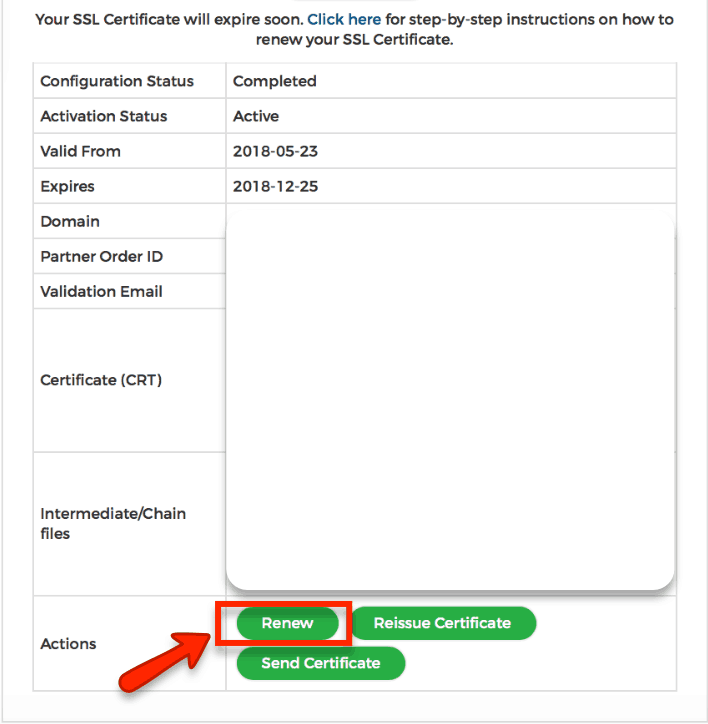
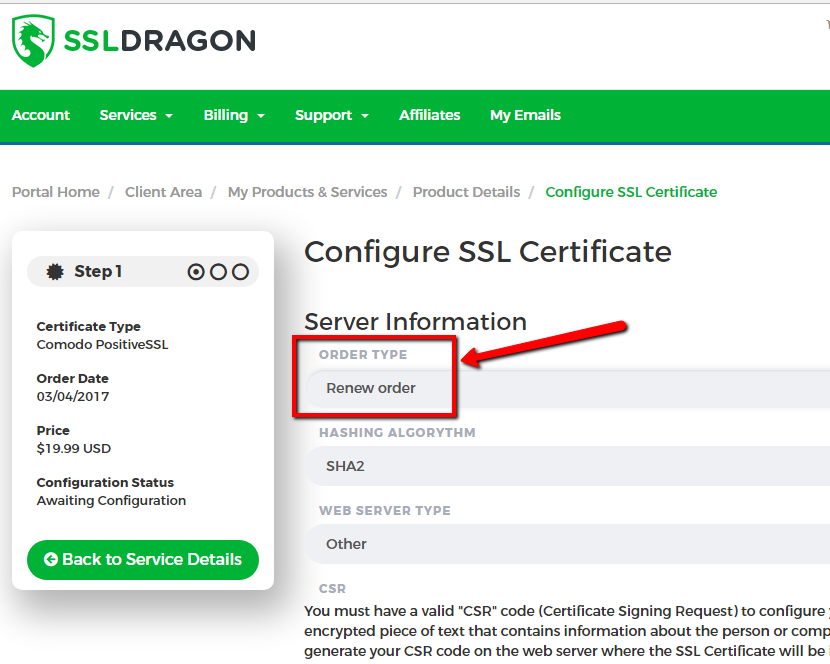
Please note:
Copy Link
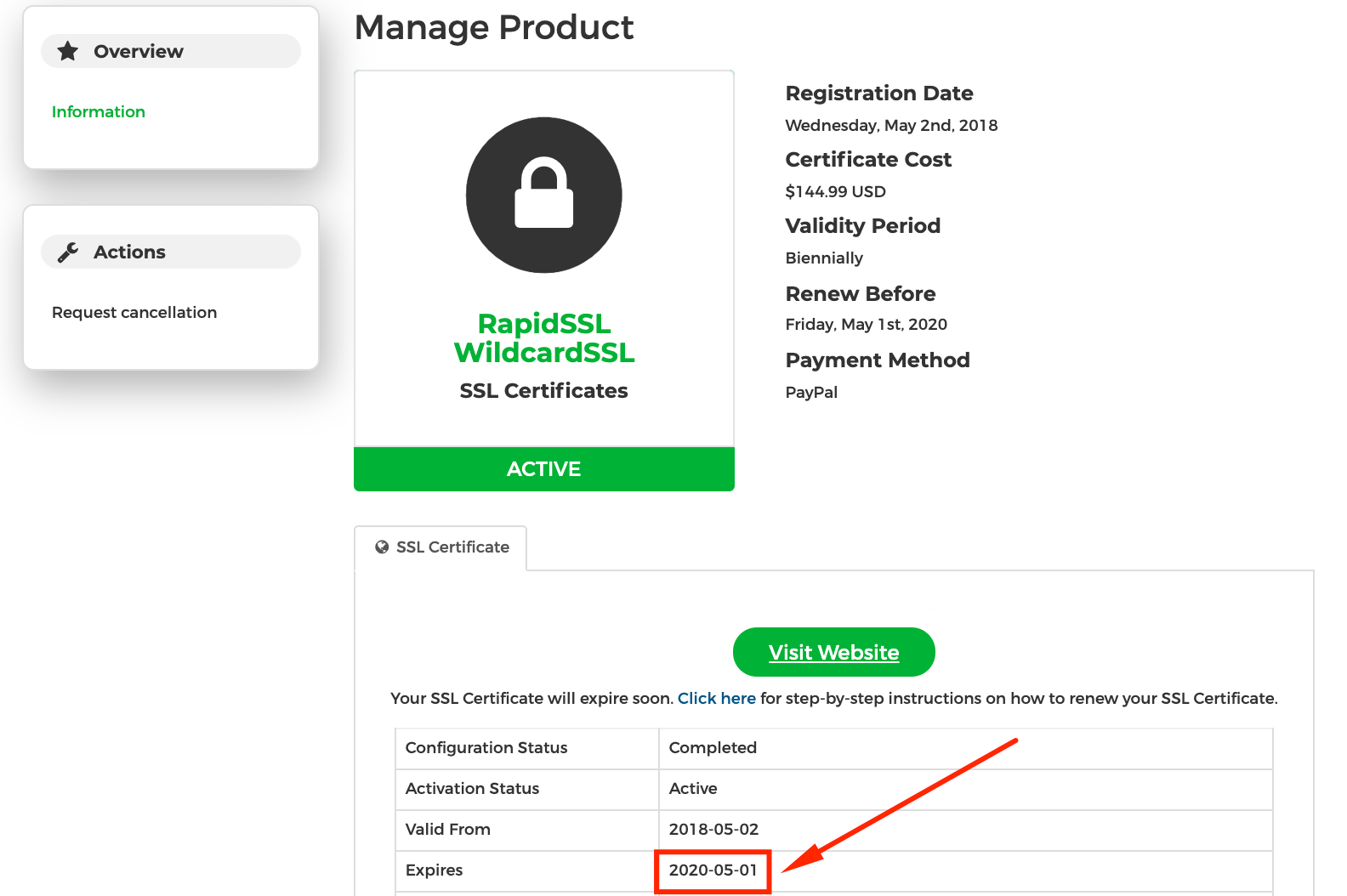 You may start the renewal process for your SSL Certificate within 30 days before its expiration date.
Your new SSL Certificate will be connected with the old one, which means that all the remaining days from the previous SSL Certificate will be added to the new one.
If you have a Domain Validation SSL Certificate, you can renew your SSL Certificate 1-2 weeks prior to your SSL Certificate’s expiration date.
Your SSL Certificate expires on its “Expires” date. Also, you should plan to have the SSL Certificate renewed enough time ahead so that you manage to install it on your website and server before your current SSL Certificate expires.
If you have a Business Validation SSL Certificate or an Extended Validation SSL Certificate, then we recommend renewing your SSL Certificate 3-4 weeks prior to the expiration date, so as you have to pass the Business Validation or Extended Validation again.
The Business Validation or Extended Validation process is quicker when renewing an SSL Certificate than when getting it for the first time.
Keep in mind that certificate lifetimes are getting shorter. The maximum is now 200 days (since March 15, 2026), will drop to 100 days from March 15, 2027, and to 47 days starting March 15, 2029. This means you’ll be renewing certificates much more often than before.
To avoid missing deadlines, you can use ACME Certificate-as-a-Service option. It automates issuance and renewal, so your certificates stay valid and your site remains secure without manual tracking or last-minute fixes.
Copy Link
Certificate revocation is the process of invalidating a code signing certificate before its scheduled expiration date. It’s software industry-standard best practice to revoke any code signing certificate associated with a security breach, as that certificate could potentially contain compromised code.
Sectigo’s Certificate Practices Statement and license agreement require the company to revoke any certificate that to its knowledge may be used for illegal or dishonest activities.
Since the same certificate could be used for both right and wrong purposes, Sectigo relies on credible third parties to provide correct information about Sectigo certificates used for malware.
Sectigo may revoke the code signing certificate in the following instances:
As a Certificate Authority, Sectigo cannot rely on self-reporting of false positives by code signing certificate owners because they may not know that their certificates or digital goods are compromised.
Source: Sectigo’s Knowledge Base
Copy Link
Currently, SSL certificates of any type CAN NOT be issued to individuals or business entities in the following countries, websites, or the following country-code-top-level domains (TLDs). The following jurisdictions are restricted by US Export restriction laws:
Source: Sectigo’s Knowledge Base
Copy Link