


Wait! Don't Leave Without Securing Your Site
Get enterprise - grade SSL certificates at a fraction of retail prices.
Save 10% on your first order, by entering coupon code SAVE10 during checkout.

After installing an SSL Certificate on your website, you can also let your visitors and customers know that your website is secure by adding a site seal somewhere on a prominent place on your website. You can choose to place the site seal in the footer of your website, or on the checkout page where customers have to enter their credit card information, or in both these places.
Site seals are of two types: static and dynamic. All Domain Validation SSL Certificates come with a static site seal, which is basically an image. All Business Validation and Extended Validation SSL Certificates come with a dynamic site seal that can be hovered or clicked on, and they will show the name of your company, will confirm that your website was issued a legitimate SSL Certificate, and will prove that your website belongs to your company.
Site Seals for RapidSSL SSL Certificates
If you purchased an SSL issued by RapidSSL, you can get your site seal at the following link:
https://knowledge.rapidssl.com/support/ssl-certificate-support/index?page=content&id=SO14424
Site Seals for GeoTrust SSL Certificates
If you purchased an SSL issued by GeoTrust, you can get your site seal at the following link:
https://www.geotrust.com/support/seal/agreement/installation-instructions/
Site Seals for Thawte SSL Certificates
If you purchased an SSL issued by Thawte, you can get your site seal at the following link:
https://www.thawte.com/ssl/secured-seal/installation-agreement/
Site Seals for DigiCert SSL Certificates
If you purchased an SSL issued by DigiCert, you can get your site seal at the following link:
https://www.digicert.com/site-seal-conversion-rate-benefits.htm
Sectigo Site Seals
If you purchased a Sectigo SSL you can download the dynamic site seal at the following link: https://sectigo.com/trust-seal
GoGetSSL Site Seals
If you purchased a GoGetSSL SSL you can download the dynamic site seal at the following link https://www.gogetssl.com/wiki/installation/gogetssl-site-seal-installation/
Copy Link
 You can secure inexpensively and efficiently multiple domains and/or sub-domains with a Multi-Domain (SAN) SSL Certificate. Depending on the SSL Certificate brand and certificate product, the SAN cert will include a different number of additional domains at the price quoted on the SSL Certificate’s details page (see screenshot on the right).
You can find our full list of Multi-Domain (SAN) SSL Certificates at this link.
Copy Link
There are many different ways to install an SSL Certificate, and they all depend on your SSL Certificate brand, the webserver type, the operating system on your server, and the web hosting panel that you have on your server.
This being said, please check our Installation Articles to get detailed instructions on how to install your SSL Certificate on about 44 different server types, hosting panels, and operating systems.
Also, here are links to documentation on how to install your SSL Certificate on your server, based on the SSL Certificate brand that you have:
– Sectigo
– Thawte/RapidSSL/GeoTrust/DigiCert
– GoGetSSL
We always recommend you get specialized help with your SSL Certificate installation. If you have a web developer or a system engineer, then they would be the right people to help you with your SSL Certificate installation.
Copy Link
Unfortunately, domain names that end with .local are not supported from November 1st, 2015. If you request an SSL Certificate for a domain or sub-domain that has .local as an extension, your SSL Certificate will be rejected by the Certificate Authority.
If you want to secure a domain or sub-domain on your localhost, you can create a self-signed SSL Certificate. There is plenty of documentation online on how to do that.
Copy Link
Yes, you can secure an IP address with an SSL Certificate. However, only some specific SSL Certificates will allow you to do that. Here are those SSL Certificates:
– Sectigo InstantSSL Premium
– GoGetSSL Public IP SAN
Please note that the Sectigo InstantSSL Premium is a Business Validation SSL Certificate, which means that you need to have a registered company in order to be issued this SSL certificate.
GeGetSSL Public IP SAN is a Domain Validation SSL Certificate which secures 2 IP addresses by default.
Copy Link
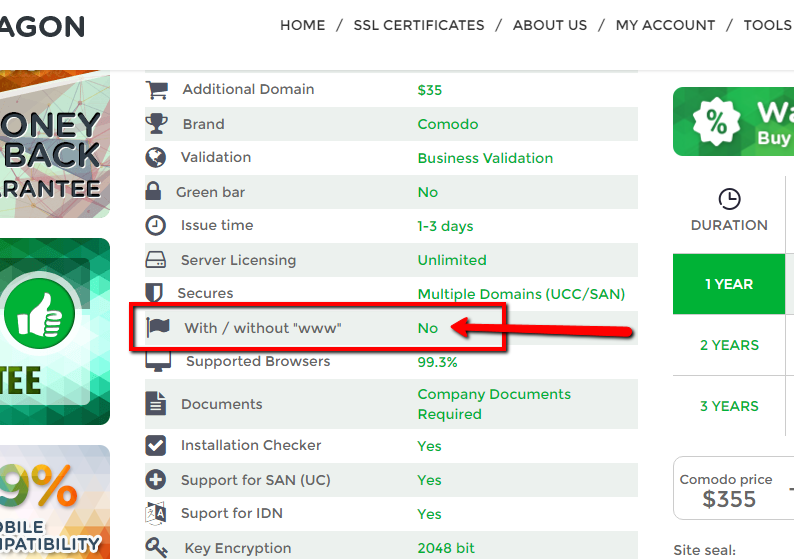 When you buy or configure your Multi-Domain (SAN) SSL Certificate, please note that most Multi-Domain Certificates do not secure the domains with and without “www”. With other words if you want to secure both, example.com and www.example.com under one single Multi-Domain Certificate, that will be considered as two different domain names. The screenshot on the right shows you where you can find the attribute that tells you if your Multi-Domain Certificate secures both “www” and “non-www” under one single domain (SAN), or not.
Anyway, that is not a problem so as you cannot have the same website open both as www.example.com and as example.com. All website owners only choose one of these options and make the other option automatically re-direct to the other. For example, you can choose your website to always open at www.example.com and anybody who enters on example.com is automatically redirected to www.example.com. In this way, you only have to secure one domain, and that is: www.example.com.
Copy Link
Valid only for Sectigo and GoGetSSL Certificates:
Please go through the next steps in order to change the domain validation type for your SSL Certificate:
Copy Link
Copy Link
Some servers and hosting companies may require you to submit your SSL Certificate in a different format than the original format in which your SSL Certificate was provided to you. Here are some links with instructions on how to convert an SSL Certificate to different file formats:
Convert .CRT to.CER file
It is easy to switch from .CRT format to .CER format. They are basically interchangeable. You can change the SSL Certificate extension/format by going with the steps written below:
Copy Link
Sectigo Personal Authentication Certificate lets you easily sign any valuable and critical personal or company document, therefore ensuring compliance with industry requirements of digitally signed documents. By digitally signing the document, you identify yourself as the authentic document signer and certify its integrity by proving that your document hasn’t been altered since it was signed. In this way, CPAC SSL Certificates help you migrate from ink & paper to digital workflows of contracts, sign-offs, request forms and other important company documents, working in tandem with or replacing the visible signature feature in Microsoft® products such as Microsoft Office Suite, Open Office Suite, VBA Macros and more.
Copy Link